

This guide will show you how to fix Failed to Install a Dependency in Kodi.
If you have used Kodi for any length of time, more than likely you have encountered this error.
The dependency error may arise when you are trying to install a Kodi add-on or build. This message indicates that there are necessary dependent files that must be installed for the add-on or build to work properly.
When you install these various items within Kodi, most of the time the application will also download and install the dependent files as well.
If it doesn’t, more than likely there is something wrong with your Kodi installation.
Below are multiple fixes that may help you overcome this dreaded error.
If you want to save a lot of time and stress, Method #4 is your best bet.
How To Fix Failed to Install a Dependency In Kodi
Method #1 – Clear Kodi Cache
Many Kodi dependency errors can easily be fixed by clearing the Kodi cache. This is very easy to do on most streaming boxes as indicated below.
Hide Your Digital Fingerprint
Amazon Fire TV/Fire TV Stick
Go into Fire TV Settings / Applications / Manage Installed Applications / Kodi / and click Clear Cache.
Android Box
Go into Android Box Settings / Apps / Kodi / and click Clear Cache.
NVidia Shield
Go into NVidia Shield Settings / Apps / Kodi and click Clear Cache.
Windows/Mac/Linux
TROYPOINT suggests installing a Kodi Wizard to clear the cache when using this application on a computer. Most Wizards include a maintenance section where you can easily delete the cache within Kodi. Below is a link to a popular Kodi Wizard that has a great set of maintenance tools.
How To Install Fire TV Guru Wizard
After you clear the Kodi cache, try installing the add-on or build again that was serving the dependency error.
Exclusive Surfshark Discount
Warning: Your online activity is currently monitored by your ISP, app/addon/IPTV developers, government agencies, and the websites you visit.
- Become 100% anonymous while streaming and downloading.
- Use on Unlimited Devices & share 1 account with the entire family.
- Save 87% with the 24-Month Plan + Get 3 FREE Months.
Method #2 – Install TVAddons Repository
The TVAddons Repository may help you install the dependent files that are missing from your Kodi setup. Follow the directions below to install this repo and then try installing the add-on or build again that was giving the dependency error.
- Launch Kodi
- Click the settings icon


- Click System

- Hover over Add-ons menu item and turn on Unknown sources if not already on

- Click Yes

- Click back on remote to go back to the System page
- Select File Manager

- Click Add source

- Click <None>

- Type the following url exactly how it is listed here – http://fusion.tvaddons.co and click OK
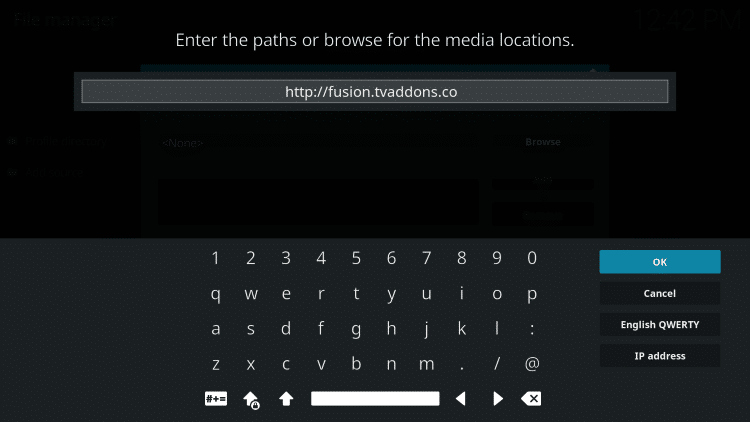
- Highlight the box under the source that you just typed in and enter a name for this media source, type fusion or any other name you would like to identify this source as and click OK again

- Click your back button on remote or keyboard to return to System Page
- Click Add-ons menu item

- Select the small “open box” icon at the top left side of the page under the “Add-ons heading”


Big Tech is Scanning Your Emails
Stop letting free providers read your private messages to build advertising profiles on you. Take back your digital privacy with a secure, ad-free inbox.
- Click Install from zip file

- Choose fusion or another name you assigned the media source in the previous step

- Choose kodi-repos

- Click english

- Click repository.xbmchub.zip

- Wait for TVADDONS.CO Add-on Repo installed message to appear

Method #3 – Restore Addons27.db File
If your Addons27.db file becomes corrupted, this may cause a Kodi dependency error. To restore this file, do the following.
Important: After you do this, you will need to go into Add-ons / My add-ons / and re-enable your addons that you already had installed.
- Click settings icon in Kodi
- Click File manager
- Click Profile directory
- Click Database
- Highlight Addons27.db file and delete it – if using a remote you will get to options by long pressing OK button while highlighting the file or by clicking the options button if you have one.
- Go back to home screen of Kodi and exit the application
- Relaunch Kodi and now try installing the add-on or build again that was serving dependency error
Method #4 – Clear Kodi Data or Uninstall/Reinstall Application
For most people, this is the quickest and easiest method for fixing the error. As a matter of fact, a clean installation will usually fix most Kodi issues and save you a lot of time and stress to boot.
Keep in mind that after you do this, you must re-install all of your favorite add-ons, settings, etc., but we can help you do this quickly with the TROYPOINT Kodi Supercharge Guide below.
Clearing Kodi data or uninstalling/reinstalling is simple on most devices. Below are some notes that will help with many of the best Kodi boxes.
Amazon Fire TV/Fire TV Stick
Go into Fire TV Settings / Applications / Manage Installed Applications / Kodi / and click Clear Data. Give it some time and you will notice that the application size shrinks drastically which means the process has been completed.
Android Box
Go into Android Box Settings / Apps / Kodi / and click Clear Data. Again, give it some time to delete everything before you try launching the application.
NVidia Shield
Go into NVidia Shield Settings / Apps / Kodi / and click Clear Data. Allow enough time for the system to delete data prior to launching the application.
Windows/Mac/Linux
Each of these operating systems provides a handy tool for uninstalling programs/applications. Simply dig around in the utility section of your operating system or perform a search for “uninstalling applications” and you should be able to find the tool.
This page includes affiliate links where TROYPOINT may receive a commission at no extra cost to you. Many times, visitors will receive a discount due to the special arrangements made for our fans. Learn more on my Affiliate Disclaimer page.


Hi! I tried all the methods mentioned but nothing worked! :( I factory reset my shield too but still none of the kodi build worked.
method #1 to 5- Didnt work
Method #2 – Install TVAddons Repository : no file found
Please help!!
Deleted the db and restarted and worked fine. Thanks
Hello. I’m trying to install a build in kodi, but keep being met with the error code, “dependency on xbmc.python 2.10 could not be satisfied…” I’ve tried the options above and am still receiving the message. Could it be the firestick? HEEEEEEELLLLLLLLLPPPPPP!
Hi Dj,
It is likely the version of Kodi you are using is not compatible with the build of your choice.