

The following tutorial will show you how to Auto-Play in Kodi.
With auto-play setup on your Kodi device, you will no longer have to find links to continue watching your favorite shows.
As most streamers know, one of the best features Netflix provides is the option to play episodes continuously.
By using the steps below, you will now be able to do the same thing within Kodi.
To set up auto-play in Kodi, we will simply have to edit a few settings within the add-on. Most Kodi add-ons will have the ability to change these settings from the main menu.
In the following example, I will be using a popular add-on of my choice. However, you should be able to access these settings in almost all Kodi addons.
How To Auto-Play in Kodi
1. Launch Kodi and open your preferred add-on. Select Tools

Hide Your Digital Fingerprint
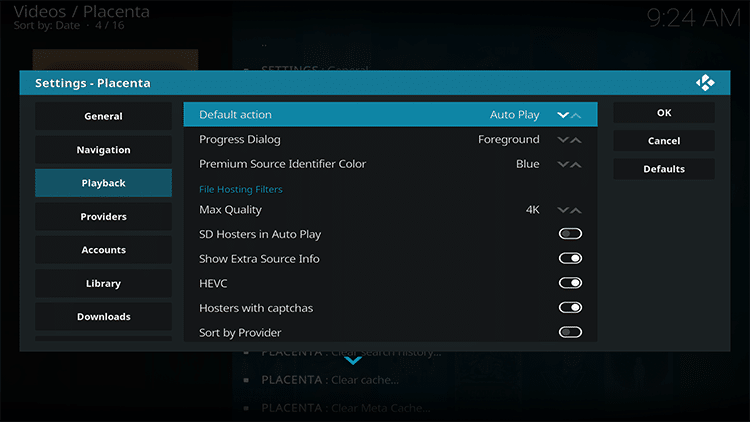
2. Click SETTINGS: Playback

3. Change Default action from Directory to Auto Play
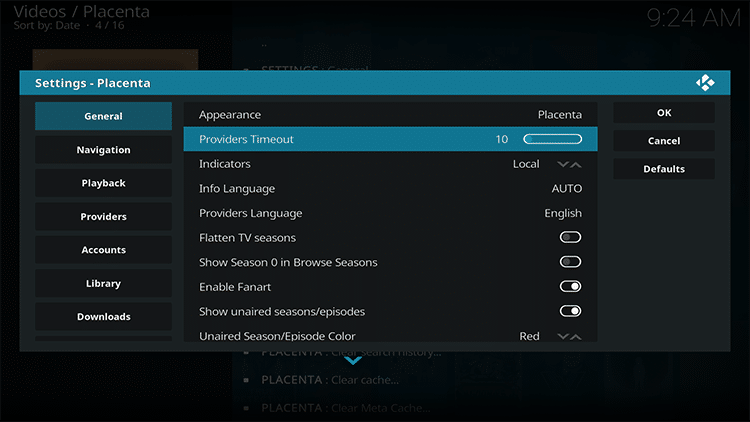
4. Under General, move Providers Timeout slide to the lowest setting possible. (This will lower the amount of time Kodi scrapes for a stream making for a quicker auto-play)
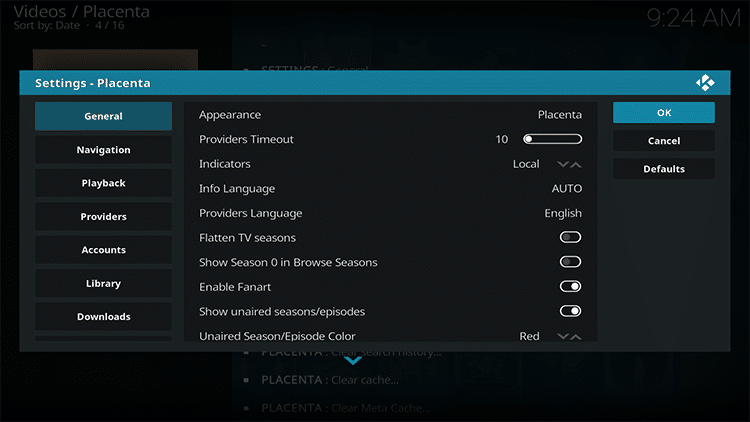
5. Click OK
6. Search for your preferred content and right click on the title you would like to view and click Play from here. (Depending on your device, a different button may be required to prompt the following options. For a Fire TV device, you will need to hold down on the select button)

Exclusive Surfshark Discount
Warning: Your online activity is currently monitored by your ISP, app/addon/IPTV developers, government agencies, and the websites you visit.
- Become 100% anonymous while streaming and downloading.
- Use on Unlimited Devices & share 1 account with the entire family.
- Save 87% with the 24-Month Plan + Get 3 FREE Months.
7. After the show has ended, you will see Kodi scraping for the next episode

8. Once a source has been found, the episode will begin to play

Features
After enabling the auto-play feature on Kodi you will now be able to binge-watch all your favorite TV shows with ease.
While using auto-play is a great way to continuously stream content, there are some disadvantages that come with it.
In Step Number 4 shown above, we are changing the amount of time Kodi searches for the stream we are looking for.
This means that the most reliable stream will not always be found in the allotted time. There may be some instances where using auto-play in Kodi will result in a lower quality viewing experience.
Depending on the show you are watching, you may also have to wait for the credits to finish before the next episode begins.
I have found that simply fast-forwarding to the end will eliminate this issue and automatically begin playing the next stream.
Overall, enabling auto-play in Kodi is a great feature to have.
By doing so, users will no longer have to scour lists of sources to continue watching their favorite shows. For a list of other helpful Kodi tips, click on the provided link shown below:
Big Tech is Scanning Your Emails
Stop letting free providers read your private messages to build advertising profiles on you. Take back your digital privacy with a secure, ad-free inbox.
How To Reset Kodi on Fire TV/Stick
How To Update Kodi on Fire TV/Stick
For other popular Kodi tutorials, see the links below:
The weekly TROYPOINT Advisor keeps everyone up-to-date on the ever-changing world of cord-cutting. Use the link below to join the other 700,000 happy subscribers.
This page includes affiliate links where TROYPOINT may receive a commission at no extra cost to you. Many times, visitors will receive a discount due to the special arrangements made for our fans. Learn more on my Affiliate Disclaimer page.


