
This guide will show you how to Stop Buffering on Firestick to improve speeds and device performance.

The Amazon Firestick is the most popular streaming device on the market today due to its low price point, user-friendliness, jailbreaking abilities, and more.
But just like any other streaming device, it can have buffering issues which makes your viewing experience frustrating.
But before diving into solutions, it’s important to first diagnose the issues on your Firestick or Fire TV that are causing the device to buffer.
This could be due to poor Internet connection, ISP throttling, low storage, and other problems explained in more detail below.
Common Causes of Firestick Buffering
Figuring out why your Amazon Firestick or Fire TV is buffering is necessary in order to fix the problems. Some of the most common issues why buffering happens on Firestick or Fire TV include:
- Poor Internet Connection: A weak or slow internet connection is one of the leading causes of buffering. Streaming requires stable speeds, especially for HD or 4K content.
- Overheating Device: Firesticks are compact devices that can overheat after extended use. When they get too hot performance issues arise.
- Outdated Software: Running an outdated version of Fire OS can leave your device vulnerable to bugs and inefficiencies that contribute to buffering.
- Weak Wi-Fi Signal: When your Firestick is too far from the router or obstructed by walls or interference, it may struggle to maintain a strong signal.
- Limited Storage and RAM: Firesticks are built with 8 GB of storage and just 1.5 GB of RAM, leaving little room for apps and processes.
- Hardware Issues: Buffering may not always be the Firestick’s fault. Problems with your modem, router, Ethernet cable, or even your smart TV can disrupt the streaming experience.
- Ads and Suggested Content: Firestick devices often run ads and suggested content, which consume resources and slow the device. These unnecessary processes can be frustrating and impact performance.
- Bad Links in Apps and Add-ons: Using free links in apps or add-ons can result in buffering due to overcrowded servers or poor-quality streams.
How to Stop Buffering on Firestick (2026 Solutions)
Below you will find over a dozen solutions to help stop buffering on your Amazon Firestick or Fire TV. These tips are listed from the most effective to least effective, but each method should help.
We suggest bookmarking this page to check back for new methods, as this will update due to the release of new Firestick models.
Hide Your Digital Fingerprint
1. Check Internet Speed
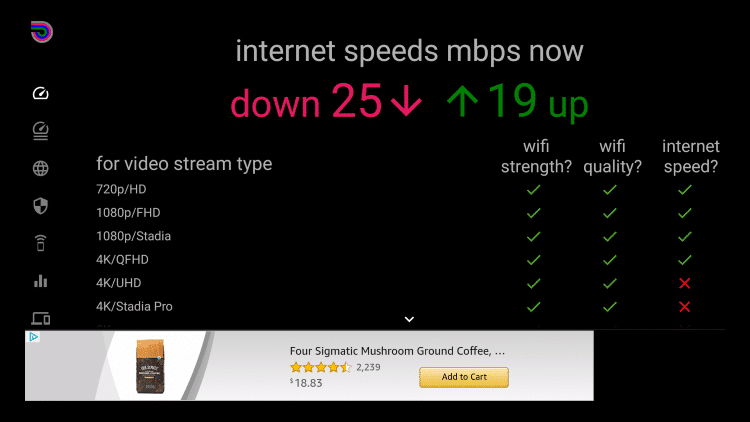
Testing your Internet speed ensures your connection is capable of supporting streaming. Use the built-in Firestick speed test or an app like Analiti Speed Test. Once installed, select the “Quick Test” option to evaluate your speed.
For smooth streaming, speeds above 25 Mbps are ideal for 4K content, while 10 Mbps is usually sufficient for HD. If your speeds are lower, consider repositioning your router, upgrading your Internet plan, or using a wired connection.

2. Restart Your Firestick

Restarting your Firestick clears temporary files and resolves minor glitches. Hold the select and play buttons for five seconds to initiate a quick reboot.
This process refreshes the system without deleting your apps or settings. Restarting regularly can prevent performance issues from piling up.
3. Perform a Factory Reset

If buffering persists, a factory reset can address deep-seated issues. This option wipes your Firestick clean, returning it to its original state. While it’s an effective fix, you’ll need to reinstall apps and reconfigure settings.
A factory reset is often overlooked but can resolve performance problems caused by corrupted files or cluttered storage.
Exclusive Surfshark Discount
Warning: Your online activity is currently monitored by your ISP, app/addon/IPTV developers, government agencies, and the websites you visit.
- Become 100% anonymous while streaming and downloading.
- Use on Unlimited Devices & share 1 account with the entire family.
- Save 87% with the 24-Month Plan + Get 3 FREE Months.
4. Use an Ethernet Connection

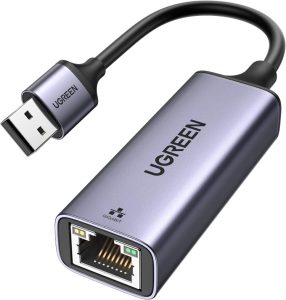
For a more stable connection, consider using an Ethernet adapter with your Firestick. Unlike Wi-Fi, Ethernet minimizes interference and ensures consistent speeds, especially in homes with multiple devices.
If Ethernet ports aren’t available, Powerline adapters can transmit data through electrical wiring, providing a reliable alternative.
5. Update Firestick Software

Outdated software may contain bugs that impact performance. Updating your Firestick ensures access to the latest features and improvements.
Go to “Settings > My Fire TV > About > Check for Updates” to install the latest version. Enable automatic updates to keep your device current without manual intervention.
6. Reboot Your Router

A router reboot clears its cache and improves connection stability. Unplug your router for 30 seconds before reconnecting it. This refreshes the connection and can resolve buffering caused by network congestion.
For consistent performance, consider upgrading to a modern router like the ASUS RT-AX86U Pro, which supports faster speeds and better range.
7. Close Unwanted Background Apps

Background apps consume RAM and CPU, slowing your Firestick. Use tools like Fast Task Killer to shut down unnecessary apps with a single click.
Regularly review your installed apps and remove those you no longer use to free up storage and improve performance.
Big Tech is Scanning Your Emails
Stop letting free providers read your private messages to build advertising profiles on you. Take back your digital privacy with a secure, ad-free inbox.
Or if you don’t want to install Fast Task Killer, you can close unwanted apps via the Background Apps & Process List application.
8. Clear App Data and Cache

Over time, apps accumulate temporary files that can slow your device. Clear cache on your Firestick to remove these files, or clear data to reset the app entirely.
Navigate to “Settings > Applications > Manage Installed Applications” to perform this maintenance. Resetting problem apps can resolve crashes and buffering.
9. Use Debrid Services

Debrid services like Real-Debrid, AllDebrid, or Premiumize provide access to high-speed, premium streaming links, significantly reducing buffering issues.
These services connect you to less congested servers, ensuring smoother playback and higher-quality streams.
By avoiding overcrowded public servers, debrid services improve reliability for on-demand content such as movies and TV shows.
They are particularly useful for users of streaming apps or Kodi add-ons that rely on external links. Setting up a debrid service is simple, and many apps support these services natively for seamless integration.
10. Install a Fast VPN

ISPs often throttle speeds for streaming, but a VPN can bypass these restrictions. Surfshark, a popular VPN for Firestick, offers fast speeds, strong security, and privacy features.
A VPN also enables access to geo-restricted content, providing a broader range of streaming options for various apps and IPTV services.
11. Adjust VPN Settings

Optimize VPN performance by tweaking settings such as server location, protocols, and split tunneling. The WireGuard protocol is recommended for its speed and efficiency.
Experiment with different settings to find the best combination for your network.
12. Try an External Video Player

Some apps have subpar built-in players that struggle with certain file formats. Replacing them with external players like MX Player or VLC can improve playback and reduce buffering.
Both players offer advanced settings like subtitle support, giving you more control over your viewing experience.
13. Enable Sleep Mode

Putting your Firestick in sleep mode when not in use prevents overheating and conserves system resources. Turning off your Firestick is especially helpful for devices that remain plugged in continuously.
Access this feature via “Settings > My Fire TV > Sleep” or by holding the home button on your remote.
14. Cool Down the Device
An overheated Firestick can cause performance issues like buffering. Ensure it’s in a ventilated area and away from other heat sources.
Consider using a USB cooling fan if overheating persists. Regular temperature checks can also prevent long-term damage.
15. Consider a More Powerful Streaming Device

If buffering remains a problem, upgrading to a more powerful streaming device may be the best solution. Android TV/Google TV devices like the NVIDIA Shield or Fire TV Cube offer better processors, more RAM, and advanced features for smoother performance.
While pricier, these devices provide a significant upgrade for heavy streamers or those seeking additional capabilities like gaming or AI assistants. See our list of Firestick alternatives for more options.
Final Thoughts from Troy
Buffering on your Firestick doesn’t have to ruin your streaming experience. The methods outlined above provide practical solutions to address everything from network issues to device limitations.
If you’ve tried these solutions and are still encountering issues, it may be time to reach out to Amazon support for further assistance.
Did these solutions help solve the buffering issues on your Firestick? Let us know in the comments below!
This page includes affiliate links where TROYPOINT may receive a commission at no extra cost to you. Many times, visitors will receive a discount due to the special arrangements made for our fans. Learn more on my Affiliate Disclaimer page.


