
The following guide shows how to Restart your Amazon Firestick or Fire TV in seconds to refresh your device.

Restarting or “rebooting” your Firestick is a great way to improve device performance if you are experiencing issues.
Rebooting can help reduce buffering, clear cache, force close apps running in the background, and fix your Firestick if it’s frozen or unresponsive.
There are three ways to restart your Amazon Firestick or Fire TV:
- Unplugging the power cord
- Fire TV remote shortcut
- Restarting the device manually from the Fire TV settings
We provide step-by-step screenshot guides for all three of these methods below.
It’s important to note that restarting/rebooting your Firestick is different than performing a factory reset. Resetting your Firestick to default settings will remove all installed applications and force you to set up your device from the beginning.
How to Restart Your Firestick or Fire TV
The three methods below for restarting/rebooting your Firestick will work on any Amazon Fire TV device. In this instance, we are using our Amazon Fire TV Stick 4K Max.
Method One – Unplugging the Power Cord
The fastest way to restart your Firestick is to simply unplug the power cord from your electrical outlet. This works great if you find your device is frozen or you are unable to access anything with the remote.
Hide Your Digital Fingerprint
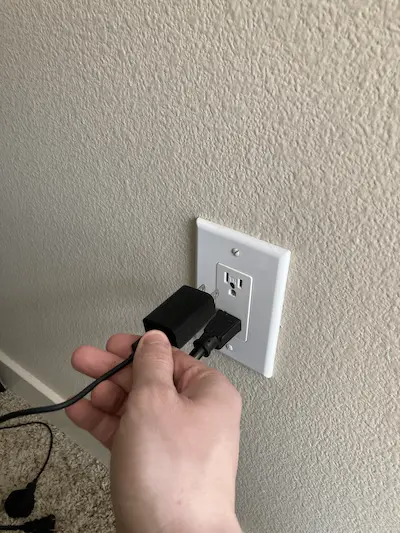
You can also unplug the Firestick’s USB-C connection if you prefer not to touch your electrical outlets. Once unplugged, wait 20-30 seconds and plug back in.
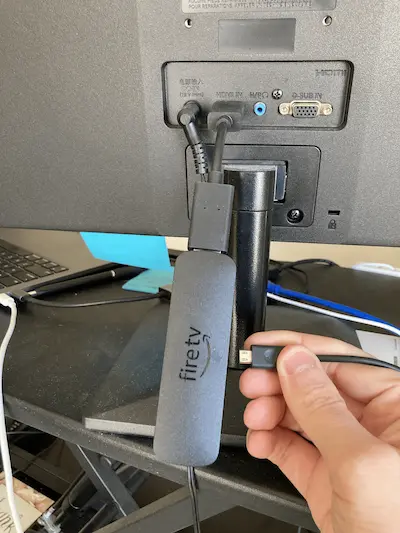
Your device should now now cycle through the restart process. Make sure to allow a minute or so for the Firestick to load menus and applications. Once complete, your device will be back up and running.

Method Two – Fire TV Remote Shortcut
If you do not have easy access to the power outlet your Fire TV is plugged into or want to reboot internally, we suggest using your Firestick remote. This restart process should take 30 seconds by following the quick steps below.
1. Press the Pause/Play button and the Select button together for approximately 5-10 seconds.

2. Your device will then state the following message “Your Fire TV Stick 4K is turning off”

3. After powering off, the device will reboot and be back up and running in no time.
Exclusive Surfshark Discount
Warning: Your online activity is currently monitored by your ISP, app/addon/IPTV developers, government agencies, and the websites you visit.
- Become 100% anonymous while streaming and downloading.
- Use on Unlimited Devices & share 1 account with the entire family.
- Save 87% with the 24-Month Plan + Get 3 FREE Months.
Method Three – Fire TV Settings
If the first two methods above don’t work for you, you can restart your Firestick manually from the device settings. See the steps below for more details.
1. From your Fire TV home screen, hover over the Settings icon  on the far right.

2. Scroll down and select My Fire TV.

3. Then scroll down and click Restart.

4. Click Restart again.

5. Your Firestick will start turning off.
6. Wait a minute or two for your Firestick/Fire TV to fully reboot.
Big Tech is Scanning Your Emails
Stop letting free providers read your private messages to build advertising profiles on you. Take back your digital privacy with a secure, ad-free inbox.
7. That’s it! After successfully restarting your Amazon Firestick you should arrive back on the Fire TV Home screen.

For more details on the restart/reboot process, you can refer to Amazon’s support documentation.
Final Thoughts
If you own an Amazon Firestick or Fire TV and it’s running slow or unresponsive, we suggest restarting as the first solution. Rebooting your device is one of the most underrated fixes that can help improve speeds. user-experience, and overall performance.
For more Firestick troubleshooting resources, we suggest viewing our guides below:
Did rebooting your Amazon Firestick help fix your issues? Let us know your thoughts in the comments below!
FAQs
How do you Restart a Firestick?
There are three methods for restarting an Amazon Firestick or Fire TV. This includes unplugging the power cord, entering a shortcut on your remote, or rebooting our device manually from the Fire TV settings.
Can you Restart a Firestick with the Remote?
Yes. Press the Pause/Play button and the Select button together on your Firestick remote for approximately 5-10 seconds then wait for your device to reboot.
Is Restarting your Firestick Safe?
Yes. Restarting your device is not only safe but often recommended to improve performance.
Is Unplugging Your Firestick Bad?
While unplugging your Firestick is not the ideal solution, sometimes it is necessary if your device is frozen or unresponsive.
If I Restart my Firestick will I lose everything?
No. Restarting your Firestick/Fire TV will not delete any apps or files. Resetting your device to factory settings will remove everything.
This page includes affiliate links where TROYPOINT may receive a commission at no extra cost to you. Many times, visitors will receive a discount due to the special arrangements made for our fans. Learn more on my Affiliate Disclaimer page.


I need help to resolve an issue I’m locked out of my fire tv it is stuck I’ve called Spectrum,Amazon looked at all the video fix’s but I have not successfully been to
Open my Fire TV to update my apps and reboot my screen. I am desperate no TV all week and unable to resolve this problem. Help me please.
I would try a factor reset if you haven’t already – https://troypoint.com/how-to-reset-firestick/
Real Debris is no longer listed in my resolveurl list. Alldebris and premiumize is listed. How can I get Real Debris back in the resolveurl list? My Realdebris account is current. How can I resolve this problem?
I appreciate these postings as I have been in an area where I couldn’t have high speed internet. Because of all the changes and sources that don’t work anymore it seems like I should simply to a total reset and start over. Agree?