
The tutorial guide below provides instructions for installing the Elementum Kodi Addon on your Kodi device.

In this guide, we provide the fastest, easiest-to-follow instructions for installing and using this addon with both a screenshot guide and a video guide. For the most detailed instructions, make sure you watch the video guide provided below.
If you have used popular Kodi addons in the past, the download process for Elementum is a bit different so make sure you follow along step by step so you don’t miss anything!
What is Elementum?
Elementum is a high-powered, ultra-fast Kodi addon choice that runs entirely on torrents so you won’t have to worry about buffering during playback.
It uses torrents for playback, which means that Movies and TV Shows will play with no buffering as a portion of the file is downloaded before playing.

This means that a VPN is absolutely necessary, as streaming torrent files will broadcast your IP Address to the public, leaving you vulnerable to legal problems.
If you don’t activate a VPN prior to installing and using this addon and someone in your house accidentally plays a movie/TV show that’s protected by copyright, you will probably receive a legal notice from your ISP. You’ve been warned.
Hide Your Digital Fingerprint
Get Surfshark VPN Here with Huge Discount
Many Kodi users love using this addon for the simple fact that it does not require a subscription to a cloud service or premium resolver such as Premiumize, Real-Debrid, or AllDebrid.
Unlike other addons, Elementum requires manual installation for those using newer Firestick & Android TV/Google TV devices. Those using other devices such as PCs can install this addon through the repository which we provide screenshots for below.
After installing, users will find tons of quality Movies and TV Shows that play in high definition, including 1080p & 4K.
Due to the quality of movies and TV shows, Elementum tops our list as one of the best streaming addons available today.
Here is the latest changelog from the official addon:

How to Install Elementum Kodi Addon
IMPORTANT NOTE: We strongly suggest viewing the video guide so that you don’t miss out on important details needed to install this addon!
In this guide, I am using a Fire TV Stick 4K Max. However, this will also work for any variation of Firestick as well as Android TV/Google TV devices such as NVIDIA SHIELD, onn. Google TV Box, BuzzTV, Chromecast with Google TV, and more.
The method below is required for Fire TV devices running Fire OS 8 & above and Android TV devices running Android TV 10 & above.
Video Guides
This is an in-depth video that shows every single step for installing the Elementum Kodi Addon on Firestick or Android TV/Google TV.
Exclusive Surfshark Discount
Warning: Your online activity is currently monitored by your ISP, app/addon/IPTV developers, government agencies, and the websites you visit.
- Become 100% anonymous while streaming and downloading.
- Use on Unlimited Devices & share 1 account with the entire family.
- Save 85% with the 24-Month Plan + Get 3 FREE Months.
Get Surfshark VPN Huge Discount + 4 Free Months
Quick Install on BuzzTV X5
This is a quick install video where I’ve already installed the Downloader and Kodi app on my BuzzTV X5 Android TV Box.
Step 1 – Download Elementum Zip File
Unlike other popular addon choices, Elementum requires download via zip file which must be done with the Downloader app on Fire TV/Android Boxes. If you don’t have Downloader on your device, use the guide below to install it and enable unknown sources.
How to Install Downloader & Enable Unknown Sources
IMPORTANT NOTE: The Elementum Repository may not download properly if you have your VPN turned on. If you have problems, turn off your VPN before installing via Downloader and then turn it back on prior to using the addon.
- Launch Downloader.

- Click the URL bar or Hashtag icon in the upper right hand corner.

- Type the Downloader Code for the Elementum Repository which is 444801 and click Load.

- Wait for the page to load.

- Click Done.

Big Tech is Scanning Your Emails
Stop letting free providers read your private messages to build advertising profiles on you. Take back your digital privacy with a secure, ad-free inbox.
- Open the Surfshark VPN App and connect to your preferred Server with Kill Switch Enabled.

- Return to the home screen of your device and launch Kodi.

- If this is the first time using this app, click Continue.

- Select While using the app.

- Click Allow.

- You are now met with the Kodi home screen. Click the Power button in the upper left-hand corner.

- Select Exit.

Step 2 – Enable Permissions for Kodi
Before installing the addon on Kodi, we must turn on storage permissions within Settings. We provide steps for both Android/Google TV as well as Firestick as shown below.
- Return to your device home screen and open Settings. Choose Applications.

- Click Manage Installed Applications.

- Choose Kodi.

- Select Permissions.

- Click Storage.

- Choose All Files.

NOTE: If using an Android TV or Google TV Device, you can also find this within Settings.

- Click apps and choose See all apps.

- Click Kodi and choose Permissions.

- Select Files.

- Click Allow.

We can now launch Kodi and continue with the installation of the Elementum Kodi Addon.
Step 3 – Install Elementum on Kodi
- Click the settings icon
 .
.
 .
.
- Click System.

- Hover over Add-ons menu item and turn on Unknown sources if not already on.

- Click Yes.

- Click back on remote to go back to the System page and choose the File manager.

- Click Add source.

- Click Browse.

- Choose External Storage.

- Select the Download folder.
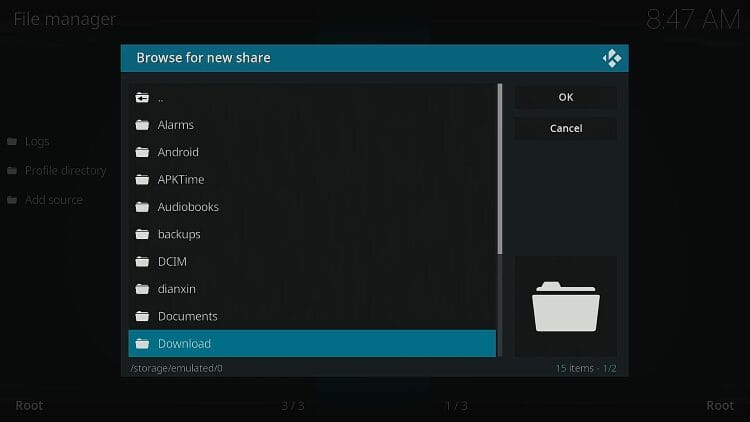
- Choose Downloader Folder.
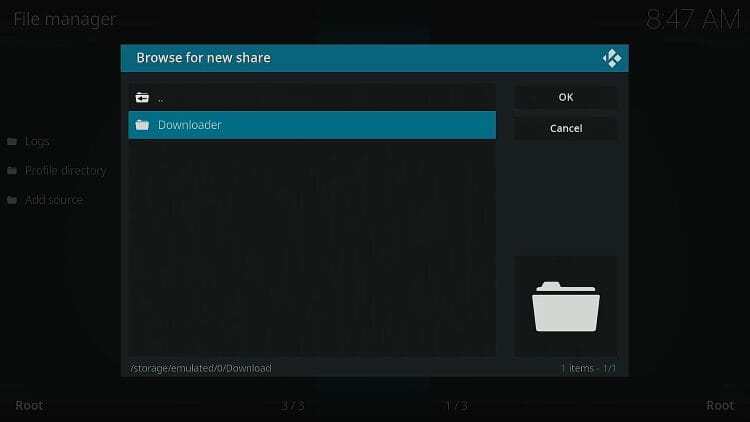
- Click OK.

- Click OK again.

- Return to Kodi Systems page and select Add-ons.

- Choose Install from zip file.

- Click Downloader.

- Select the previously downloaded zip file.

- You will then encounter ElementumOrg repository Add-on installed message.

- Click Install from repository.

- Choose ElementumOrg repository.

- Select Video add-ons.

- Click Elementum.

- Click Install.

- Wait for the Elementum success message to appear.

- Click the back button on your remote a couple of times. You will then be prompted to install the Burst Provider for Elementum. Click Yes.

- You will then see Elementum Installation successful message in the upper right-hand corner.

NOTE: If you do not get the prompt to install Burst, force close Kodi and re-launch the app.
Watch the video guide above for more details.
IMPORTANT NOTE: We have found that installing the Burst add-on may freeze your Kodi application.

If this occurs, simply force close Kodi, and Clear the cache within settings. Make sure you do not click Clear data as this will remove the addon and anything else installed on your Kodi software.
If you are still having problems, try installing Burst manually via the Elementum Repo:
Burst Not Installing
1. Return to the ElementumOrg Repository and select Program Add-Ons.

2. Choose Elementum Burst.

3. Click Install.

4. You will then encounter Elementum Burst Add-on installed message.

If you are using a PC or other device, you can install via repository URL which we normally do for 3rd party addons.
Install Elementum on Windows PC or Other Device
If you wish to install this addon on a PC or other device, you do not need to use the manual installation guide above.
Instead, you can easily do so via the official Elementum Repository.
Before launching Kodi, you must first download the repository from the official website.
1. Visit elementumorg.github.io and select all-in one repository

2. Open your Download file and extract the zip file.

3. Save it to your preferred folder and click Extract.

4. Make note of the download folder it is located in.

We can now continue to install the addon via the downloaded file.
- Launch Kodi
- Click the settings icon

- Click System

- Hover over Add-ons menu item and turn on Unknown sources if not already on

- Read this important Warning prior to proceeding.
Add-ons will be given access to personal data stored on your device!
This is why it is so important to run a VPN if you’re going to use a 3rd party addon such as Elementum.
A VPN won’t allow these 3rd party addons to gain access to your personal data.

- Click back on remote to go back to the System page
- Select File Manager

- Click Add source

- Click Browse

- Choose Home folder.

- Select Downloads.

- Click OK

- Click OK again

- Click your back button on the remote or keyboard until you are back on the System screen
- Choose Add-ons

- Click Install from zip file

- Choose Downloads

- Click the zip file URL – repository.elementumorg.zip

- Wait for the “repository Add-On Installed” message to appear

- Click Install from repository

- Then select ElementumOrg Repository

- Click Video Add-Ons

- Select Elementum

- Click Install

- You will then encounter the “Add-on Installed” message.

- You are then prompted to install Burst. Click Yes.

- If you receive the following error message, we can install Burst manually. Click OK.

- Return to the Repository and select Program Add-ons.

- Choose Elementum Burst

- Click Install

- You will then see Burst installed message.

Installation is now complete!
Details & Description
The Elementum Kodi addon is a fabulous tool that brings in tons of torrent links for buffer-free streaming.
As stated above, this uses the Burst addon to pull torrent links from various torrent providers. For this reason, using a VPN in conjunction with Elementum is a must.
Because a portion of the file is downloaded before playing, links tend to play without any buffering, making for a fabulous viewing experience.
This is perfect for those of us who do not use Real-Debrid or other premium resolving services (we suggest Premiumize).
After making a content selection, you will see the file begin to download before playing. Do not click cancel as you will lose any progress you have already made downloading the file.

Categories available within the Elementum addon include: Movies, TV Shows, Search, Torrents, Add Torrents, Torrent History, Providers, Changelog, Status, Donate, Settings, Settings for Burst.

We also suggest checking out the available Features within Settings. This inclues Appearance adjustments

You can also edit the BitTorrent Settings with buffer size, timeout, max upload/download rate, and more.

For a fine-tuned experience, check out the Provider Settings with Min/max file size, sorting, etc.

While Debrid integration is not available, users do have the ability to add a Trakt account from any device with this addon.
This is a great way to sync your content across multiple platforms and devices for seamless streaming.
If you are a Kodi user looking for a way to watch Movies and TV Shows buffer-free without the use of a debrid provider, Elementum is a must-have.
Is it Safe to Use?
Before using unverified 3rd party addons such as this, it is important to scan these files with VirusTotal.
Here is the screenshot of the scan results.

Even though there weren’t any malicious files associated with the repository URL, we should still make sure to protect our personal data.
As we noted earlier, Kodi even warns us that these addon developers can see our stored information and that is why a VPN is so important.

Not to mention that Elementum uses torrent sources so a VPN is absolutely necessary in this instance.
Is Elementum Addon Legal?
TROYPOINT can’t determine whether these unverified add-ons hold the proper licensing.
TROYPOINT recommends only accessing media not protected by copyright such as those that fall under Public Domain status.
The end-user is responsible for all content accessed through unverified add-ons/apps/websites. For verified options, see our list of legal streaming apps.
This page includes affiliate links where TROYPOINT may receive a commission at no extra cost to you. Many times, visitors will receive a discount due to the special arrangements made for our fans. Learn more on my Affiliate Disclaimer page.


