
This comprehensive Jailbreak Firestick tutorial will show you exactly how to unlock any Amazon Fire TV device to its full streaming potential in 2026.

We offer both a step-by-step video tutorial and a screenshot guide that make the jailbreak process simple enough for even first-time Firestick users to follow.
We keep this guide updated with the latest side-loading methods, so make sure to bookmark this page for the most up-to-date streaming methods.
This process works on all variations of Firestick including the Fire TV Cube and Smart TVs with Fire TV built-in. In this guide, we are using the most popular version, which is the Fire TV Stick 4K Max.
We suggest watching our video guide first, which covers important details you need to know before unlocking your device.
How to Jailbreak a Firestick Video Tutorial
Video References:
What is ‘Jailbreaking’ a Firestick?
This process of ‘jailbreaking’ is often associated with Apple iOS systems such as iPhones and iPads. However, that typically involves modifying the firmware, which is not what we are doing in this guide.
Jailbreaking a Fire TV Stick is a much different, safer technique that only requires changing a few basic options within your Settings to “Enable Unknown Sources.” You are not actually altering or harming the device’s hardware or operating system!
Hide Your Digital Fingerprint
Once you turn on this setting, you can download Firestick applications that are not available in the Amazon App Store. This is called side-loading. These apps are referred to as third-party applications since Amazon does not host them in its official app store.
The reason for installing these third-party applications is to access media (Movies, Series, Live Television, Sports, etc.) that you would not normally find from apps in the default Amazon App Store.
It is more important than ever to take advantage of this ability while it lasts, as Amazon is actively cracking down on third-party apps.
In fact, the new Fire TV Stick 4K Select from Amazon has removed side-loading capabilities altogether so that only apps from their app store may be installed. If you own this device, this guide will not work for you and you may want to consider an alternative Firestick/Fire TV.
Is it Legal to Jailbreak a Firestick?
Yes, it is completely legal to adjust settings within your Fire TV Stick and install applications that you cannot find within the Amazon App Store.
However, some of the content provided by certain third-party services may be available without the proper licensing. You should ensure you are using legal streaming apps and only accessing movies and TV shows with verified licensing.
The end-user is solely responsible for all content accessed through jailbroken Fire TV devices.

Sick of Slow, Rural Internet?
Whether you live out in the country or take your RV off the grid, Starlink delivers blazing-fast internet to areas that traditional providers ignore.
Check Availability & PricingAvoid Buying Pre-Loaded Firesticks
While various websites attempt to sell “fully-loaded” Firesticks, we strongly recommend avoiding these and doing it yourself. It is also illegal to sell jailbroken Firesticks, and we’ve seen sellers get arrested in the past.
These sellers charge premium prices for a process you can easily do yourself in minutes. Worse, you have no idea what apps they’ve installed or if they’ve added malicious software to the device.
Exclusive Surfshark Discount
Warning: Your online activity is currently monitored by your ISP, app/addon/IPTV developers, government agencies, and the websites you visit.
- Become 100% anonymous while streaming and downloading.
- Use on Unlimited Devices & share 1 account with the entire family.
- Save 85% with the 24-Month Plan + Get 3 FREE Months.
This Reddit thread is a perfect example of why you should never purchase a jailbroken device. Spending hundreds of dollars on any Fire TV Stick is a complete scam.

What’s also disturbing is how many of these ‘fully loaded’ devices are available on storefronts like Google Shopping, eBay, Temu, Alibaba, and more.

The jailbreak process is simple enough that anyone can do it. You don’t need technical skills or special knowledge. Just follow the steps in this guide, and you’ll save money while knowing exactly what’s on your device.
TROYPOINT TIP: Consider an Alternative Streaming Device
Before diving into our jailbreak guide, we want to highlight recent developments with Firestick and Fire TV devices.
Amazon has started aggressively cracking down on “sideloading,” which is the main reason users purchase these devices! If you bought one specifically hoping to install apps via the jailbreak process, you may want to reconsider.
In fact, Amazon has already started actively blocking 3rd party apps, including many of the most popular streaming options.
If you want a true, open-source device that won’t restrict your access, we strongly recommend opting for an Android TV or Google TV Box that features full sideloading capabilities out of the box.
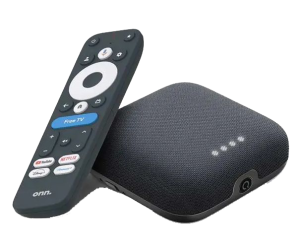
We have put together an updated list of the Best Google & Android TV Boxes. This list is constantly tested to feature the most affordable, high-performing options that are significantly more user-friendly than the restricted Fire OS.
How to Jailbreak a Firestick (Screenshot Guide)
Step 1 is to install AFTVNews.com Downloader application, a free browser app that supports downloads. This is how we install alternative applications that aren’t found in the Amazon App Store.
After installation, you must enable the developer option to install from unknown sources. We show all of the necessary steps below.
Step 1: Install the Free App
You can find this app by simply searching for it within the Amazon App Store. The process takes less than a minute.
1. From the home screen of your Fire TV device, hover over the Search button on top.
Big Tech is Scanning Your Emails
Stop letting free providers read your private messages to build advertising profiles on you. Take back your digital privacy with a secure, ad-free inbox.

2. Type “Downloader” and click the first option that appears in the list.

3. Select the orange icon under Apps & Subscriptions. Double-check that this is the official application from AFTVnews.

4. Click Download or Get.

5. Wait a few seconds for the app to install. Once completed, you will see a “Ready to launch” success message.

After you have successfully installed the application, hit the Home button on your remote to return to the home screen.
Step 2: Turn On Unknown Sources (The Actual “Jailbreak”)
This is the core step to jailbreaking a Fire TV Stick. It’s the only modification we are making on the device. After doing this, your device is officially unlocked, and you can install third-party APKs!
There are two slightly different methods for allowing unknown sources depending on your Fire OS version. We provide both below.
1. Open your Firestick Settings (the gear icon) and launch My Fire TV.

2. If you do not see “Developer Options” listed here, click About.

3. Click your device name 7 times quickly until you see a notification that says “No need, you are already a developer.”

4. Click the back button on your remote to return to the previous screen and select the newly revealed Developer Options.

5. Select Install Unknown Apps.

6. Find the app in the list and click it.

7. Unknown sources for this app are now turned ON, as pictured below.

Note for Older Devices: If you are on an older Firestick, you will simply see a single toggle for “Apps from Unknown Sources” that you need to click and turn ON.

Congrats! You have now officially “jailbroken” your Fire TV Stick. Now we’re getting to the good part!
Continue reading to learn how to use your unlocked device to find secret streaming applications. Oftentimes, these are referred to as APKs, as they are technically Android installation files.
Step 3: Access the Free TROYPOINT Toolbox
The safest and most efficient way to find working apps is with the TROYPOINT Toolbox. We can access the Toolbox directly through Downloader as shown below.
1. Open the app that we just installed.

2. When you see the initial welcome message, click OK.

3. Click into the URL Search menu bar on the home screen.

4. Type 250931 and hit the Go button.

5. Wait 5 seconds for the page to automatically redirect.

6. You are now inside the TROYPOINT Toolbox, which is the best resource available to install vetted streaming apps.

7. As you scroll, you can easily find popular applications with corresponding “Download” and “Tutorial” links. Clicking Download will instantly install the app, while the Tutorial button directs you to our detailed guide for that specific application.

8. Within the TROYPOINT Toolbox, you can install alternative app stores, streaming media apps, custom launchers, maintenance utility apps, and so much more!

Step 4: Install Alternative App Stores
The TROYPOINT Toolbox houses numerous 3rd party app stores. These app stores are Amazon alternatives and the absolute best way to fully unleash your Firestick.
We can install the best ones right from the Toolbox and then use them to download free applications for movies and TV. Follow our steps below. In this example, we will install Unlinked.
1. Scroll down on the TROYPOINT Toolbox and locate ‘App Stores.’ Find Unlinked and click Download.

2. Wait for the file to download, then click Install.

3. Click Done.

4. We suggest deleting the installation file to save precious storage space on your device, so click Delete.

5. Click Delete again to confirm.

6. To use Unlinked to install *more* apps, you must go back into your Fire TV Settings (Developer Options) and enable Install Unknown Apps specifically for Unlinked, just like we did in Step 2.

7. Launch the Unlinked app from your Apps & Channels list.

8. To install an application from Unlinked, you will need to enter various Unlinked Libraries that host the APKs you are looking for.

Enjoy exploring the massive libraries of third-party apps!
Step 5: Protect Yourself Online (Crucial Step)
Unlike official apps vetted by Amazon, when we side-load third-party APKs, we cannot be 100% sure what the developers are doing in the background.
Furthermore, your Internet Service Provider (ISP) actively monitors your connection. ISPs often use Deep Packet Inspection (DPI) to identify streaming traffic and throttle (slow down) your connection speeds, causing the dreaded buffering wheel.
The single best way to bypass ISP DPI throttling, hide your IP address, and ensure your identity remains completely anonymous is by installing a VPN application on your device.
Our top recommended VPN service features military-grade AES-256 encryption and has an application readily available in the Amazon App Store. Here is how to protect yourself:
1. Register for your VPN subscription with our exclusive discount by CLICKING HERE.

2. On your Fire TV Stick home screen, select the search icon.

3. Enter Surfshark.

4. Choose Surfshark VPN from the list of results.

5. Click Download or Get to install the app.

6. When the app finishes installing, open it.

7. Log in using the credentials you created when registering.

8. Connect to a VPN server. Your IP Address is now completely hidden, and your traffic is encrypted!

After ensuring your connection is encrypted, you can confidently continue installing and using the popular third-party APKs that provide the free media you crave.
More Jailbroken Firestick Resources
There are some other important topics to discuss before sending you off to use your newly unlocked Fire TV Stick. For the absolute best, most immersive viewing experience, you will likely want to utilize the tools discussed below.
Ad Blockers
A jailbroken Firestick unlocks a world of streaming possibilities, but it also exposes users to ads, trackers, and pop-ups within third-party apps. Many free streaming applications rely on ad revenue, leading to annoying interruptions.
The best way to combat this is by using a VPN with a built-in ad-blocker. Surfshark VPN’s CleanWeb is the best option available. This feature automatically blocks ads, trackers, and malicious sites at the DNS level before they ever load on your screen.
Unlike standalone ad-blocking apps that can slow down your device, CleanWeb works directly within Surfshark VPN, meaning you get the benefits of an ad-free interface while keeping your hardware running efficiently.

Media Hub APKs
This style of application has quickly become the premium method to watch free content (Films, Series, Live Streams) on your Fire TV device.
Unlike standard apps that are increasingly targeted by Amazon’s blockade, “Media Hub” APKs are much less likely to get banned because the apps themselves do not provide direct access to copyrighted content.
Instead, users must install separate add-ons or repositories that fetch the streaming links. Most of these apps feature modern, highly functional user interfaces that rival paid services like Netflix.

Debrid Services (No More Buffering)
Most of the high-end media apps are heavily reliant on Real-Debrid, Premiumize, or other premium debrid services. While some apps provide “free” public streaming links, these servers are heavily trafficked, resulting in constant buffering.
To guarantee a flawless viewing experience, it is highly recommended to integrate a premium resolving service. These act as an intermediate to provide private, high-speed server links in true 1080p and 4K resolutions.
After registering for Premiumize, setting up the service inside your apps is incredibly easy. You will immediately see premium HD links that never freeze.

Custom Launchers
One of the absolute best ways to customize your Firestick after jailbreaking it is by installing a custom launcher.
Fire TV devices ship with Amazon’s default user interface, which has become incredibly bloated with auto-playing video ads, sponsored content, and pushed recommendations. Custom launchers provide a clean, ad-free home screen that prioritizes your favorite installed apps.
Popular options include the Wolf Launcher and Projectivy Launcher. Best of all, installing these custom launchers does not require complex rooting!

NOTE: Amazon has pushed firmware updates attempting to disable 3rd party launchers, but we have a workaround. Read our Fire TV Exploit Guide to learn how to block forced updates on your device!
Wrapping Up
If you choose to jailbreak your Firestick, there are unlimited ways to customize your entertainment setup, and the guide above outlines the safest, fastest method available in 2026.
As you’ve learned, “jailbreaking” is simply adjusting a developer setting to allow the installation of applications outside of the Amazon App Store ecosystem.
There are hundreds of different platforms available that provide endless content, including Movies, TV Shows, Live Television, Sports, and Anime.
Now that your device is fully unlocked, your next step is to start installing these applications.
If you found this guide helpful, let us know using the comments section below. We would love to hear about your experience unlocking your Fire TV Stick!
Jailbreak Firestick FAQs
Are Jailbroken Firesticks Illegal?
If you follow our guide above to simply enable unknown apps for your device, it is entirely legal. You are just modifying a setting on hardware you own. However, you should use extreme caution with sellers offering “pre-jailbroken” Fire TV sticks, as selling hardware pre-loaded with copyrighted media access is illegal.
Is the Jailbreaking Process Safe?
Yes, the jailbreaking process is completely safe. This method does not root the device, modify system files, or damage the hardware. You are simply enabling a developer setting that Amazon explicitly built into the Fire OS.
Why Should I Jailbreak My Firestick?
Jailbreaking allows you to install third-party apps not found in the Amazon App Store, customize your device’s home screen with ad-free custom launchers, and vastly expand your streaming options beyond the standard paid services.
Can I Undo a Jailbreak?
Yes, you can easily reverse the process by navigating back into Developer Options and turning off “Install Unknown Apps” for the Downloader app. Alternatively, you can factory reset your device through the Settings to return it to its out-of-the-box condition.
Do I Need a VPN for Jailbreaking?
While a VPN is not required for the physical jailbreak process itself, it is highly recommended once you begin using third-party streaming apps to prevent ISP throttling and keep your connection anonymous.
Will Jailbreaking Slow Down My Device?
The developer setting change itself will not slow down your device. However, filling up your Firestick’s storage capacity with too many apps or running poorly optimized APKs in the background can affect performance.
How Can I Get Free Channels?
Most Amazon devices come with basic free FAST channels, but there are numerous third-party Live TV apps and IPTV players you can sideload that provide access to hundreds of live channels without a traditional cable subscription.
This page includes affiliate links where TROYPOINT may receive a commission at no extra cost to you. Many times, visitors will receive a discount due to the special arrangements made for our fans. Learn more on my Affiliate Disclaimer page.


