
This step-by-step guide will show you how to install the Wolf Launcher on Firestick, Fire TV, or Android TV Box to upgrade your interface.

Important Update: Wolf Launcher is No Longer Being Updated
Unfortunately, Wolf Launcher is no longer being updated and some features no longer work on updated Android TV/Google TV and Fire TV devices. It’s still available within the TROYPOINT Toolbox and the tutorial below provides instructions for that. Some of those instructions may or may not work depending on the Fire OS or Android TV/Google TV version you have installed on your device.
Since Wolf Launcher is a fork of ATV Launcher, we can use that updated application instead. As of now, this updated release is only available on Android TV/Google TV systems.
Here’s my new video where I show how to install this updated release on my Onn Google TV 4K Streaming Box and I also provide a tutorial on the important features.
Links Mentioned in Video
Free TROYPOINT Secret App Store Guide
Get #1 TROYPOINT Ranked VPN Surfshark with Huge Discount
Hide Your Digital Fingerprint
Fix Widget Binding Failure Error in Launcher
Walmart Onn Google TV 4K Streaming Box
Wolf Launcher Information
Wolf Launcher is a custom launcher created by SweenWolf that will change the default user interface that is applied to your streaming device and remove ads.
Amazon released an update to Firesetick and Fire TV devices that blocks 3rd party launchers including Wolf Launcher.
There have been several workarounds to this problem over the past year but unfortunately Amazon keeps blocking those.
Many are unhappy with Amazon’s constant ads for their streaming services and using a custom launcher is a great way to remove these once and for all.
This is the same for Android TV users who are tired of the endless advertisements and clutter now displayed on the Android user interface.
The Wolf Launcher allows for more customization options, removes sponsored/suggested content, displays all side-loaded apps, and more.
Using this launcher is one of the solutions highlighted in our Blocking Ads on Firestick guide.
IMPORTANT NOTE: If you wish to return to the original Firestick interface after installing Wolf you must enable the stock launcher first. DO NOT delete the app as it may result in a complete loss of User Interface.
Exclusive Surfshark Discount
Warning: Your online activity is currently monitored by your ISP, app/addon/IPTV developers, government agencies, and the websites you visit.
- Become 100% anonymous while streaming and downloading.
- Use on Unlimited Devices & share 1 account with the entire family.
- Save 87% with the 24-Month Plan + Get 3 FREE Months.
If this occurs, your device will require a factory reset which you can perform by pressing the right-down button and back button simultaneously for 10 seconds or more:
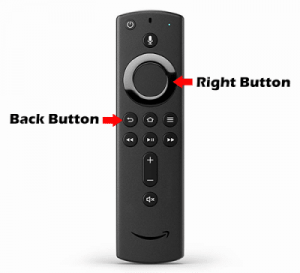
Please refer to our “How to Uninstall Wolf Launcher“ directions further down this article if you wish to remove the Wolf Launcher from your device. This information is also covered in the first video below.
In the guides below we will show how to install and set up the Wolf Launcher on a Firestick and Chromecast with Google TV. This launcher also works on Android devices like the NVIDIA Shield, MECOOL Box, or other Android TV devices.
Important Note: In order to use the Wolf Launcher correctly, we must install two separate applications.
The instructions below show how to install Wolf Launcher on a Fire TV Stick 4K Max as well as Chromecast with Google TV.
How to Install Wolf Launcher on Firestick
Below, you will find screenshot guides for two different methods to install and use Wolf Launcher on Firestick.
In the first method, we will use the Launch on Boot App that enables Wolf Launcher when your device starts.
The second method uses the Launcher Manager app which allows us to use the Home Button on our remote to access Wolf Launcher.
NOTE: You can also use the Launcher Manager app to “remap” shortcut buttons on Firestick & Fire TV remotes.
Click the link below for a step-by-step instructional guide for this helpful tool.
How to Remap Firestick Shortcut Buttons
Big Tech is Scanning Your Emails
Stop letting free providers read your private messages to build advertising profiles on you. Take back your digital privacy with a secure, ad-free inbox.
Wolf Launcher on Firestick – Launch on Boot Method
Note: seems to be working only on Fire OS 6 and below.
The steps below show how to install and set up the Wolf Launcher using a Fire TV Stick 4K Max.
However, this same process should work on all Fire TV devices including Firestick 4K, Fire TV Cube, 3rd Gen Fire TV Stick, and the Fire TV Stick Lite.
1. Install the Downloader app from your respective App Store (Amazon App Store or Google Play) and enable Unknown Sources within the settings of your streaming device.
If you haven’t done this yet please refer to the following screenshot tutorial for step-by-step instructions.
Install Downloader & Enable Unknown Sources
2. Launch Downloader

3. Hover over the URL bar and click the select button on your remote to open the keyboard.

4. Type the Downloader Code for the TROYPOINT Toolbox which is 250931 and click Go.

5. You will then see a redirect page.

6. This brings you to the TROYPOINT Toolbox home screen.

7. Scroll down to find Launch on Boot and click Download.

8. Wait for the app to install.

9. Click Install.

10. You will then encounter Launch on Boot Ready to launch! message. Click Done.

11. This will take you back to the TROYPOINT Toolbox. Scroll to find Wolf Launcher and click Download.

12. Click Install.

13. Click Done.

14. Return to your Applications on Firestick and open the Launch on Boot app.

15. Scroll through introduction messages and click Get Started.

16. Click the toggles for Enabled and Launch when device wakes up? and Click Select App.

17. Choose Wolf Launcher.

18. Click Test.

19. You will now see the Wolf Launcher interface with your installed applications and no ads!

Users can also use the popular Launcher Manager App to use Wolf Launcher on Firestick & Fire TV Devices.
Follow the guide below for this method.
Wolf Launcher on Firestick – Launcher Manager Method
Note: Amazon has blocked this method from working properly on newer Fire TV models.
1. Install the Downloader app from your respective App Store (Amazon App Store or Google Play) and enable Unknown Sources within the settings of your streaming device.
If you haven’t done this yet please refer to the following screenshot tutorial for step-by-step instructions.
Install Downloader & Enable Unknown Sources
2. Launch Downloader
3. Hover over the URL bar and click the select button on your remote to open the keyboard.
4. Type the Downloader Code for the TROYPOINT Toolbox which is 250931 and click Go.
5. You will then see a redirect page.
6. This brings you to the TROYPOINT Toolbox home screen.
7. Scroll down to find Launcher Manager for Fire TV and click Download.

8. Click Install.

9. Click Done.

10. Return to the TROYPOINT Toolbox and scroll to find Wolf Launcher. Click Download.

11. Click Install.

12. You are then met with Wolf Launcher Ready to launch! message. Click Done.

13. Within your apps list, open the Launcher Manager and select Launcher Options.

14. Select Home Button Hook.

15. IMPORTANT NOTE: If you don’t already have ADB Debugging enabled it will prompt you to do so. Click the toggle to Always allow from this computer and click OK.

16. Turn Home Button Hook to ON.

17. Select Use ADB for Home to turn Hook State to ON.

18. Click back to the main menu and select Launcher Options.

19. Scroll down and choose Custom Launcher Options.

20. Click Active launcher:

21. Select Wolf Launcher.

22. You will then encounter “Wolf Launcher is now the Custom Launcher” message.

23. Click the home button on your remote to see Wolf Launcher as your home screen.

That’s it! You have now activated Wolf Launcher on your Firestick device.
If you haven’t already, we strongly suggest watching the video guide below for important details regarding this app.
How to Install Wolf Launcher on Android TV/Google TV
Note: Wolf Launcher is no longer being updated and we suggest using ATV Launcher instead as it’s the same app. See my video at the top of this page for instructions for installing.
Because Android devices do not have the same blockades in place as Firestick and Fire TV, installing a 3rd Party Launcher such as Wolf Launcher is a much simpler process.
In this guide we are using a Chromecast with Google TV, however, this will also work for any Android TV device you prefer including NVIDIA SHIELD, MECOOL, and more.
We will use Launcher Manager for Android TV to access Wolf Launcher on Chromecast with Google TV.
Before installing and using Wolf Launcher on Android TV, make sure you have Developer Options and USB debugging enabled.
You can do so within the Settings of your device.

1. Open the Downloader App type the Downloader Code for the TROYPOINT Toolbox which is 250931.

2. You will then encounter a redirect page.

3. This brings you to the TROYPOINT Toolbox home screen.

4. Scroll down to find Launcher Manager for Android TV and click Download.

5. Click Install.

6. Click Done.

7. Return to the TROYPOINT Toolbox and scroll to find Wolf Launcher. Click Download.

8. Click Install.

9. Click Done.

10. Open your Apps List and launch Launcher Manager.

11. Select Enable Custom Launcher.

12. If prompted, enable USB Debugging and click Allow.

13. Select Active launcher:

14. Choose Wolf Launcher.

15. You will then encounter Wolf Launcher is now the Custom launcher message.

Return to the home screen of your device to see Wolf Launcher as the home interface.

Enjoy!
How to Customize Wolf Launcher
This is an old tutorial however Wolf Launcher has not received an update since this video was published therefore, everything is still current.
You may question why IPVanish VPN is installed on the device in the video. Surfshark VPN is now the #1 ranked TROYPOINT VPN.
How to Uninstall Wolf Launcher
To remove the Wolf Launcher on your Android device, we can simply disable the custom launcher within the Launcher Manager App.
1. Open the Launcher Manager App and choose Disable Custom Launcher

Your device home-screen will now return to its original interface.
You can delete the Wolf Launcher application to save space on your device.
Wolf Launcher Features & Details
After installing the Wolf Launcher on your device you will notice the endless customization options this launcher offers.
Some of the notable features include adding wallpaper, app display, sections, status bar, and much more.
Add Wallpaper
Adding your own wallpaper is one of the best features of using custom launchers. Follow the guide below for adding wallpaper within the Wolf Launcher.
1. Launch the Downloader app and click Browser.

2. Enter the following URL – wallpapercave.com and click Go.
- We found wallpapercave.com to work well for downloading wallpaper images, but you can use other sites if you prefer.
NOTE: As shown in the video above you can also type in “troypoint.com/bg” which will provide more wallpaper options.

3. Once on the website scroll down and choose any background image you prefer.

4. Click Download Wallpaper.

5. After the image installs click Done.
- Note: Make sure the image file ends with .jpg or .png.

6. Return back to the home screen and click the Options button (3 horizontal lines) on your remote. Then choose Launcher Settings.

7. Click Wallpaper.

8. Click Application Wallpaper to check the box.

9. Then choose Select Wallpaper.

10. Click Internal Storage.

11. Locate and select the Downloader folder.

12. You should notice any images you downloaded in this folder. Click the image you want to use as wallpaper.

13. That’s it! Return back to the home screen of the Wolf Launcher and your selected wallpaper should appear in the background.

Customize Apps
Another excellent feature within the Wolf Launcher is the ability to customize apps and their display.
In this instance, we are customizing the TROYPOINT App and messing around with colors, titles, and other features.

To customize an application, hover over your preferred app and click the Options button on your remote. Then choose Configure.

The first thing we noticed was the option to change an app’s display mode to app banner, vertical, and horizontal.

Within the “Update Icon” menu, you have the options of showing an icon, changing its display size, and more.

You can also customize an app’s background color within the “Update Background” menu.

Overall, the Wolf Launcher is one of the best custom launchers we have tested on the Firestick/Fire TV!
The customization options, smooth navigation, wallpaper, no sponsored content, and ease of use make this launcher great.
This launcher is also highlighted in our guide on How to Fix Grey App Icons on Firestick/Fire TV.
For more popular Firestick/Fire TV tutorials, we suggest viewing the guides below.
- How to Install Sideload Launcher APK
- How to Update Firestick to Latest Software
- Firestick Setup Guide
- Best Firestick Apps
If you are not a fan of your device’s default interface, try installing the Wolf Launcher on Firestick/Android today!
Special thanks goes out to SweenWolf, the developer of these helpful applications.
Frequently Asked Questions
What is the Wolf Launcher?
The Wolf Launcher is a custom launcher that will change the default interface of your streaming device.
What Devices can Wolf Launcher be Installed on?
The Wolf Launcher can be installed on the Amazon Firestick, Fire TV, Chromecast with Google TV, NVIDIA Shield, and any device that runs Android OS.
Is Installing a Custom Launcher Safe?
Yes. Installing a custom launcher is safe and will not harm your device.
Is Installing a Custom Launcher Legal?
Yes. Installing a custom launcher is 100% legal. However, a VPN is recommended since customer launchers are created by 3rd party developers.
This page includes affiliate links where TROYPOINT may receive a commission at no extra cost to you. Many times, visitors will receive a discount due to the special arrangements made for our fans. Learn more on my Affiliate Disclaimer page.


