

This in-depth report of CucoTV will provide you with important information that you need to know about this app on Firestick/Fire TV & Android TV Box.
Is CucoTV safe to use? Is CucoTV legal? How do I install CucoTV? We will answer those questions and more in this article.
The reason why we ask legal questions is due to the fact that CucoTV isn’t available in popular app stores such as Amazon App Store or Google Play.
This is oftentimes a warning sign.
Since this app can’t be installed through an app store, it must be sideloaded which we display in the screenshot guide below.
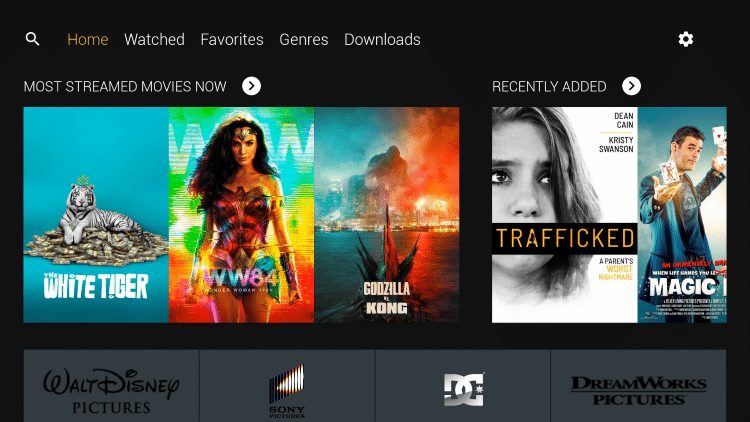
CucoTV is a new Streaming App that features Movies and TV Series across a variety of genres.
This app appears to be a clone of the once-popular ZiniTevi APK, as the interface and categories are identical.
The following steps will show you how to install CucoTV APK on the Amazon Fire TV Stick Lite.
These same steps also work for those using the Firestick 4K, 3rd Gen Fire TV Stick, Fire TVs, Fire TV Cube, and any Fire TV device.
Hide Your Digital Fingerprint
This process also applies to those using Android devices such as the NVIDIA SHIELD, MECOOL Boxes, Chromecast, Android TV Boxes, phones, tablets, and more.
Use the steps below to install CucoTV APK on your preferred Streaming Device.
Note: The CucoTV app is still being developed and there are misc bugs the developers are ironing out. We suggest viewing our best APKs list below for more streaming options.
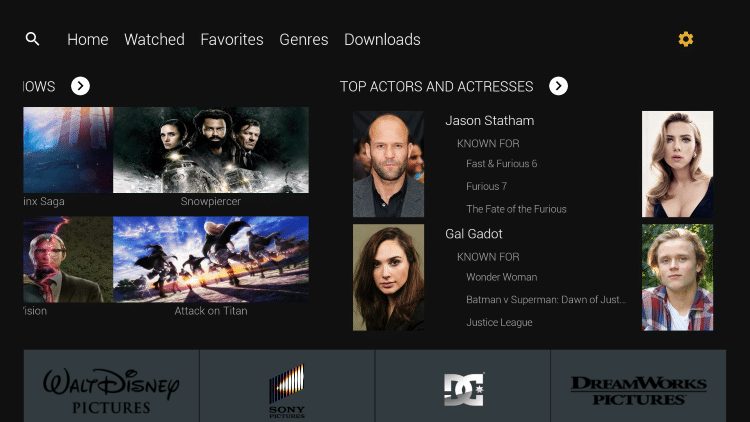
CucoTV APK Screenshots

Is CucoTV Safe to Use?
Before I install this, I first want to scan the official Android APK installation file with VirusTotal.
Here is the screenshot of the scan results.

Sick of Slow, Rural Internet?
Whether you live out in the country or take your RV off the grid, Starlink delivers blazing-fast internet to areas that traditional providers ignore.
Check Availability & Pricing
VirusTotal did not find any suspicious files or malware within the CucoTV APK file.
Exclusive Surfshark Discount
Warning: Your online activity is currently monitored by your ISP, app/addon/IPTV developers, government agencies, and the websites you visit.
- Become 100% anonymous while streaming and downloading.
- Use on Unlimited Devices & share 1 account with the entire family.
- Save 85% with the 24-Month Plan + Get 3 FREE Months.
However, this does not mean we shouldn’t protect ourselves when streaming content from this unverified app.
The best way to do this is with a VPN that will secure your identity and anonymity when using Cuco or other applications.
How to Install Best VPN on Firestick & Android TV Box
Now, here are the steps we went through to install Cuco through the official CucoTV website.
CucoTV APK Installation Process
In order to review this app, the first thing we need to do is install it.
In this report, I will be installing CucoTV on a Firestick Lite.
However, the same steps can be used to install the app on any Android TV Box, NVIDIA SHIELD, or other devices that run the Android operating system.
We will be installing CucoTV with a free application called Downloader which is available for installation on Fire TV and Android TV devices.
Downloader Method
1. Install the Downloader app from your respective App Store (Amazon App Store or Google Play) and turn on Apps from Unknown sources in the settings of your streaming device.
If you haven’t done this yet please refer to the following screenshot tutorial that demonstrates this simple process.
How to Install Downloader & Enable Unknown Sources
2. Launch Downloader.
Big Tech is Scanning Your Emails
Stop letting free providers read your private messages to build advertising profiles on you. Take back your digital privacy with a secure, ad-free inbox.

3. Click Allow.

4. Click OK.

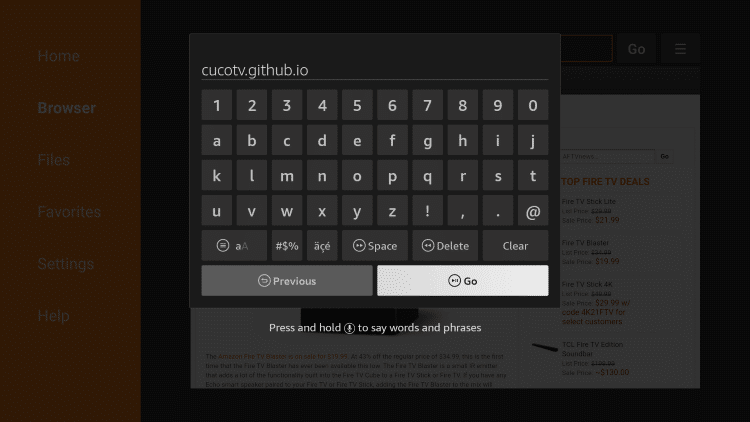
5. Select the Browser tab within the left menu.

6. Click the Search box and type the following URL exactly as it is listed here – cucotv.github.io and click Go
- cucotv.github.io is the official website of this app.
7. Scroll down and click Download APK.
Important Note: If using an Android TV device or Chromecast with Google TV, you must first install the Downloader Browser Plugin.
You can do this by typing in “http://browser.aftvnews.com” within the URL box, or viewing that section in our Downloader Tutorial.

8. Wait for the file to download

9. Click Install

10. Click Done

11. This will return you to the Downloader App. Click Delete

12. Click Delete again

13. Launch the app and click Get Started.

14. Select your language and click Done.

15. Click the TV icon for the device type.

16. Click Allow.

17. Click Cancel.

18. That’s it! You have successfully installed CucoTV APK.

Note: Since this is a newer app, there are still some minor bugs/fixes the developers are ironing out. If a certain link doesn’t work, simply try another one.
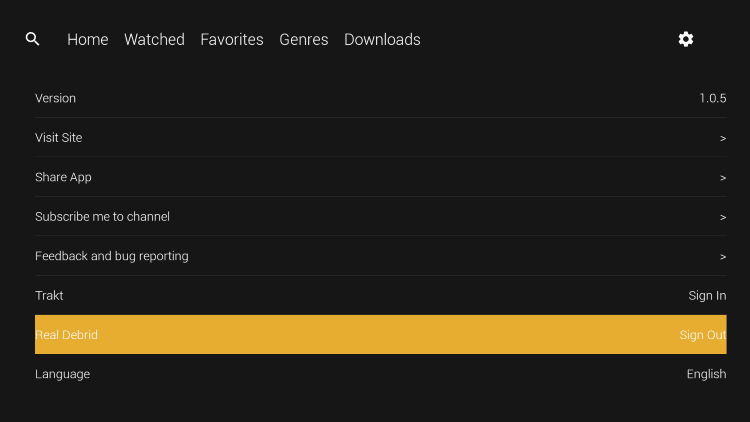
How to Integrate Real-Debrid
One of the best features of CucoTV APK is the ability to integrate Real-Debrid for higher quality links. There is also an option for using Trakt.
Prior to using Real-Debrid within this APK, you must have a Real Debrid account.
Follow the short guide below for integrating Real-Debrid within this app.
1. Click the Settings icon in the top right corner.

2. Scroll down and select Real-Debrid.

3. Write down & remember the code that appears on the screen.
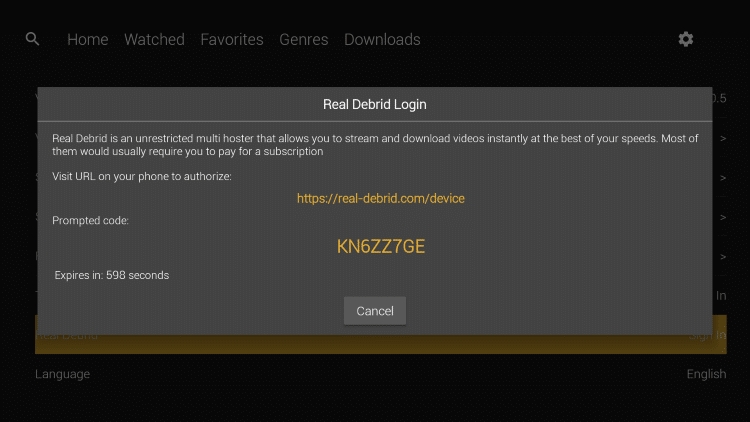
4. Go to real-debrid.com/device on any browser.

5. Type in the activation code from step 3 and click Continue.

6. You will then receive an authorization complete notification.

7. You have successfully integrated Real-Debrid within CucoTV APK!

CucoTV APK Features & Details

CucoTV is a simple application with one-click play for several movies and TV shows.
The categories include Movies, Recently Added, TV Shows, Top Actors & Actresses, Watch at Home, and more.

Although there is an option for using Subtitles, we found this app does not allow for the use of external video players such as MX Player or VLC Media Player.
However, the internal media player seems to be working fine as of this writing.
Give CucoTV APK a try today on your preferred streaming device!
CucoTV APK FAQ
[sc_fs_multi_faq headline-0=”h2″ question-0=”What is CucoTV APK?” answer-0=”CucoTV is an app available for installation on streaming devices to watch Movies and TV Shows for free.” image-0=”” headline-1=”h2″ question-1=”Is CucoTV legal?” answer-1=”Yes. CucoTV APK is legal to install and use. However, some content provided may be illegal. To ensure you are not illegally streaming, make sure to only watch Movies and TV Shows in the public domain.” image-1=”” headline-2=”h2″ question-2=”How Do I Download Movies from CucoTV?” answer-2=”To download movies on a Firestick, simply choose your preferred content and select the download option. If downloading, make sure you are using a VPN to encrypt your IP Address.” image-2=”” headline-3=”h2″ question-3=”What devices can CucoTV be installed on?” answer-3=”CucoTV APK is available for installation on tons of devices including the Amazon Firestick which is the most popular streaming device available. Users can also download on Android and more.” image-3=”” count=”4″ html=”true” css_class=””]
This page includes affiliate links where TROYPOINT may receive a commission at no extra cost to you. Many times, visitors will receive a discount due to the special arrangements made for our fans. Learn more on my Affiliate Disclaimer page.


