

The following instructional guide will show you How to Download Apps on Firestick and Fire TV.
We provide two methods for installing apps on Firestick including apps that aren’t available within the Amazon App Store.
The Amazon Firestick is likely the most popular media device available today.
This is due to its low price point and jailbreaking abilities making it a popular choice for cord-cutters and more.
One of the best features of this device is the capability to download apps on Firestick with ease from various sources.
These applications come in all shapes and sizes and will help you get the most out of this powerful device.
In the guide below, we will show you How to Download Apps on Firestick and Fire TV from the Amazon App Store.
We will also show you how to “sideload” applications that are not available in Amazon’s App Store.
This is the best way to gain access to tons of content including Movies, TV Shows, Live Streaming, and more for free.
Hide Your Digital Fingerprint
In this tutorial, we are using a Fire TV Stick 4K Max. However, this will also work for any variation of Firestick or Fire TV device you have.
TROYPOINT TIP: If you are looking for the most popular app options for your Firestick, check out our list below that stays updated with all the best Firestick Apps available.
Best Firestick Apps for Movies, TV Shows & More
How to Download Apps on Firestick/Fire TV
Downloading Apps on your Firestick or Fire TV device is a fairly easy process that will take 30 seconds or less.
First, we will show you How to Download Apps on Firestick from the Amazon App Store.
1. From the home screen of your device, hover over Find and select Search.

2. Search for the app you would like to install.
(In this instance, we are installing IPVanish which is TROYPOINT’s trusted VPN Provider).
Exclusive Surfshark Discount
Warning: Your online activity is currently monitored by your ISP, app/addon/IPTV developers, government agencies, and the websites you visit.
- Become 100% anonymous while streaming and downloading.
- Use on Unlimited Devices & share 1 account with the entire family.
- Save 87% with the 24-Month Plan + Get 3 FREE Months.

3. Choose the application for download.

4. Click Get or Download.

5. Wait for the app to install.

6. You are then met with a “Ready to launch!” message.

That’s it! You have just downloaded an App on your Firestick device. Enjoy!
If you prefer to browse through various app choices, we suggest using the Appstore.
To do so, use the instructions below.
Big Tech is Scanning Your Emails
Stop letting free providers read your private messages to build advertising profiles on you. Take back your digital privacy with a secure, ad-free inbox.
1. From the home screen, hover over Find and select Appstore.

2. You can now browse through various app options.

3. Choose your preferred app for download.

4. Click Get or Download.

5. You will then encounter app “Ready to launch!” message.

Installation is now complete. Enjoy!
If you want to learn how to download apps on Firestick and Fire TV that aren’t available in the Amazon App Store, read our guide below.
How to Sideload Apps on Firestick and Fire TV
Apart from apps available in the Amazon App Store, Firestick owners can also “sideload” various apps & APKs onto this device.
Best APKs for Movies & TV Shows
This is possible by enabling unknown sources within the settings of your Firestick or Fire TV.
We will also use an installer tool called Downloader that will allow you to download any app you prefer.
Doing so will unlock the device for access to thousands of applications that you cannot find within Amazon’s App Store.
Use our guide below that will show you How to Download Apps on Firestick and Fire TV via side loading.
1. From the home screen of your device, hover over the Find option.

2. Click Search.
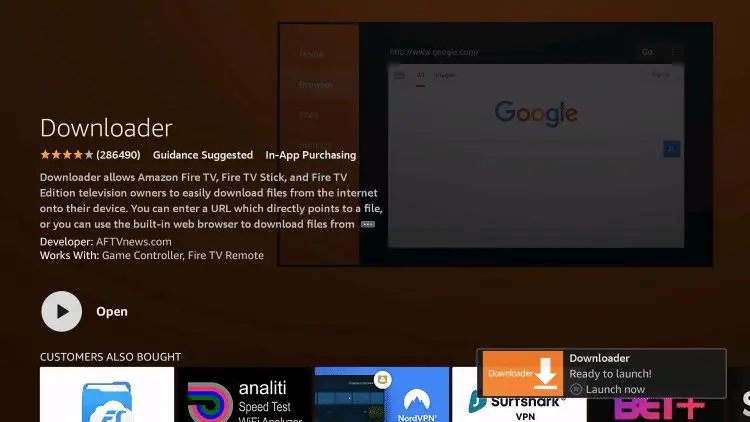
3. Search for and select Downloader.
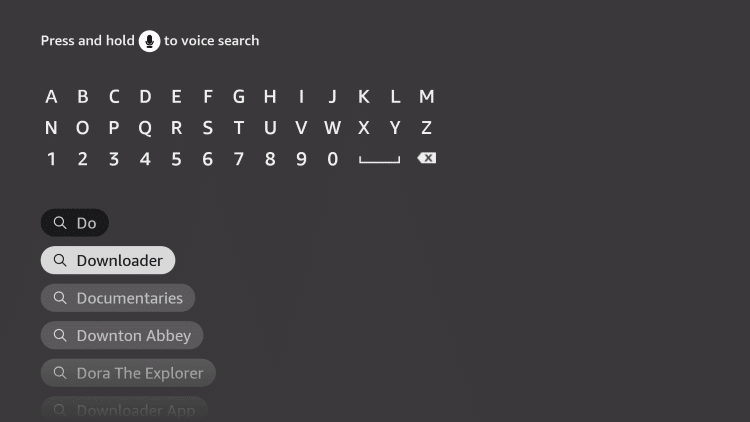
4. Choose the Downloader app.
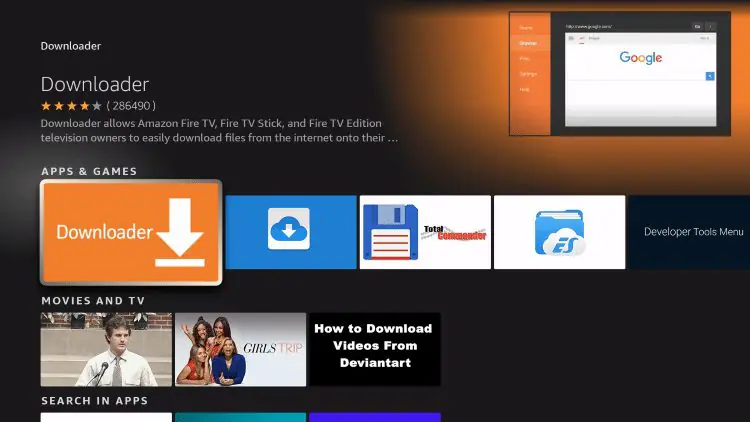
5. Click Download.
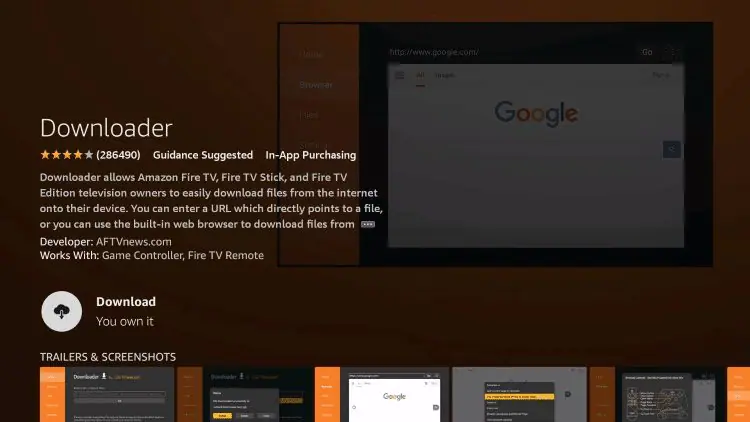
6. Wait for the app to install.
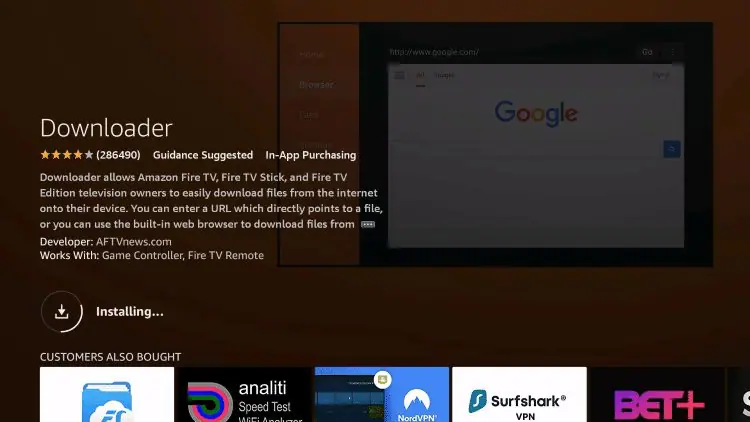
7. Once the app finishes installing click Open.
8. Return to the home screen and open Settings.

9. Click My Fire TV.

10. Choose Developer options.

11. Click Install unknown apps.

12. Find the Downloader app and click it.

13. This will turn Unknown Sources to On for the Downloader app. This will enable side-loading on your device.

Alternative App Store on Firestick/Fire TV
After installing Downloader and enabling Unknown Sources, we can download any app or APK we prefer.
In this instance, we will show you how to install Aptoide TV which is a Google Play Alternative featuring thousands of apps not provided in the Amazon App Store.
1. Launch the Downloader App

2. Click Allow.

3. Click OK.

4. Select the Browser tab within the left menu.

5. Click the Search box and type the following URL exactly as it is listed here – tv.aptoide.com and click Go
- tv.aptoide.com is the official website of this app.
Note: The referenced link is the official URL of this app/addon. TROYPOINT does not own or operate any streaming website, service, app, or addon, and has no affiliation with any developers.

6. Scroll down and click Download Aptoide TV.

7. Wait for the file download to finish.

8. Click Install.

9. Click Done.

That’s it! Aptoide installation is now complete which you can access for thousands of Streaming Apps, Tools, and more. Enjoy.
For more Firestick Resource tutorials, check out our popular guides below:
- Best VPN for Firestick
- Kodi on Firestick/Fire TV
- How to Fix Firestick Remote Not Working
- Expand Storage on Firestick/Fire TV
Frequently Asked Questions
Are Apps Free on Firestick?
Yes. Most applications are free to install on Firestick and Fire TV. However, some require a monthly subscription fee for access to content.
How do I Install Unknown Apps on Firestick?
You can easily install unknown apps on firestick by enabling unknown sources within the settings of your device.
How do I Download Apps on Firestick?
There are numerous methods to download apps on firestick including via the Amazon App Store, via Downloader, ES File Explorer, and more.
What are the Best Firestick Apps?
Some of the Best Firestick Apps include Netflix, Pluto, Downloader, IPVanish, and more.
This page includes affiliate links where TROYPOINT may receive a commission at no extra cost to you. Many times, visitors will receive a discount due to the special arrangements made for our fans. Learn more on my Affiliate Disclaimer page.


