The following step-by-step tutorial will show you how to install Flix IPTV on the Amazon Firestick, Fire TV Cube, and Android TV/Google TV.
Flix IPTV works in conjunction with various IPTV Services to stream live content on your preferred device.
It is similar to other apps in the TROYPOINT Best IPTV Players list that include the following popular options:
- TiviMate
- IPTV Smarters
- Perfect Player
- and more
It is important to note that Flix IPTV does not host any content and is simply a media player for various services.
Setting up the Flix IPTV app on your streaming device will require an M3U URL from your provider.
You can usually find this in your welcome email, support documents, or online discussion board that most IPTV services offer for their subscribers.
The guide below will show you how to install this application on an Amazon Fire TV Stick 4K Max.
However, these instructions will also work on any variation of Fire TV including Firestick Lite and Fire TV Cube.
Those using an Android Box such as NVIDIA SHIELD, MECOOL, or Chromecast with Google TV can follow the same tutorial provided below.
Hide Your Digital Fingerprint
NOTE: This app is a paid service that costs less than $10 for a lifetime subscription.
There is a free trial available, however, we were unable to integrate an IPTV Service within the app without providing payment first.
How to Install Flix IPTV on Amazon Fire TV Stick/Android TV/Google TV
1. Install the Downloader app from your respective App Store (Amazon App Store or Google Play) and turn on Apps from Unknown Sources in the settings of your streaming device.
If you haven’t done this yet please refer to the following screenshot tutorial that demonstrates this simple process.
How to Install Downloader & Enable Unknown Sources
2. Launch Downloader.

Sick of Slow, Rural Internet?
Whether you live out in the country or take your RV off the grid, Starlink delivers blazing-fast internet to areas that traditional providers ignore.
Check Availability & Pricing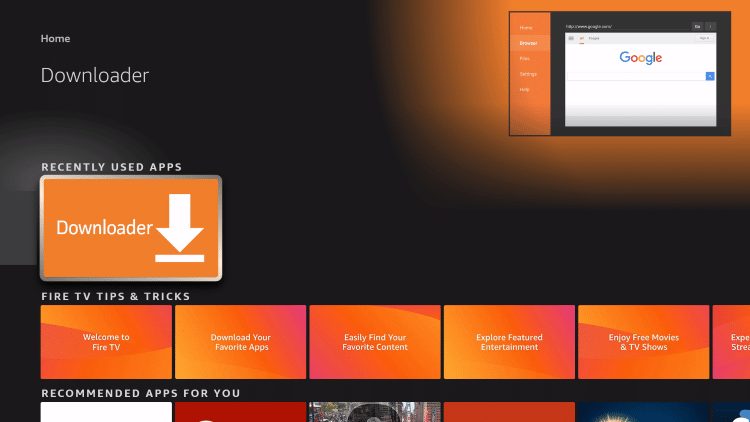
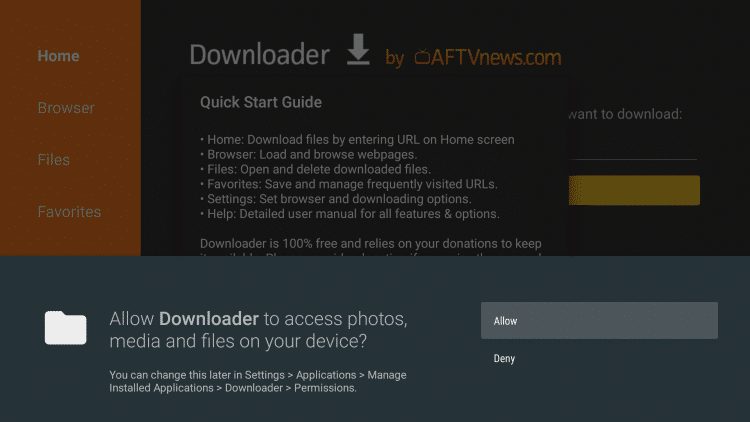
3. Click Allow.
Exclusive Surfshark Discount
Warning: Your online activity is currently monitored by your ISP, app/addon/IPTV developers, government agencies, and the websites you visit.
- Become 100% anonymous while streaming and downloading.
- Use on Unlimited Devices & share 1 account with the entire family.
- Save 85% with the 24-Month Plan + Get 3 FREE Months.
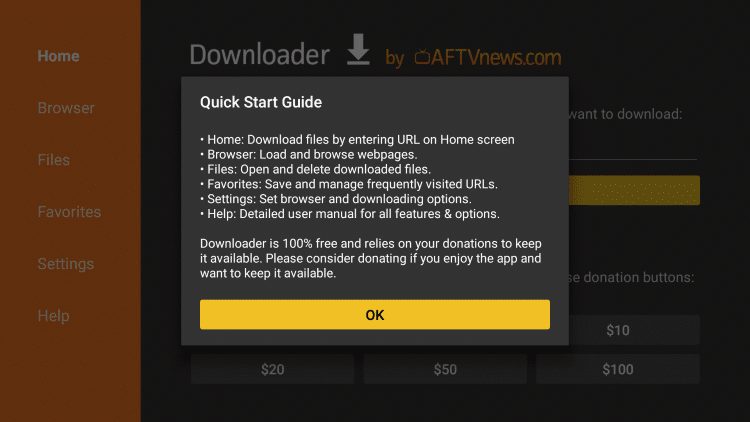
4. Click OK.
5. Place your cursor in the URL box and click the OK button on your remote to open the keyboard.
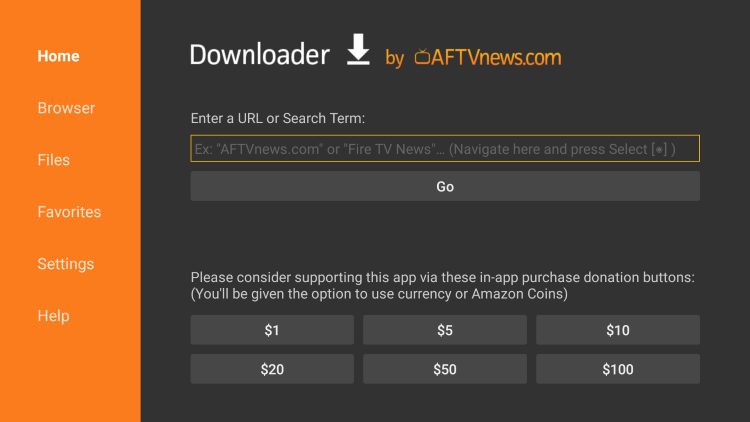
6. Type the following URL exactly as shown here – flixiptv.cc/flix.apk and click Go.

7. Wait for the Flix IPTV App to install.

8. Click Install.

9. You will then encounter Flix IPTV Ready to launch message.
Big Tech is Scanning Your Emails
Stop letting free providers read your private messages to build advertising profiles on you. Take back your digital privacy with a secure, ad-free inbox.

Installation is complete. You can now launch the app for use. Enjoy!
How to Set up Flix IPTV
After installing the app, we can now set it up for use.
Launch the app and select Settings.

Choose User Account.

You are then provided with your device MAC address. Make note of this.

Visit https://flixiptv.eu/activation and enter your Mac address from the previous step. Click Check.

You are then prompted to provide payment. There are numerous options including Bitcoin for transaction anonymity.

That’s it! Set up is now complete. You can now input your M3U URL to access your IPTV Service.
For more IPTV tutorials, be sure to check out our popular guides below.
Frequently Asked Questions
What is Flix IPTV?
It is an IPTV Player that works in conjunction with your preferred IPTV Service for streaming live channels.
Can I use it for Live Streaming?
While the app does itself does not provide any content, you can find live channels after implementing your Service Provider.
Is Flix IPTV Legal?
Yes. This app is absolutely legal to install and use.
How much does it cost?
Currently, a lifetime subscription to Flix IPTV costs less than $10 US.
This page includes affiliate links where TROYPOINT may receive a commission at no extra cost to you. Many times, visitors will receive a discount due to the special arrangements made for our fans. Learn more on my Affiliate Disclaimer page.