
This guide shows how to install Perfect Player which is one of the most popular live streaming outlets available.
If you have subscribed to an IPTV service, chances are that you have heard about Perfect Player.

Perfect Player is one of the most well-known IPTV Players available for those who don’t want to use Kodi to play their IPTV streams via M3U playlists or Xtream Code.
It is a simple, yet effective player option with various settings and features including Favorites, Channel lock abilities, and more.
In this guide, we will install Perfect Player on a Fire TV Stick 4K Max which is the most popular streaming device available today.
However, this guide will also work for those using Android TV/Google TV devices such as the NVIDIA SHIELD, MECOOL, or Chromecast with Google TV.
Once you learn how to use the Perfect Player user interface, you will notice that it may be quicker to navigate than Kodi or other live streaming outlets.
In order to use Perfect Player, you must have both your M3U URL and EPG URL of your current IPTV provider. You will input both of these URLs into the settings panel of Perfect Player to configure it correctly. You can also use an Xtream Code URL.
Once Perfect Player has been configured, you will enjoy a friendly user interface with many options that can be changed within the settings tab.
Hide Your Digital Fingerprint
One of the best features is the ability to mark IPTV channels as favorites within the EPG, which allows for quick channel surfing.
Perfect Player supports both M3U and Xtream Code playlist formats and most IPTV services use one or the other. It also supports XMTLV and JTV formats for the electronic program guide (EPG).
Perfect Player comes with multi-language support for English, Greek, Portuguese, Russian, Spanish, and Ukrainian. We must side-load this application due to the fact that it isn’t available inside the Amazon App Store.
How To Install Perfect Player IPTV on Firestick/Android TV/Google TV
Step 1 – Prepare Your Device for Installation
1. Launch the search bar from your home screen.

2. Type Downloader.

3. Choose the Downloader App.

Exclusive Surfshark Discount
Warning: Your online activity is currently monitored by your ISP, app/addon/IPTV developers, government agencies, and the websites you visit.
- Become 100% anonymous while streaming and downloading.
- Use on Unlimited Devices & share 1 account with the entire family.
- Save 85% with the 24-Month Plan + Get 3 FREE Months.
4. Click Get/Download.

5. Wait for the app to install.

6. Ready to launch message will show up in the bottom right-hand corner.

7. Go back into Device Settings and select My Fire TV.

8. Choose Developer Options.
NOTE: If you do not see Developer Options, use the screenshots below this guide to enable.

9. Click Install unknown apps.
Big Tech is Scanning Your Emails
Stop letting free providers read your private messages to build advertising profiles on you. Take back your digital privacy with a secure, ad-free inbox.

10. Click Downloader.

11. Downloader Unknown Sources will now be ON.

Developer Options Not Available
If you do not see developer options on your device, use the following steps to enable unknown sources for Downloader.
1. Within settings, choose My Fire TV.
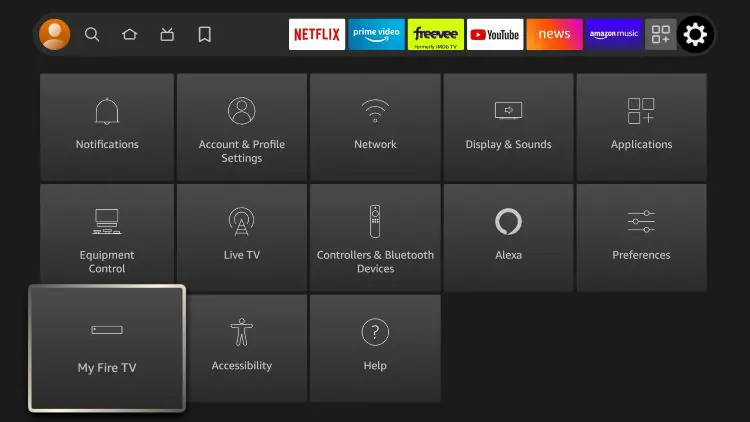
2. Click About.
You will see that Developer Options is not showing.
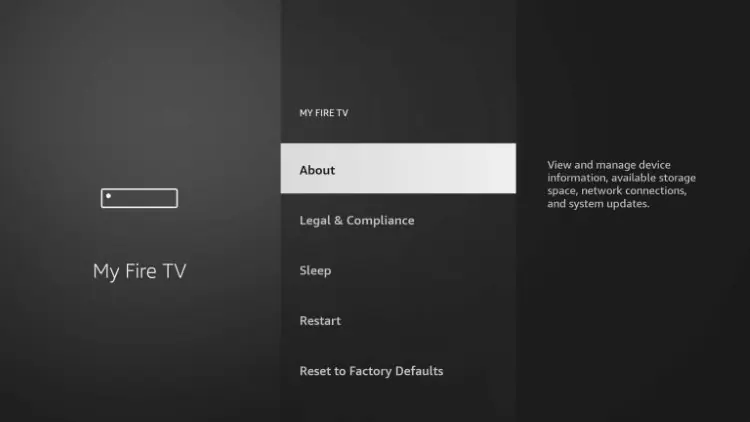
3. Find Fire TV Stick and click the OK button on your remote 7 times.
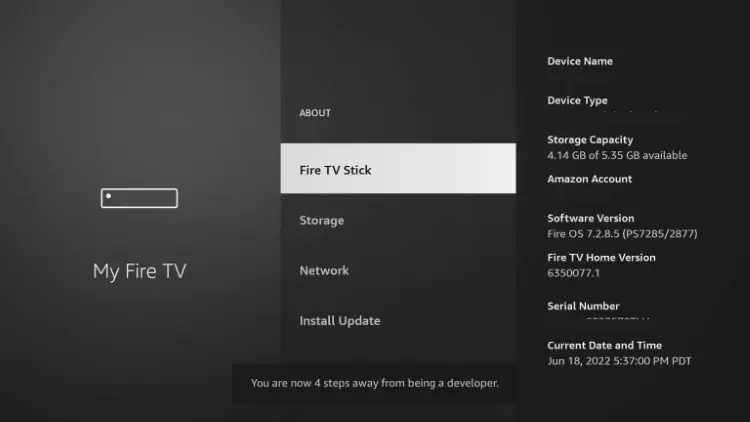
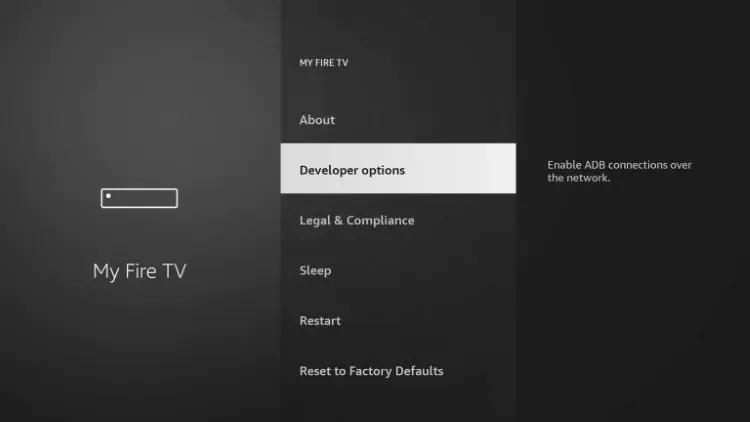
4. Return to My Fire TV and you will now see Developer Options.
Step 2 – Sideload Perfect Player APK
1. Open the Downloader App.

2. Click the URL bar.

3. Type 929878 which is the Downloader Code for Perfect Player and click Go.

4. A redirect page will then display.

5. Wait for the app to download.

6. Click Install.

7. Click Done.

8. Select Delete to remove the installation file.

9. Click delete again.

Installation of Perfect Player is now complete.
However, no content will be available until we integrate our IPTV Service. Follow the guide below to do so.
How To Setup Perfect Player IPTV
After app installation is complete, we can open the app and authorize an IPTV Service for use. In the instance below, we are using a popular IPTV Service.
NOTE: Initializing an IPTV Service within Perfect Player requires an M3U URL or Xtream Code URL. This can usually be found in your IPTV Service welcome e-mail or by contacting customer support.
Follow the steps below to integrate IPTV Service in Perfect Player. In this guide, we will add Samsung TV Plus which is a Free IPTV Service available on just about any device.
1. Open Perfect Player and click Accept.

2. Open Perfect Player and click the Settings icon on the far right.
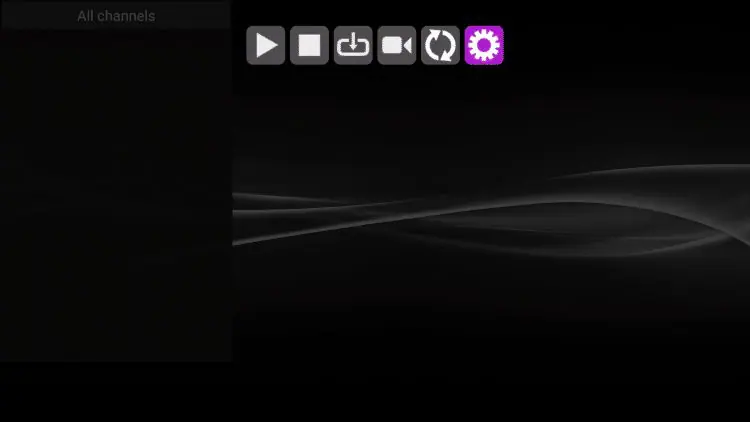
3. Click General.

4. Choose Playlist.

5. Select M3U or XC.

6. Enter in the M3U URL or Xtream Code of your choice and click Next.

7. Insert a name for this playlist and click OK.

8. You will see a Playlist update started message in the upper right-hand corner.

9. Channels are now available for browsing.

10. If you prefer, you can add an EPG URL for a Program Guide with updated information.

Add Channels to Favorites
Follow the short guide below on how to add your IPTV channels to favorites within Perfect Player.
1. Launch Perfect Player and locate the channel you want to add to favorites. For this example, we chose ABC News.

2. Click the Options button on your remote (3 horizontal lines) then scroll down and select Add to favorites.

3. Your selected channel will then be added to your favorites. to view your favorites, hold down the Options button again then scroll down and select Show favorites.

4. You will then notice that your selected channel is now located within your favorites.

5. To remove a channel from favorites, hover over the selected channel then hold down the Options button on your remote. Then scroll down and choose Remove from favorites.

It is strongly suggested to use a VPN service when streaming from any IPTV service to secure your privacy.
Install VPN on Firestick or Fire TV
Frequently Asked Questions
What is Perfect Player?
Perfect Player is a popular IPTV player that pairs with any IPTV service for an improved streaming experience.
Is Perfect Player Legal?
Yes. This app is 100% legal to install and use. It is available in the Google Play Store.
Is Perfect Player Safe?
Yes, this app is safe to install and use on any Fire TV or Android device.
What Devices can Perfect Player be Installed on?
This app is available for installation on any device that runs the Android operating system. This includes the Amazon Firestick, Fire TV, and any Android device.
What Does IPTV Stand For?
IPTV stands for Internet Protocol Television.
This page includes affiliate links where TROYPOINT may receive a commission at no extra cost to you. Many times, visitors will receive a discount due to the special arrangements made for our fans. Learn more on my Affiliate Disclaimer page.



I’ve been using perfect player for years. It works GREAT!
Perfect player does not work nor has in a couple years
Can’t get it to work going step by step !
Doesnt work
Hi there, thanks for the heads up try installing again the issue should be resolved.