

This comprehensive Orion Setup Guide will tell you everything you need to know about this service and how to set it up on your preferred app/addon.
Thanks to a patron from our TROYPOINT Insider Forum who brought this platform to our attention!
Orion is defined on its website as “an indexer and search engine for torrent, usenet, and hoster links”.
You can think of it as a source for scouring and selecting the best links possible and providing them for access in streaming services.
This is similar to various provider packages users can install in apps such as Seren, Syncler, and more.
You will notice that after integrating Orion you will get your links extremely fast.
This platform works in conjunction with various apps and addons to provide high-quality streaming links on your favorite device.
This includes streaming devices such as the Amazon Firestick which is the most popular media device available today.
Oftentimes, users purchase a Firestick or Fire TV in hopes of jailbreaking it for tons of streaming content.
Hide Your Digital Fingerprint
Orion offers various Paid subscriptions as well as a free option, however, sign-up is required for use of either.
Integrating an account within your preferred app or addon will provide you with tons of streaming links that you might not normally encounter.
Most apps that are compatible will require the use of a real-debrid account which many cord-cutters already have.
In the guide below, we will set up Orion within the Stremio application as well as the popular Kodi addon Seren.
However, these are not the only options that this service works with.
If you do not have a real-debrid account, we can use the Elementum addon with Orion to find high-quality streaming links.
We provide instructions for this addon at the bottom of this tutorial.
What is Orion?
Orion works in a similar fashion to real-debrid, however, you are not required to purchase service as it is entirely free.
NOTE: If you do not have a real-debrid account, please refer to our resource guide below to learn everything you need to know about this service.
Exclusive Surfshark Discount
Warning: Your online activity is currently monitored by your ISP, app/addon/IPTV developers, government agencies, and the websites you visit.
- Become 100% anonymous while streaming and downloading.
- Use on Unlimited Devices & share 1 account with the entire family.
- Save 87% with the 24-Month Plan + Get 3 FREE Months.
Real-Debrid on Kodi & Streaming Apps
Instead of hosting or distributing files, this service works in conjunction with premium hosters such as Real-Debrid to find more links for streaming.
You can read the full description from the official website below:

Currently, there are 6 subscription options including the free subscription.
These include:
- Free
- Novice ($0.50/month)
- Beginner ($1.00/month)
- Advanced ($2.00/month)
- Expert ($3.00/month)
- Unlimited ($199/lifetime)

CLICK HERE to register for Free Membership
IMPORTANT: It is important to note that Orion’s subscription options are based on the number of links that it will provide after selecting a Movie or TV Show.
You can adjust this within the settings of each app/addon which we provide instructions for below.
If you select the Free Orion Plan, you are limited to 100 “Link Retrievals” per day. This does not mean that you can select up to 100 links per day, instead, it will retrieve up to 100 links per day.
Oftentimes, Orion can retrieve 100 or more links for just one title which means your link limit could be reached after selecting a single Movie or TV Show.
Big Tech is Scanning Your Emails
Stop letting free providers read your private messages to build advertising profiles on you. Take back your digital privacy with a secure, ad-free inbox.
Please follow each step below in our instruction guide that will show you how to adjust your link retrieval settings and get the most out of this service.
After choosing a subscription plan, you can use implement your account within your preferred service.
There are tons of Streaming Apps and Kodi Addons that work with Orion including:

Some of these are more difficult to integrate than others.
We have found Stremio is a simple setup process which is why we have elected to use it to show integration instructions in this guide.
We also provide setup instructions for the Seren Kodi addon which is popular among Kodi users.
For those who do not have a real-debrid account, follow the Elementum addon setup guide for Orion use.
IMPORTANT NOTE: If you prefer to use another streaming option, we suggest following the dedicated guide for your chosen app or addon at the official website.
How to Sign Up
Before integrating it into a Streaming App or Addon we must first sign up for service.
1. Visit the Official Orion Website and select Get Free Account.

2. Provide your account details and click Register.
NOTE: We suggest using an anonymous email address to protect your online identity.

3. Click Login.

4. You can now access your account. In order to set up Orion, we must find our designated API Key. This is located under Dash in the main Panel.
This API Key is important as we will use it to implement the service within various apps and addons.

That’s it! Registration is now complete.
We can now integrate using the steps below to find tons of streaming links.
How to Set Up Real-Debrid with Orion
Orion works in conjunction with real-debrid which will help filter the highest quality links.
We can implement real-debrid in the Panel. Follow the guide below to do so.
1. Within your Account page, hover over Services and select Real-Debrid.

2. Click Authorize.

3. Make note of your provided code and click the green checkmark.

4. This will take you to the real-debrid authorization screen. Paste your code and click Continue.

5. Real-Debrid is now authorized within Orion.

With real-debrid setup complete, we can now continue to integrate it within various apps and addons.
How to Set Up Orion in Stremio
In this example, we will implement Orion within the popular Stremio application which is one of the Most Popular Streaming APKs available today.
If you do not already have this app installed on your preferred device, visit our instructional guide below.
Install Stremio on Firestick/Android
NOTE: For the best links possible, you will first want to install the Torrentio Lite add-on or other Torrent add-ons within Stremio.
1. Launch the Stremio application and open the menu bar to select Addons.

2. Scroll down to find Orion and click Configure.

3. This will open the Configuration screen within Silk or other browser.

4. Input your Orion API Key and click Install. (Make sure you go slow and enter the entire key or integration will not work. This may take some time but it is worth it!)
IMPORTANT NOTE!! You will want to set your “Link Limit per Search” number based on your account.
If using a Free Orion account, we strongly suggest setting this to 5 or 10 as it only provides access to 100 “Link Retrievals” per day.

5. Return to the Stremio App and select Install.

6. Click Install again.

That’s it! Orion set up within Stremio is now complete.
You can now find these links when searching for various Movies & TV Shows.

If you are a Kodi user, you can also implement Orion within various addons such as Seren.
Follow the guide below to Set up Orion within Seren.
How to Install the Kodi Addon
We can also integrate Orion within popular addons for tons of high-quality links.
We provide set up instructions for both the Seren Kodi addon as well as the Elementum Kodi addon.
Seren is a premium addon that requires real-debrid for use, however, those without a real-debrid account can still use the service within the Elementum addon.
If you don’t already have Seren installed on your device, follow our guide Seren Install Guide to install and set it up for use on any device.
NOTE: You will not need to install the Provider package we show in this guide, instead we can install the Provider Package using the steps below.
First, however, we must install the official Program Add-on.
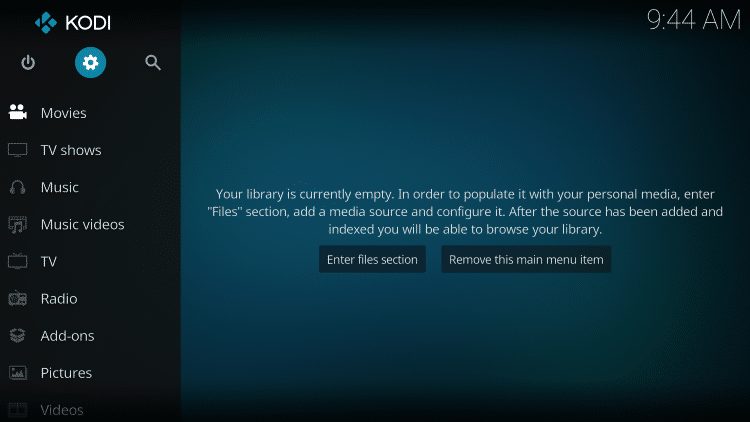
- Launch Kodi
- Click the settings icon


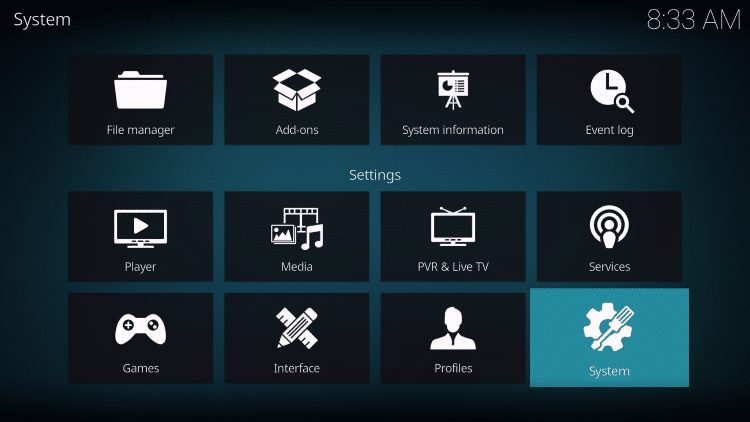
- Click System
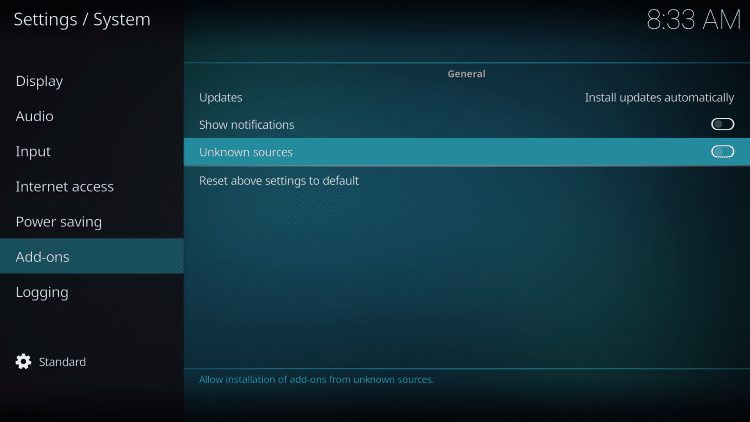
- Hover over Add-ons menu item and turn on Unknown sources if not already on
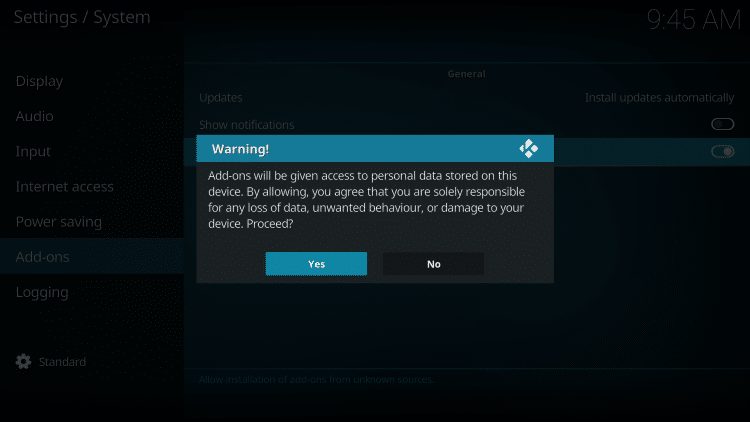
- Read this important Warning prior to proceeding.
Add-ons will be given access to personal data stored on your device!
This is why it is so important running IPVanish VPN if you’re going to use a 3rd party addon such as Seren.
IPVanish VPN won’t allow these 3rd party addons to gain access to your personal data.
- Click back on remote to go back to the System page
- Select File Manager
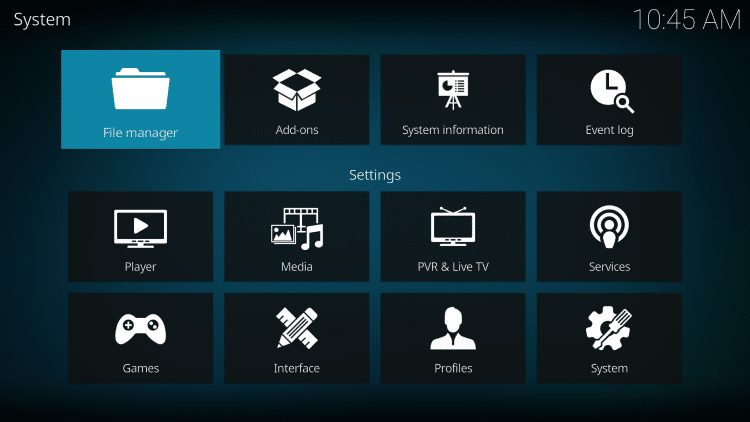
- Click Add source
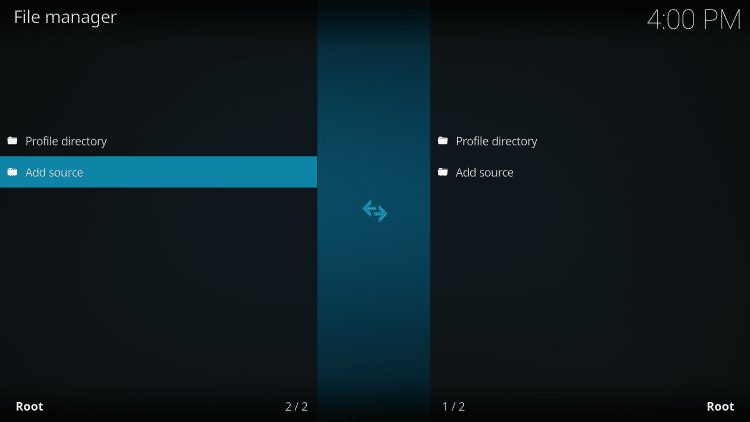
- Click <None>
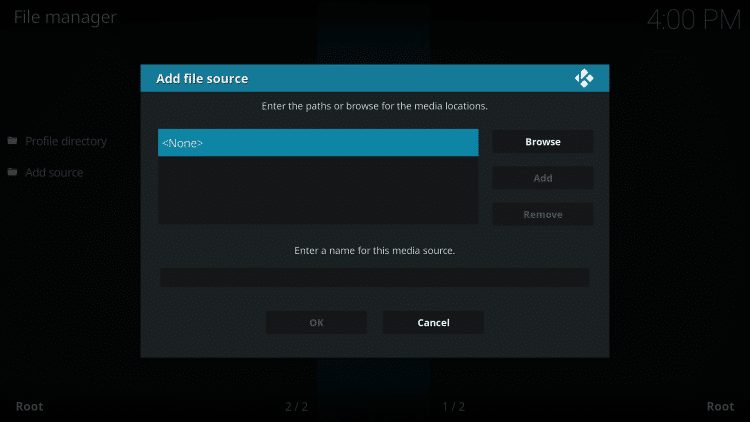
- Type the following URL – https://repo.orionoid.com and click OK
- orionoid.com is the official website that hosts this repository URL
Note: The referenced link is the official URL of this app/addon. TROYPOINT does not own or operate any streaming website, service, app, or addon, and has no affiliation with any developers.

- Enter a name for this media source such as Orion and click OK again

- Click your back button on remote or keyboard until you are back on the System screen
- Choose Add-ons
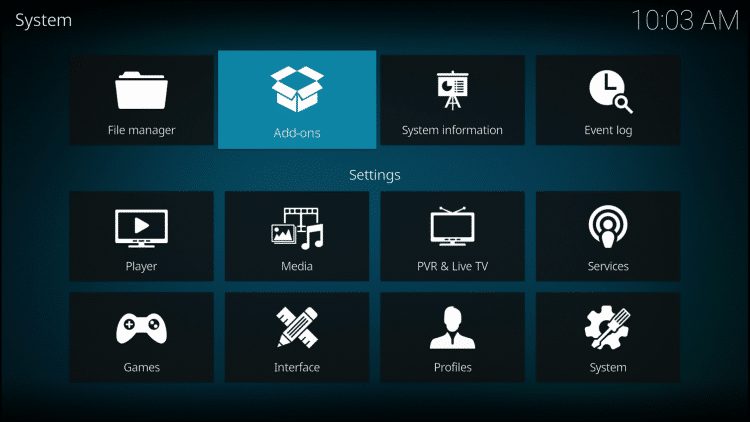
- Click Install from zip file
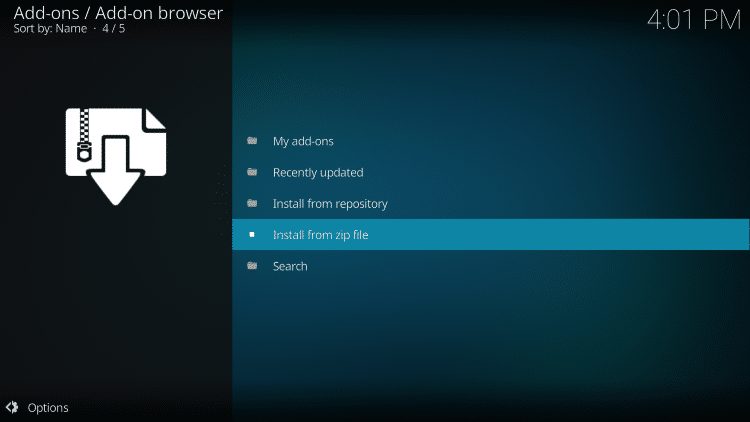
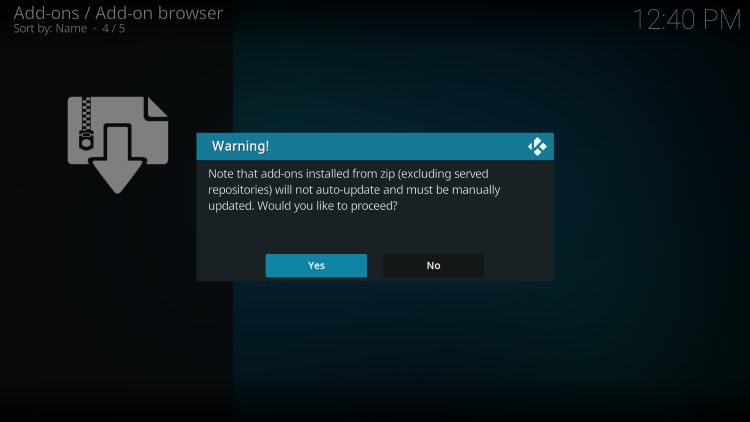
- When prompted with the following message, click Yes
- Choose orion or another name you assigned the media source in the previous step

- Click repository.orion

- Choose the latest release of Orion

- Wait for Orion Repository Add-on Installed message

- Click Install From Repository
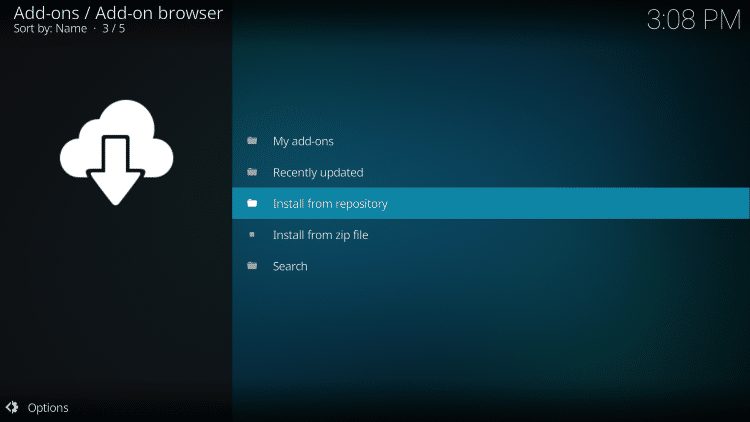
- Choose Orion Repository

- Click Program add-ons

- Select Orion

- Click Install

- You will then encounter Orion Add-on installed message. Click Orion again

- Choose Open

- Click Cancel or Continue if you wish to use the setup Wizard

- Select Authenticate

- Choose Login with API Key

- Enter your Orion API Key which you can find in the Orion Dashboard and click OK

- You will then encounter Orion Account Successfully Authenticated message

IMPORTANT NOTE!! You will want to set your “Link Limit per Search” number based on your account.
If using a Free Orion account, we strongly suggest setting this to 5 or 10 as Orion only provides access to 100 “Link Retrievals” per day.
To do so, follow the steps below.
- From the Orion addon home screen, click Tools.

- Select Settings.

- Click Advanced.

- Hover over Filters and change the Link Limit to 5 or 10.

- Click OK.

- Scroll down to hover over Seren and click the toggle to Enable Custom Settings.

- Change the Link Limit to 5 or 10 and click OK.

Orion Add-on installation and set up is complete!
We can now integrate this within Seren or other Kodi addon for use. Continue reading to learn how to use Orion in Seren.
If you do not have real-debrid, continue below for setting up Orion within the Elementum addon.
How to Set Up Orion within Seren Kodi Addon
1. Launch the Seren Kodi addon and select Tools.

2. Choose Provider Tools.

3. Click Manage Provider Packages.

4. Click Install Package.

5. Choose Web Location.

6. Type https://seren.orionoid.com and click OK.

7. Click Install.

8. Click OK.

That’s it! You have now integrated Orion within Seren which will populate tons of high-quality streaming links.
Enjoy!
If you do not have a Real-Debrid account and wish to use Orion within Kodi, we can do so using the Elementum addon.
Continue reading to learn how to set up Orion within Elementum.
How to Set up within Elementum Kodi (No Real-Debrid Required)
For those who do not have a real-debrid account, we can implement Orion within the torrent addon Elementum.
IMPORTANT NOTE: Because Elementum scrapes for torrent links, you must use a VPN to protect your online data.
Follow the guide above that will show you how to install the Kodi addon.
If you don’t already have Elementum installed, use our installation guide below.
How to Install Elementum Kodi Addon
After you have installed both addons, we can set up Orion for use in Elementum.
First, open your VPN App and connect to the VPN Server of your choice to protect your data.
1. Launch the Orion Addon and select Apps.

2. Click Integration

3. Click Yes.

4. Scroll down and select Elementum.

5. Click Integrate: Integrate Orion into the addon.

6. Click Yes.

7. You will then encounter Orion Integration Successful message. Choose Yes again.

8. Click Restart to restart your Kodi device.

That’s it! You have now integrated this service within the Elementum Kodi Addon.
Enjoy!
If you are looking for more information on Orion and all of its uses, we suggest visiting the official website below.
This page includes affiliate links where TROYPOINT may receive a commission at no extra cost to you. Many times, visitors will receive a discount due to the special arrangements made for our fans. Learn more on my Affiliate Disclaimer page.


