
This guide provides you with step-by-step instructions to install Aptoide TV on your favorite television-compatible device such as Firestick, Fire TV, Google TV, and Android Boxes.

We also include full details of the Aptoide TV Application that will show you how to use it to your advantage for advanced streaming options.
Using Aptoide TV is one of the best advantages to an “open-source” device such as Fire TV Stick or Google TV and that is why we suggest these devices for viewing.
Make sure to continue below the installation guide for important details that will provide you with a thorough breakdown of Aptoide so you know exactly what you are working with!
What is Aptoide TV?
Aptoide TV is an extremely popular 3rd Party App Store that provides free apps that you would not find in official app stores like Google Play or Amazon App Store.
Because the Google Play Store is not available on Fire TV devices, many are looking for an alternative and Aptoide TV does a great job of filling that void.
The app works similarly; however, it is optimized for streaming devices that run Android OS such as the Amazon Firestick, Fire TV, and Google/Android boxes.
The reason many opt for Aptoide TV is that installing Google Play Store on a Firestick or Fire TV requires rooting the device, which is a tedious process that we do not suggest.
Hide Your Digital Fingerprint
Users will find thousands of apps available within Aptoide TV and many of these are applications that we do not find within the Amazon App Store. This is possible after the process of “jailbreaking” your Amazon Firestick or Fire TV device.
The most current version of Aptoide is V5.1.2 which has been stable for quite some time now. We are hoping for an update sometime in the near future.
Installing and using Aptoide is as simple as using any other app store with various categories to choose from and browse. All apps available are completely free, which is not the case for most app stores, including the Amazon App Store & Google Play Store.
In the guide below, we provide installation instructions for using a Fire TV Stick 4K Max but these steps also work on Android Boxes such as the Google TV Streamer, NVIDIA SHIELD, MECOOL, onn 4K Pro, and more.
Highlights

- One of the most popular 3rd party app stores available
- Contains over 2500 apps
- Compatible with any device that runs Android OS such as the Firestick 4K, Fire TV, NVIDIA SHIELD, and Android TV/Google TV Boxes
- Free to install
- Easy-to-navigate user interface
- Great variety of app categories
- Has many great apps that aren’t available in the Amazon App Store or Google Play
- Quick and simple installation process
For these reasons and more, it is listed as one of TROYPOINT’s Best Firestick Apps. Use the steps below to install Aptoide on your preferred streaming device.
Screenshots
How to Install Aptoide TV
Step 1 – Prepare for Download
1. Locate and select the search bar.

Sick of Slow, Rural Internet?
Whether you live out in the country or take your RV off the grid, Starlink delivers blazing-fast internet to areas that traditional providers ignore.
Check Availability & Pricing
2. Input Downloader.
Exclusive Surfshark Discount
Warning: Your online activity is currently monitored by your ISP, app/addon/IPTV developers, government agencies, and the websites you visit.
- Become 100% anonymous while streaming and downloading.
- Use on Unlimited Devices & share 1 account with the entire family.
- Save 85% with the 24-Month Plan + Get 3 FREE Months.

3. Choose the Downloader app.

4. Click Get or Download.

5. Wait for the app to install.

6. Installation is complete when you see the success message pictured below.

7. Now, open Settings and enable Unknown Apps for Downloader.

Step 2 – Install Aptoide TV
After preparing our device, we can now install Aptoide from the TROYPOINT Toolbox.
Big Tech is Scanning Your Emails
Stop letting free providers read your private messages to build advertising profiles on you. Take back your digital privacy with a secure, ad-free inbox.
1. Launch the Downloader App that we previously installed.

2. From the main menu, choose the URL search bar to open the keyboard.

3. Type the Downloader Code – 250931 to access the TROYPOINT Toolbox.

4. Wait a few seconds for the page to load.

5. You are then met with the TROYPOINT Toolbox home screen.

6. Scroll down to find Aptoide TV and click Download.

7. Wait for Aptoide TV to download.

8. Click Install.

9. The Aptoide TV Ready to launch message will display when it has successfully downloaded.

10. Click Done.

11. Choose delete to remove the download file.

12. Click Delete again.

Step 3 – Move Aptoide TV to Front of Apps List
After installation is complete, we will now show steps to move Aptoide TV to the front of our apps list for quick access. You don’t have to do this step but we recommend it if you will be using it often.
1. From the home screen of your device, click and hold down the home button until the following screen appears. Click Apps.

2. Hover over Aptoide TV and click the menu button to move the app.

3. Choose Move.

4. Drag to the top of your apps list and drop it for quick access.

Step 4 – Enable Unknown Sources for Aptoide TV
In order to use the app, we must first enable Unknown Sources as we did previously with Downloader. This will allow us the ability to install apps with Aptoide TV.
1. Hover over Settings and click My Fire TV.

2. Choose Developer Options.

3. Click Install Unknown Apps.

4. Find Aptoide TV and click it.

5. You will then see Unknown Sources set to ON.

Continue reading to learn how to install apps.
How to Install Apps with Aptoide TV
Installing apps via Aptoide TV is as simple as installing apps from any other app store. This simply involves finding the app of your choice and choosing it for quick installation.
You can use the search feature or browse available options by Category.
1. Find the app of your choice and click Install.

2. Wait for the app to download.

3. Click Install.

4. You will then encounter app installed message.

Details & Features
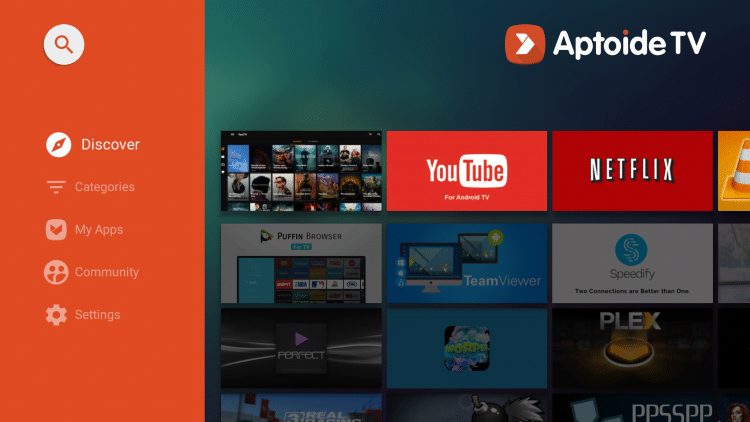
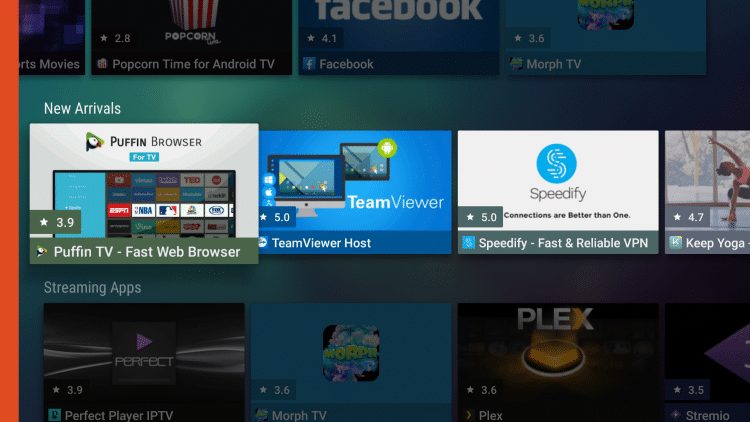
Aptoide TV holds tons of applications that are available for download with the click of a button. There is no shortage of options within this Google Play Alternative.
Whether you want to watch videos, play games, listen to music, use external video players, chat with friends on social media, or use different web browsers, Aptoide TV has it all!

Listed below are some of the most popular applications you can install for free:
- Netflix
- Plex Media Server
- YouTube
- Puffin TV Browser
- Stremio
- XCIPTV
- Perfect Player
- MX Player
- Mobdro
- Tubi TV
- Freeflix HQ
- HBO Max
- Twitch
- TeaTV
Many of these apps and more can also be found within our list of Best APKs for Movies, Shows, etc.
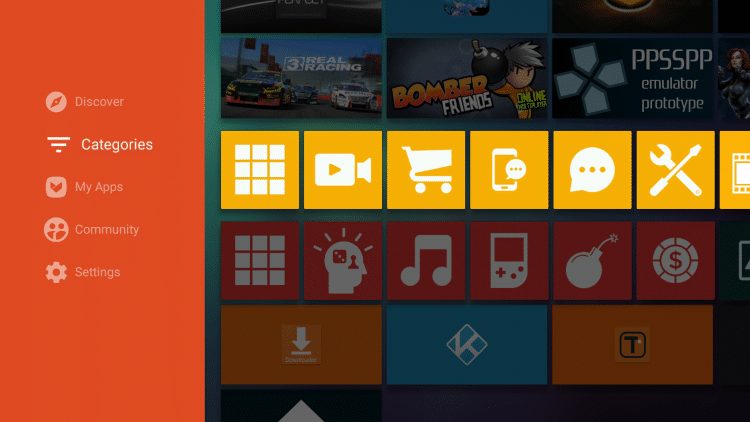
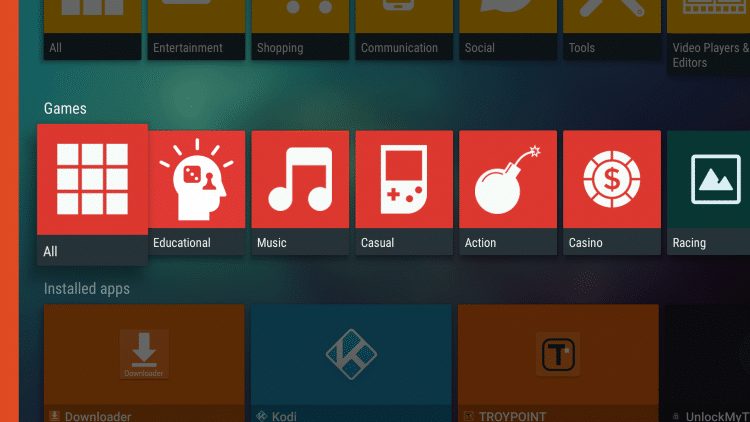
Some of the most popular app categories include Entertainment, Shopping, Communication, Games, Social, Video Players/Editors, Tools, and more.

You can also browse Installed Apps on your device.

Those who develop apps and APKs can easily upload these to Aptoide.

Overall, Aptoide TV is a fabulous resource to have for anyone who wants to install streaming apps and more on their preferred device.
Is Aptoide TV Safe?
Before using the app, it is important to scan the official Android APK installation file with VirusTotal. Here is the screenshot of the scan results.

VirusTotal did not find any malicious viruses/malware within the APK file.
Even though this application is clean, there may be some malware or other issues associated with apps downloaded from Aptoide. Because we do not know who the developers of these apps are, it is vital to protect our identity with a trusted VPN Provider.
Best VPN for Firestick/Android TV
Final Thoughts/Observations
Using Aptoide TV is one of the best ways to unlock streaming devices such as Firestick or Android Box. Many use it on a daily basis to find free APKs that you wouldn’t normally have access to!
It is extremely easy to use and doesn’t take any more effort than using any other official app store would for both finding and installing various apps.
Give it a try today and let us know what you think in the comments section!
For more tech and streaming tutorials like this one, be sure to sign up for the TROYPOINT Advisor with updates weekly.
This Advisor provides all the best tips to get the most out of your favorite streaming devices and more. Click the link below for your TROYPOINT Advisor Subscription:
This page includes affiliate links where TROYPOINT may receive a commission at no extra cost to you. Many times, visitors will receive a discount due to the special arrangements made for our fans. Learn more on my Affiliate Disclaimer page.


