
In this guide, we cover the ever-popular BeeTV APK with detailed information about this media platform as well as instructions to install it on your favorite device!

BeeTV is a well-known streaming app that provides access to Movies and Series in high definition.
This includes the addition of Anime & Adult media, which is an added plus for those interested in watching Manga films and XXX content.
BeeTV Update for 2026
IMPORTANT NOTE: The original developers of BeeTV are no longer supporting the application.
While it may work in the short term, we suggest using an alternative from our Best APKs listwhich features high level medai apps with no ads and tons of configuration options.
If you still want to find a BeeTV app to watch films/shows, there are various “modded” versions available on the internet but make sure you are proceeding with caution when using these.
Oftentimes, these are phony or scam sites/apps that are attempting to steal user data or profit from the BeeTV name. You have been warned!
There is even an application on the Google Play Store titled BeeTV but this also does not work.
Hide Your Digital Fingerprint

Our instructions below will give you a general idea of how to install BeeTV on an Android/Google TV/Fire TV if you still wish to do so.
TROYPOINT TIP: Make sure to read the important details below the installation guide that will show you how to remove ads in Bee with the CleanWeb feature from Surfshark VPN! The application is almost unusable unless you remove ads with this trick.
BeeTV has recently updated to V4.8.0 (September 2026) with new improvements and features.
Users are now required to allow Storage Permissions to use the application. Make sure you are connected to a VPN to ensure your data is safe.

Legal Disclaimer: This free streaming app should only be used to access movies and TV shows not protected by copyright such as Public Domain movies and TV shows.

Sick of Slow, Rural Internet?
Whether you live out in the country or take your RV off the grid, Starlink delivers blazing-fast internet to areas that traditional providers ignore.
Check Availability & PricingHow to Install BeeTV APK on Firestick/Android/Google TV
In this guide, we are using an Onn 4K Pro to install BeeTV but these instructions will also work on any other type of Google/Android TV or Firestick devices.
1. Install the Downloader Application and enable Unknown Sources for it within Settings. Launch the Downloader App.
Exclusive Surfshark Discount
Warning: Your online activity is currently monitored by your ISP, app/addon/IPTV developers, government agencies, and the websites you visit.
- Become 100% anonymous while streaming and downloading.
- Use on Unlimited Devices & share 1 account with the entire family.
- Save 85% with the 24-Month Plan + Get 3 FREE Months.

2. Select the Hashtag Icon (upper right hand corner) which will open the numerical keypad.

3. Input the Downloader Code (7895071) and click Load.

4. Wait for the app to download.

5. Select Install.

6. If you receive this Google Play Protect message, click More details and then Install anyway.

7. Click Done.
Big Tech is Scanning Your Emails
Stop letting free providers read your private messages to build advertising profiles on you. Take back your digital privacy with a secure, ad-free inbox.

8. Choose Delete (delete installation file).

9. Select Delete again.

10. Before streaming movies/TV within BeeTV, we strongly recommend connecting to Surfshark VPN to hide your online activity and protect yourself from unverified APK developers.
See our VPN on Firestick/Android TV tutorial for more details and security tips.

Installation is now complete. In order to stream content, however, you must install a compatible video player.
Install External Video Player
1. Launch the BeeTV APK from your home screen.

2. Make a content selection and you will be prompted with the following message. Click Install.

3. You will be prompted to allow unknown apps from BeeTV. Click Settings.

4. Click Install.

5. Select Done.

Your videos will now play with the integrated video player. Enjoy!
As noted above, BeeTV is filled with advertisements which we can easily remove using the guide below.
How to Remove Ads in BeeTV
We will now provide instructions for removing all ads within the application. This is a major factor when using this application as these ads are prevalent and annoying!
To do so, we will use the CleanWeb feature that is built into your Surfshark VPN App and removes malware, ads, and more.
For those without Surfshark VPN, you will likely encounter advertisements at the bottom of the app. You will also see video ads that appear after exiting playback of a Movie or TV Show.
Luckily, the CleanWeb feature within the Surfshark VPN Application will remove these for good.
1. If you encounter ads at the bottom of the screen, you can easily remove them with Surfshark.

2. Launch Surfshark App and select Features.

3. Click to enable the CleanWeb feature.

4. Return to the application and you will no longer see advertisements.

Add a Premium Resolving Source
Like most high-functioning applications, BeeTV has premium resolving integration that will ensure you get the best media links available for HD Movies and Shows.
Many have opted for services such as Premiumize which is compatible with Bee and many other streaming apps, Kodi addons, and more.
Use our guide below to add your service within Settings.
1. Click the menu bar in the upper left hand corner.

2. Select Settings.

3. Scroll down and choose Premiumize login.

4. You will then encounter the following screen. Go to premiumize.me and under your account, find your API Key.

5. Return to the app and input your key and hit submit. You will then see the authorization success message.

Bee also has Trakt capabilities
Trakt Integration
1. Once on the Home screen, click the menu icon in the upper left.

2. Then select Settings.

3. Scroll down and select Login to Trakt.tv
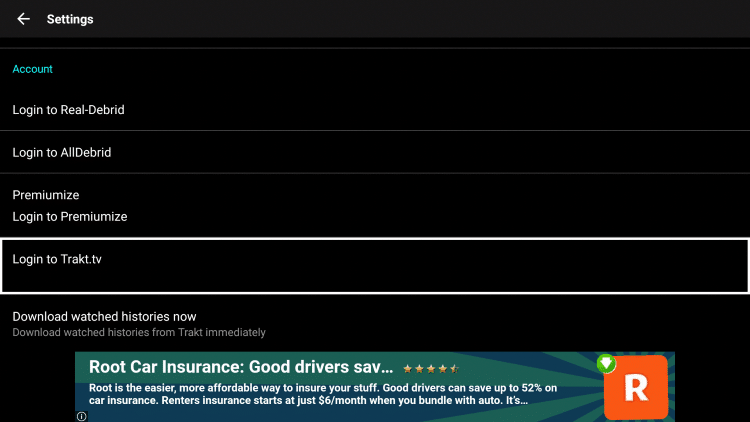
4. Write down the code provided on the screen.
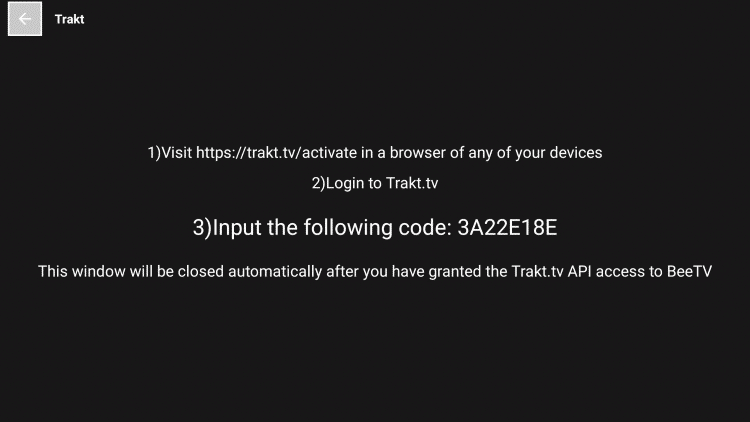
5. Go to trakt.tv/activate to enter the code from the previous step and click Continue.

6. Click Yes.

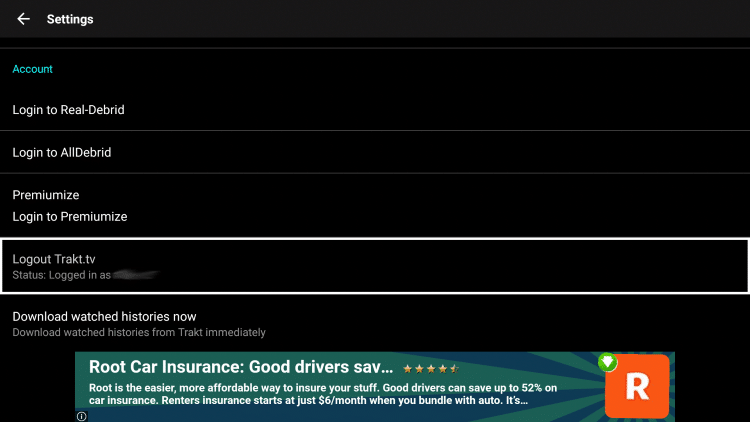
7. Trakt integration is now complete!

8. Return to the app and you should now be signed in under your Trakt username.
For more information about Trakt and how to set it up for all your streaming apps, read the complete TROYPOINT Trakt Resource Guide below:
BeeTV Review
BeeTV has maintained its position as one of the most popular streaming APKs for years, offering movies, TV shows, and anime content. Here’s what our testing revealed about this long-running application.
What We Like
- Supports Real-Debrid, AllDebrid, Premiumize, and Trakt integration
- Dedicated anime section with extensive Manga content
- Lightweight file size under 20MB runs smoothly on most devices
- Developers push regular updates with new features and link providers
- Subtitle support in multiple languages
What We Don’t Like
- VirusTotal flagged one suspicious file related to adware
- Requires separate video player installation (Bear Player or NVPlayer)
- Excessive banner ads and video ads without Surfshark CleanWeb
- Free links vary in quality; debrid service recommended for best results
- App is hard to use without ad-blocking solution
Details & Features
This app continues to provide users with an all-around fabulous viewing experience.
After integrating a video player and enabling CleanWeb within Surfshark to remove ads, BeeTV becomes a streaming powerhouse.
Within settings are tons of added features including Watchlist, Poster Size Adjustment, Default Playback, and much more.
Users will find tons of categories to browse through for various genres that are sure to keep you occupied for hours. With Premiumize or other resolver service enabled, this app has some of the best links available.
These are usually in high definition and will play with little to no buffering.
Best of all, those who do not use one of these services will also enjoy Bee as many of the free links are in high definition as well and still play great.
Unlike other APKS, BeeTV also has a dedicated Anime page for tons of Anime content that is easy to browse through.
Overall, Bee is a fabulous option for streaming media content on any device you prefer including Firestick, Android TV, and Google TV.
Is BeeTV Safe to Use?
When using unverified streaming apps from 3rd party developers, it is important to know what comes with these applications.
We scan these apps with VirusTotal which is a malware service available on streaming devices and more.
Here is the screenshot of the scan results:

VirusTotal didn’t find any suspicious/malicious files associated with the APK but we still suggest using a VPN with questionable applications such as this.
Since we don’t know who the developers are we can’t be sure what they are doing with user data/info so make sure to protect yourself best you can!
Install Best VPN on Firestick/Android
Legality Concerns
It’s impossible for TROYPOINT to determine whether these unverified apps hold the proper licensing.
TROYPOINT recommends only accessing media not protected by copyright such as those that fall under Public Domain status.
The end-user is responsible for all content accessed through unverified apps. For verified options, see our list of legal streaming apps.
Wrapping Up
BeeTV has long been one of the most widely used, popular outlets for streaming free Films and Series.
It is continually updated with new improvements and features and works on just about any device, including mobile devices, which we don’t always see with these APKs.
We are happy to see it maintain its place as one of the most worthy applications for Firestick, Android TV Box, and more.
We want to know your thoughts on this app. Are you a fan of this media application? Let us know in the comments!
This page includes affiliate links where TROYPOINT may receive a commission at no extra cost to you. Many times, visitors will receive a discount due to the special arrangements made for our fans. Learn more on my Affiliate Disclaimer page.


