

The following step-by-step tutorial will show you How to Install Brave Browser on Firestick/Fire TV for more private Internet browsing.
Brave Browser is a secure, private browser application that automatically blocks ads and website trackers for safe browsing. There are various apps available for this browser, however, there is currently no option for installation from the Amazon App Store.
Luckily, we can sideload this application for use on a Firestick or Fire TV in just a few simple steps after unlocking the device.
There are tons of reasons users may want to install the Brave Browser on your Firestick. This is one of the best ways to use free streaming websites for live TV, movies, sports, and more.
Many people are turning to private Browser options in conjunction with a VPN to ensure their online privacy and security.
Most importantly, Brave Browser blocks ads on YouTube for a completely ad-free experience. This is a great alternative to SmartTubeNext which is an ad-free YouTube app for Firestick devices.
While many opt for SmartTubeNext on streaming devices, using Brave will allow you to use the official YouTube without advertisements. In the guide below, we provide step-by-step instructions to install and use Brave Browser on a Fire TV Stick 4K Max.
However, these instructions will also work for any variation of Firestick as well as Android TV Boxes such as NVIDIA SHIELD, MECOOL, and more.
IMPORTANT NOTE: Users may find the orientation for this app is a bit off. However, we have noticed that it typically auto-adjusts to match the orientation of the Amazon Firestick.
Hide Your Digital Fingerprint
If you continue to experience issues, we suggest installing the Set Orientation Tool which should eliminate this problem. In order to use Brave Browser on Firestick, you will likely need Mouse Toggle for navigation.
How to Install Brave Browser on Firestick/Fire TV
1. Install the Downloader app from your respective App Store (Amazon App Store or Google Play) and enable Unknown Sources within the settings of your streaming device.
If you haven’t done this yet please refer to the following screenshot tutorial for step-by-step instructions.
Install Downloader & Enable Unknown Sources
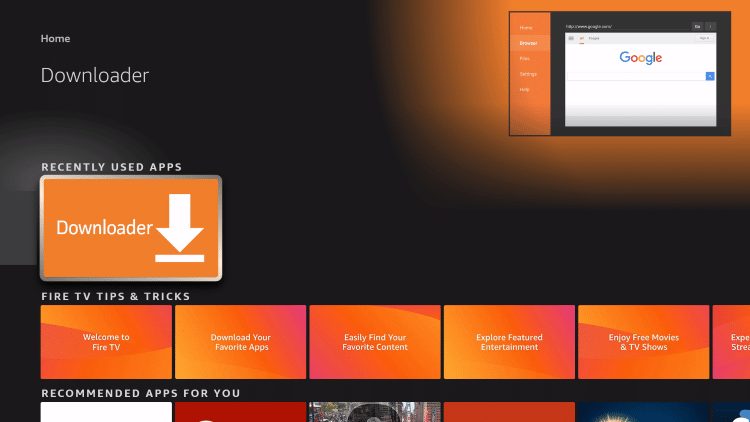
2. Launch Downloader
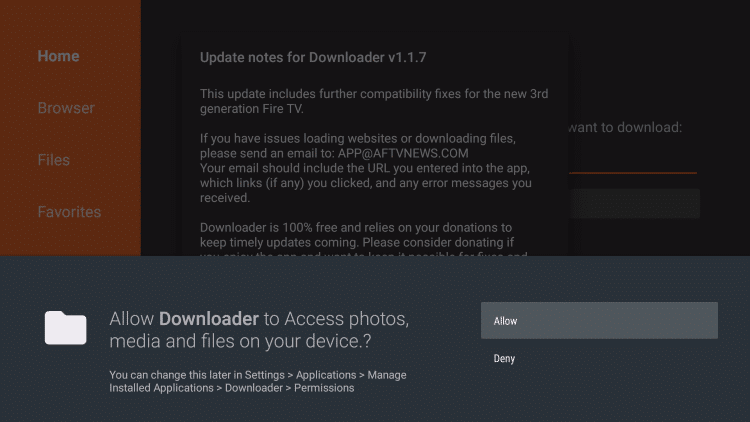
3. If prompted, click Allow
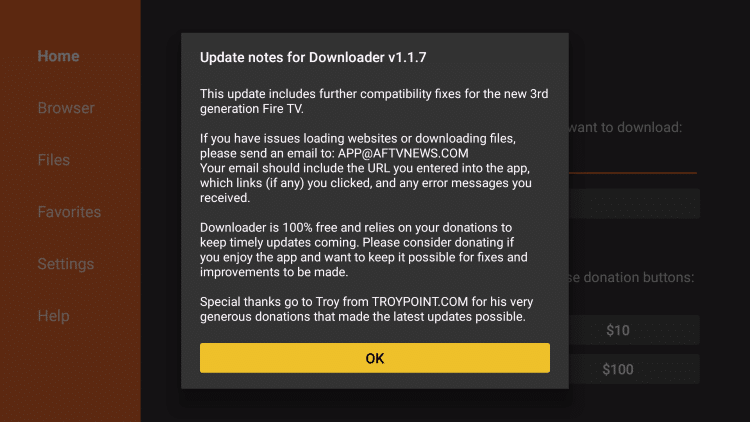
4. Click OK for developer notes
Exclusive Surfshark Discount
Warning: Your online activity is currently monitored by your ISP, app/addon/IPTV developers, government agencies, and the websites you visit.
- Become 100% anonymous while streaming and downloading.
- Use on Unlimited Devices & share 1 account with the entire family.
- Save 87% with the 24-Month Plan + Get 3 FREE Months.
5. Click the Search box and type Brave Browser APK.

6. Choose the APKMirror Link.

7. Click the download button for the latest version.

8. Choose the APK File and click the down arrow.
IMPORTANT NOTE: Make sure you do not select the Bundle package as this will not install.

9. Click Download APK.

10. Wait for the app to install.
Big Tech is Scanning Your Emails
Stop letting free providers read your private messages to build advertising profiles on you. Take back your digital privacy with a secure, ad-free inbox.

11. Click Install.

12. You will then encounter Brave Browser Ready to launch! message.

Installation is now complete. Enjoy!
Watch Ad-Free YouTube with Brave Browser
One of the best features Brave Browser on Firestick provides is its ad-blocking capabilities. This is especially notable for those who access YouTube on Fire TV devices.
With Brave Browser and mouse toggle installed on your device, you can stream YouTube absolutely ad-free.
1. Launch the app and click to Set as default browser, or choose Not now.

2. Click Continue.

3. You will now see the Brave Browser home screen.

4. Visit YouTube.com to stream all your favorite videos absolutely ad-free.

Brave Browser on Firestick Details
While many prefer to use the Silk Browser for accessing the web on Firestick or Fire TV, Brave is a fabulous alternative.
Using Brave for many of the sites listed above is a fabulous way to block ads and other threats that these sites are notorious for having.

You can also use the Brave Private Tab for an added layer of security.

Similar to other browsers, Brave has options for Bookmarks, History, Downloads, and much more. For more browser options on your preferred streaming device, check out our guides below.
Do you prefer Brave Browser over other Browsers? Do you use it on your Firestick device? Let us know in the comment section below!
Frequently Asked Questions
What is Brave Browser?
Brave is a web browser that focuses on privacy and security. It is available for installation on tons of devices including streaming devices.
Can I install Brave Browser on Firestick?
Yes. The guide above provides step-by-step instructions to sideload Brave Browser on Firestick or Fire TV.
Is Brave Browser Free?
Yes. The browser app is absolutely free to install and use.
Is Brave Browser better than Silk Browser?
While many prefer Silk Browser for its firestick compatibility, the Brave browser also works well on these devices.
This page includes affiliate links where TROYPOINT may receive a commission at no extra cost to you. Many times, visitors will receive a discount due to the special arrangements made for our fans. Learn more on my Affiliate Disclaimer page.


This keeps giving me an error notice on my fire stick won’t let me search on downloaded also have vpn on.
This does work, but sadly once installed there’s no way to type addresses using a firestick remote. All you can do is scroll up and down the default page.
Same problem, like in other recommended sites: after installation the remote cannot control. Browser stretched on screen. Ugly resolution