

This step-by-step guide will detail Roku Screen Mirroring and show how to cast android, iOS, and Windows devices to your Roku device.
Roku Screen Mirroring is a great way to stream and display content on your other devices directly to your TV.
Using the Roku screen mirror feature is a fabulous option for casting Streaming Apps and more to your Roku device.
Because Roku does not have “open-source” capabilities, users cannot install various apps and APK’s that you might be able to on devices such as the Firestick.
TROYPOINT’s Best APK’s for free Movies & TV Shows
However, by using the screen mirror option, we can cast installed apps unavailable in the Roku store directly to our device.
This is often referred to as “jailbreaking” and is popular amongst cord-cutters. Unfortunately, Roku devices are unable to be “jailbroken” due to their closed source software.
Luckily, TROYPOINT has created a Jailbreak Roku tutorial that will provide a secret method to stream free Movies, TV Shows, and more.
Hide Your Digital Fingerprint
Roku vs. Firestick – Here’s Why You Shouldn’t Buy a Roku
This tutorial will provide Roku Screen Mirroring for 3 devices: PC, Android, and iOS.
Using an Android device or Windows PC is simple to screen mirror to Roku and can be done directly from the home screen.
However, iOS devices do not have the same compatibility and require an additional step.
Use the guides below to learn Roku Screen Mirroring for your corresponding device.
NOTE: In the guide below we are using a Roku Streaming Stick+. However, this method will work for most versions and variations of Roku devices.
Table of Contents

Sick of Slow, Rural Internet?
Whether you live out in the country or take your RV off the grid, Starlink delivers blazing-fast internet to areas that traditional providers ignore.
Check Availability & PricingRoku Screen Mirroring from PC
To allow Roku Screen Mirroring, we must first enable this option within your Roku’s settings.
The following steps must be done prior to casting any device to Roku.
Exclusive Surfshark Discount
Warning: Your online activity is currently monitored by your ISP, app/addon/IPTV developers, government agencies, and the websites you visit.
- Become 100% anonymous while streaming and downloading.
- Use on Unlimited Devices & share 1 account with the entire family.
- Save 85% with the 24-Month Plan + Get 3 FREE Months.
1. First, from the main menu of your Roku device, click Settings

2. Then Choose System

3. Click Screen mirroring

4. Select Screen mirroring mode and choose Prompt
(This will force Roku to Prompt a notification when a device tries to cast to your TV)

5. Open your Windows PC and launch Settings. Click Devices
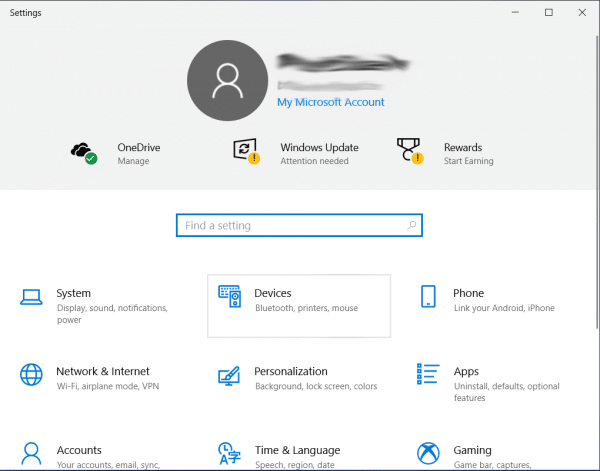
6. Select Add Bluetooth or other device
Big Tech is Scanning Your Emails
Stop letting free providers read your private messages to build advertising profiles on you. Take back your digital privacy with a secure, ad-free inbox.

7. Choose Wireless display or dock

8. Click to select your Roku device

9. Once connected click Done

10. Return to your Roku device and when prompted, click Allow

Roku Screen Mirroring from iPhone/iPad
Screen mirroring an iOS device such as an iPhone or iPad to a Roku device is a great way to cast content directly to your TV from your mobile device.
Roku recently added an AirPlay option within the settings of the device which makes casting to Roku a breeze.
Before, users could only use the Roku Remote app or various installed apps to cast to their device.
But with AirPlay capabilities now available, Roku Screen Mirroring from an iOS device is extremely easy.
NOTE: As of the writing of this post, the following Roku Devices support Screen Mirroring via AirPlay:
Roku TV Axxxx, Cxxxx, CxxGB, 7xxxx
Roku Streambar 9102
Roku Smart Soundbar 9101,9100
Roku Ultra 4800, 4670, 4661, 4662, 4660, 4640
Roku Premiere 4630, 4620, 3920
Roku Streaming Stick+ 3811, 3810
In this guide, we are using a Roku Streaming Stick+ 3810.
However, this will also work for all devices listed above.
Use the instructions below to learn how to Roku Screen Mirror from your iPhone or iPad:
1. From your Roku device home-screen, open the menu bar and choose Settings

2. Click Apple AirPlay and HomeKit

3. Choose First Time Only for Require Code

4. You will then receive an AirPlay Passcode

5. On your iPhone or iPad, swipe down and click Screen Mirroring

6. Select your Roku streaming device

7. Enter provided AirPlay passcode and click OK

8. Your iOS device will now cast to your roku streaming device

That’s it. Enjoy!
Android Device Instructions
Similar to Casting to Firestick, Roku Screen Mirroring from an Android Device is the simplest of the 3 methods described in this guide.
Oftentimes, users can simply open the notifications menu on their Android Device and choose “Cast” or “Screen Mirroring”.
In this instance, we are using a Samsung Android smartphone. However, this will vary depending on the Android mobile device you own.
Here are a few common terms used for screen mirroring:
- Smart View
- Quick Connect
- SmartShare
- AllShare Cast
- Wireless display
- Display mirroring
- HTC Connect
- Screen casting
- Cast
Swipe down or open the notifications menu on your Android and select SmartView or other screen mirroring option.

Choose your Roku device from the list of available devices and then you can begin to cast to your Roku. Enjoy!
Roku Screen Mirroring Details
While Roku Screen Mirroring is available on most Roku devices, not all of them have casting capabilities.
Older generation models may not have the ability to allow screen mirroring. If you cannot find Screen Mirroring options within Settings, it is likely unavailable.
Stay up-to-date with the latest news, streaming tips, and more by following the TROYPOINT Advisor with updates weekly.
This Advisor provides all the best cord-cutting tips to get the most out of your favorite streaming devices and more.
Click the link below to join the other 500,000 Advisor subscribers.
Frequently Asked Questions
Can I Screen Mirror iPhone to Roku?
Yes, this guide will show you how to Cast iOS device to Roku. However, it will only work with certain apps.
How do I fix Roku Screen Mirroring Not Working?
If your device is not mirroring to your Roku, then try resetting it or checking your wi-fi connection. Also if a VPN is on, disable it.
Can I Screen Mirror my PC to Roku?
Yes, this simple guide will show you how to screen mirror any PC to your Roku device.
Do I need to Install an App?
You will only need to install an app to Screen Mirror to Roku while using an iOS device.
This page includes affiliate links where TROYPOINT may receive a commission at no extra cost to you. Many times, visitors will receive a discount due to the special arrangements made for our fans. Learn more on my Affiliate Disclaimer page.


