The following guide will show you how to install TiviMate on Firestick, Fire TV, and Google/Android TV devices.

This article also provides setup instructions and tips to help you get the most out of TiviMate on your preferred device.
We provide both a screenshot guide and a video tutorial that covers all aspects of this fabulous application. We highly recommend watching the video for additional details.
TiviMate Update V5.3.3
TiviMate has been updated to the latest version 5.3.3 (June 2026) with new improvements and enhancements. You can install the latest update using our guides below.
IMPORTANT NOTE: Some users have reported issues with the latest TiviMate update, including problems with certain features and functionality. If your current version is working well, you may want to hold off on updating for now.
Both the latest release and the previous version are available in the TROYPOINT Toolbox. If you encounter any issues after updating, you can easily revert to the previous version.
TiviMate Installation Video
Get Free Secret App Guide Here
What is TiviMate?
TiviMate is one of the most popular IPTV Players available today and has been for over a decade. If you subscribe to an IPTV Service, you are missing out if you don’t give TiviMate a try!
Hide Your Digital Fingerprint
While the app alone does not contain live channels for streaming, users can integrate an M3U URL or an Xtream Code URL and access available media.
Check with your current IPTV Service Provider to see if they grant access to their M3U URL/Xtream Code API before going through this guide.
After integrating your platform within TiviMate, you can use it as a streamlined platform to watch your live channels in a central location with advanced features.
It functions in the same manner as popular Streaming Apps/APKs with dedicated categories, subcategories, and a Program Guide to enhance your overall viewing experience.
The best way to see if it is right for you is by installing it using our guide and testing it out on your preferred device!

TiviMate offers both a free and a premium version of the service that currently costs $33.99 for a lifetime subscription. This includes 5 simultaneous connections.
TROYPOINT suggests purchasing a premium account as it unlocks tons of features not found in the free option.
NOTE: There has recently been a surge of various IPTV Providers promoting a free version of the TiviMate app. This Premium Mod APK has been cloned from the original and should be used with caution.
TiviMate Premium Features
Those who opt for the Premium plan are provided with over a dozen valuable features including:
Exclusive Surfshark Discount
Warning: Your online activity is currently monitored by your ISP, app/addon/IPTV developers, government agencies, and the websites you visit.
- Become 100% anonymous while streaming and downloading.
- Use on Unlimited Devices & share 1 account with the entire family.
- Save 85% with the 24-Month Plan + Get 3 FREE Months.
- Scheduled recordings
- Custom recurring recordings
- Support for multiple playlists
- Backup/Restore
- UI Customization
- External Video Player
- Parental Controls
- Picture-in-Picture
- Favorites management
- Catch-up
- Customizable TV Guide update intervals
- Customizable Panels transparency and timeout
- Customize Groups and Channels
- Manual Channels sorting
- Turning on the last channel on app start
- Auto frame rate (AFR)
- Reminder to automatically play the channel
- Many More
As you can see, without the upgrade, there isn’t much sense in using the app.
We suggest first installing the free app via the instructions below. If you like it, you can register for the premium release via the Companion App and we cover that as well in this article.
In this guide, we are using an Amazon Fire TV Stick 4K Max. Since TiviMate is not available in the Amazon App Store, we must first jailbreak our Firestick to side-load this app.
This will also work for Android/Google TV Boxes, but it is important to note that TiviMate is not fully compatible with mobile phones/tablets so we suggest an alternative for these devices.
How to Install TiviMate on Firestick/Android TV
Step 1 – Prepare for Installation
1. From the home screen of your device, locate the search bar and open it.

2. Search for the Downloader application.

3. Select it.

4. Choose “Download” or “Get”.

Big Tech is Scanning Your Emails
Stop letting free providers read your private messages to build advertising profiles on you. Take back your digital privacy with a secure, ad-free inbox.
5. Wait a few seconds while the app downloads.

6. You are notified when the installation has been completed.

7. Go back to your Settings and click My Fire TV.

8. Choose About.
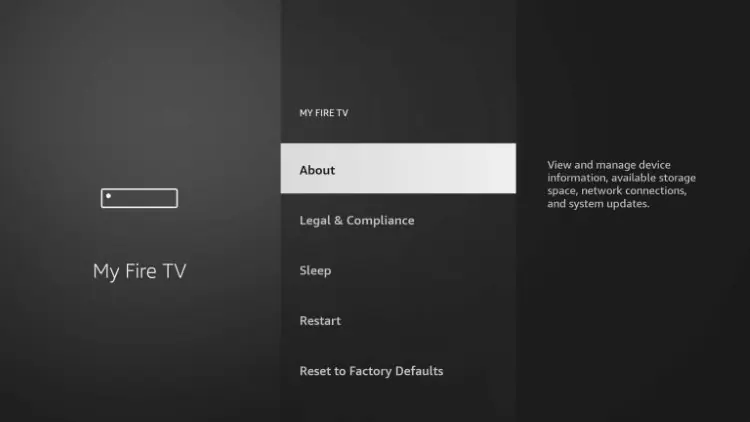
9. Hover over Fire TV Stick (or other name) and click the select button 7 times until you see “You are now a developer” message.
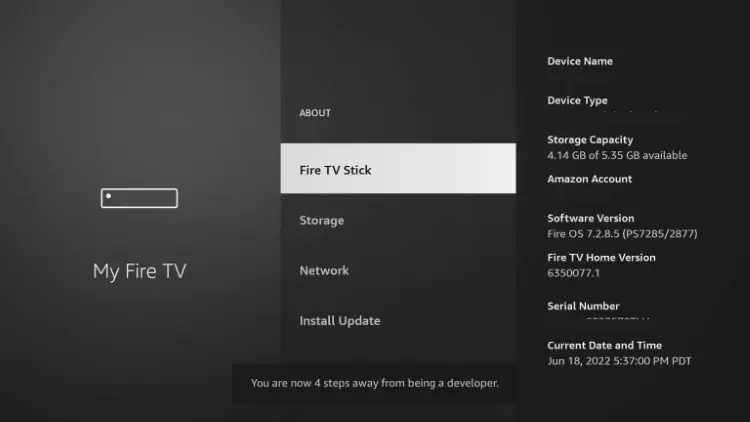
10. Return to the My Fire TV tab and Developer options is now listed.
NOTE: If you have an older model of Fire TV Stick, you will see Developer Options within My Fire TV without selecting “About”.

9. Choose Install unknown apps.

10. Select Downloader.

11. Unknown Sources has now been enabled for the Downloader app which we will use to install TiviMate.

We can now continue to the downloading steps.
Step 2 – Install TiviMate IPTV Player
1. Open Downloader and click to select the URL menu bar as highlighted below.

3. Input 250931 and click Go.
NOTE: For immediate install, you can insert 272483, which is the official Downloader Code for TiviMate IPTV Player.

4. Wait for the redirect page to load.

5. TROYPOINT Toolbox home screen is now presented.

6. Scroll down to find TiviMate and click Download.

7. Wait for the app to download.

8. Click Install.

9. The TiviMate “Ready to launch!” message now appears.

10. Click Done.

11. You will now return to the Downloader app where we can remove the installation file. Click Delete.

12. Click Delete again.

Installation is now complete. Continue reading to learn how to set up the app on your preferred device.
How to Set Up TiviMate Premium
After the app installation is complete, we can open the app and authorize an IPTV Service for use.
NOTE: Initializing an IPTV Service within TiviMate requires an M3U URL or Xtream Code. This can usually be found in your service welcome e-mail or by contacting customer support.
While there is a free version available for use without a subscription package, those who choose to use the free app will miss out on tons of fabulous features.
For example, if you try adding a channel or channels to favorites, you will be prompted with the following message:
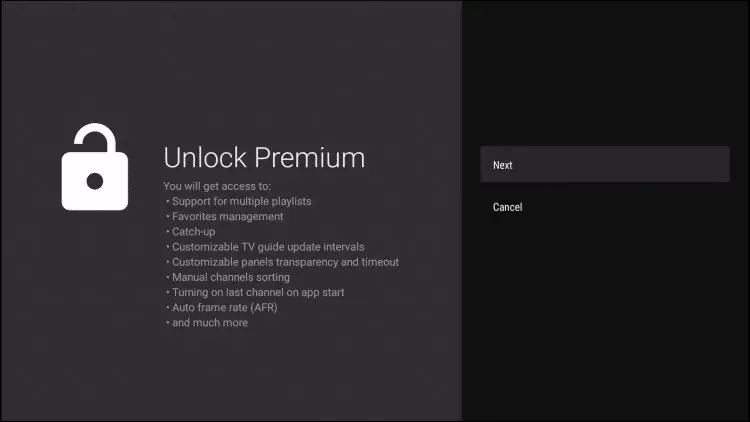
For those who wish to use the free version, simply click Cancel and continue using the app at no charge.
However, if you purchase the premium option through the Companion app, we can log in for added benefits.
If you need to create an account, you can follow the instructions below on how to do so through the Google Play Store.
Step 1 – Install TiviMate Companion App
As noted, the premium version is currently only available in the form of a lifetime subscription. The cost is $33.99.
This covers up to 5 devices which you can manage within the Companion App.
Prior to initializing Premium, users must register for an Account via the Companion App. This app is only available in the Google Play Store, therefore must be installed on Android Device or through BlueStacks or another Android emulator.
NOTE: Users can also sign up for Premium on the official TiviMate website prior to installing the companion app.
If you do not have an Android phone or device, you must install the BlueStacks emulator on your PC to access the Google Play Store.
How To Install Android Apps on PC
IMPORTANT: If you’re using a generic Android TV Box with stock Android, you can install the Companion app through the Google Play Store. Devices running the true Android TV operating system such as NVIDIA SHIELD don’t include this app so you will need to set up an account on an Android phone, tablet, or through BlueStacks as shown below.
Once installed, use the instructions below to set up a premium account.
1. Open the Google Play Store on your Android Device. We are using Bluestacks in this tutorial on my Windows PC. Search for “tivimate companion” and select the first choice.

2. Click Install.

3. Wait for the app to install.

4. Click Open.

5. Click Account.

6. Enter your preferred username and password and select Sign up.

7. Re-enter your password and click Create account.

8. Choose the subscription package of your choice and enter your payment information.

9. Registration is complete!

Be sure to write down or remember your login information to sign into the app.
Step 2 -Log In to TiviMate Premium
After you have created your Premium account, you can log in to the service within the app previously installed.
1. From the home screen, select Settings.

2. Choose Unlock Premium.

3. Click Next.

4. Choose Account.

5. Enter your login credentials.

6. Click Next.

7. Enter the device name of your choice and click Activate.

8. Click OK.

That’s it! Once logged in, you will have access to all advanced features of the app for an enjoyable live-streaming experience.
TiviMate Premium – Details, Features, & Settings
Upon installing TiviMate, you will immediately notice the unique interface it provides. This is what truly sets it apart from other IPTV Players and we cover some of the best features below.
The menu bar on the left lists your Playlist Categories or “Groups” as they are referred to in the app. These can be hidden, removed, and managed all within the Settings. This is a great way to eliminate any unwanted Channel lists that you don’t use or need.
With this app, users can integrate multiple services or “Playlists” within the app meaning you can combine two or more Services into one!
This is a great way to ensure your live streaming is always available and manage your favorite channels across multiple platforms.
Navigating this app is a breeze when using your streaming device’s remote. If using a Firestick, the following options are available:
- Select Button: Opens Channel
- Back Button: Shows Groups/Return to Guide
- Left Button: Scrolls to Previous Program
- Right Button: Scrolls to Next Program
- Up Button: Scrolls Up through Channels
- Down Button: Scrolls Down through Channels
- Rewind Button: Scrolls Channels Up without changing the channel
- Fast Forward: Scrolls Channels Down without changing the channel
After playing a Channel, clicking the select button will generate various options:

This includes the ability to view recent channels and quick select as well as re-open the TV Guide with your current channel playing in the background:

Groups
The Groups options within TiviMate sets it apart from other IPTV apps. Using this to your advantage is a great way to condense your TV streaming experience.
To edit these, simply open the TV Guide and click the Menu Button (3 horizontal lines) on your remote. Then click Group options:

Select Manage groups

To remove an unwanted or unused Group, simply switch the toggle off:

Only highlighted groups will now be visible on the left-side menu bar of the home screen. To adjust the order of these, simply click Manage positions:

Click to highlight and adjust the group position to your preference! We suggest using the Favorites Tab at the top for a personal streaming experience.

NOTE: TROYPOINT recommends adding your preferred channels to Favorites to get the most out of this app. This will enable all navigational features to work within the Favorites “Group” meaning all scrolling and selection will be through your Favorite Channels!
Favorites
There are a few ways to add a Channel to Favorites.
The first option is to long click when playing a Channel and selecting “Add to Favorites”

Or, if you would like to add multiple channels quickly, simply press the Menu button from the TV Guide to prompt the following options:

After making a channel selection, users have numerous options within the player.
You can easily access the channel list by clicking the down button.

This will prompt quick access to the Channel list without returning to the EPG.

EPG (Electronic Program Guide)
Using the built-in EPG is the best way to browse through your channel selections and more.
Here is the recommended method to set up the EPG within TiviMate.
- Open Settings and select EPG
- Click Past Days to Keep EPG and set it to 1
- Update Intervals – 24 hours
- Update on app start – Off
- Update on Playlist Change – On
Picture in Picture
Another fabulous feature available is the Picture-in-Picture setting that will let you browse other apps/tools on your device while continuing to stream live content.
You can find this in the full-screen mode of your preferred channel.

This will keep TiviMate playing in the background while you are able to access other options on your preferred device!

TiviMate Settings
Within the Settings are the following provided options:
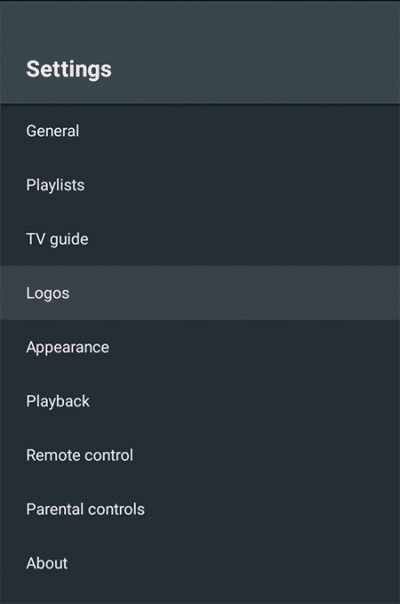
There are a few options within the app’s settings that are worth checking out. One thing we suggest is enabling the confirmation message prior to exiting out.
This way, you will not accidentally close the app by pressing the back button too many times:

Another feature to note is the auto-update option for the TV guide. This will ensure your guide is always up to date:

Parental Controls
For those who wish to use Parental Controls, these can also be established within the Parental controls Category.
This includes setting and using a PIN Number for access. These can be adjusted to require PIN for Playlists, TV Guide, Group options, and more.

To go along with the Parental Controls is also the ability to block various channels.
you can find this option within the Settings of any channel.

Within the Settings option are tons of features and options that will help you get the most out of your Live TV experience.
Adjusting these will help cater the app to your specific preferences. We suggest checking out all of these Categories to ensure the app is set to your liking.
Subtitles
While other IPTV players fall short when it comes to Closed Captioning, TiviMate does not.
That being said, working subtitles will vary from Channel to Channel within the app.
How To Enable Subtitles:
- Open and play your preferred content.
- Long-press the Select button on your remote to open options and choose CC.

- Change toggle from “Off” to “Closed captions 1”.

- Subtitles will now load for your content.

TiviMate External Video Player
Another excellent feature that TiviMate provides is the ability to use external video players.
This is something we don’t always see in IPTV Players that usually have a built-in video player.

Users can easily choose to “open in external player” after making a channel selection.

We could go on and on about all of the features TiviMate provides, however, your best bet is to try it yourself to see just how extensive these options are!
Recording Capabilities
In my opinion, one of the best features of this application is the ability to schedule recordings. Guess what?
You can even schedule multiple recordings at the same time!
Use the link below that features an exclusive video guide that will tell you everything you need to know to record IPTV on your preferred device:
NOTE: Prior to recording it’s important to make sure you have a USB Drive that’s properly formatted as FAT32.
How to Format USB Drive to FAT32
TiviMate has 3 recording options that all work fairly well. This includes live recording while watching, live recording while on channel guide, and scheduled recordings.

If you wish to schedule a recording, you will want to select “Custom Recording” within the channel guide by long pressing the select button on your remote. This will allow you to choose New Recording and then schedule recording to select your channel and timeframe.
Remote Settings
Because there are so many things you can do with the TiviMate interface, it may get confusing which buttons you should use to access all of the various features provided.
Pictured below is a simple remote guide that shows you what all of the buttons on your firestick will do when you are within the TiviMate interface.

If you use another device, such as Android or Google TV, these options will be similar and should work well for quick access to various settings/features in your application.
Audio Sync
For those who have audio issues when the channel you are watching and the audio don’t match up, we can adjust this with the audio sync by clicking the select button on your remote within a channel and adjusting the offset up or down until it matches the video.
Overall, the possibilities within the TiviMate APK are endless. Because of its easy navigation and fast streaming abilities, it is sure to be a favorite among all IPTV users.
Access Your Account on the TiviMate Official Website
Recently, the developer has created an official website for the application that provides a few details and screenshots with information. However, the best use of this website is the ability to login to your TiviMate premium account and view all activated devices.

Users can also pay for a Premium subscription on the official website with lifetime access for up to 5 devices.
TiviMate uses the Link Payment system, but you can also choose to pay with a different method (such as Credit Card) when going through the purchase process.

As noted, a Premium subscription currently costs $33.99 plus tax when applicable.
TiviMate Imposters

It is important to note that there are many imposters out there who are using the TiviMate name to try and sell IPTV Subscriptions.
The app itself does not provide any content for streaming and only functions as an advanced video player for live channels.
Unfortunately, it seems that some are making money off of the name by creating an IPTV Service titled “TiviMate IPTV Player” that appears in search results online.
If you come across a website claiming to offer live channels and using the TiviMate name, make sure to avoid it at all costs.
As noted above, the app itself does not host any content whatsoever, and anything that offers live channels is a scam.
STAY FAR AWAY FROM THESE WEBSITES AND DO NOT FOR ANY REASON INPUT PAYMENT INFORMATION FOR THEIR SERVICES.
Only use the guide above to install TiviMate as it originates from the Official source and only pay for it via the Companion App which we describe.
Finishing Thoughts
As we noted earlier, the TiviMate APK is the premier choice for those who use IPTV Services with extensive features, added abilities, and a fabulous layout that you can dive into for an advanced viewing experience.
TROYPOINT has always recommended it as the top choice for watching live media as it is compatible with nearly all service providers and is continually updated by the developer.
Do you use TiviMate? What do you love about this application? Let us know what you think in the comments below!
This page includes affiliate links where TROYPOINT may receive a commission at no extra cost to you. Many times, visitors will receive a discount due to the special arrangements made for our fans. Learn more on my Affiliate Disclaimer page.