

IPVanish VPN Split Tunneling allows you to bypass your VPN connection for selected applications.
Unfortunately, Amazon Prime Video and other popular services have implemented blocking measures to prevent VPN services from accessing their content.
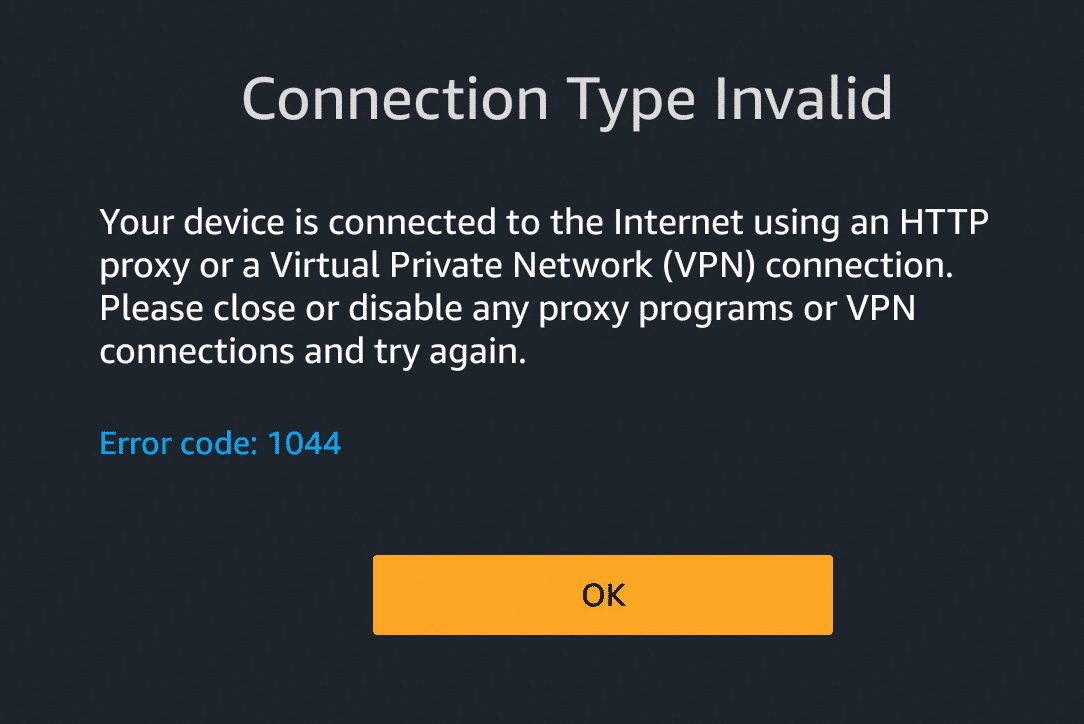
If you’ve tried accessing Amazon Prime Video in the past with your VPN on, you were probably met with the following screen.
Thankfully, there is a split tunneling feature for the Fire TV Stick 4K, Fire TV Stick, Fire TV, Fire TV Cube, and all Android-based systems.
When you enable split tunneling through IPVanish VPN, you are telling the application to ignore VPN and route traffic through your ISP instead of the VPN server.
This allows you to keep your VPN running in the background at all times. No more disconnecting your VPN when you want to use various applications that don’t work with your VPN.
Now you can rest assured that your VPN is still active so you are protected when using the popular free streaming apps and IPTV services.
IPVanish VPN Split Tunneling Instructions
Video Tutorial
Links Mentioned in Video
IPVanish VPN with Huge Discount
VPN Resource Guide – What Is A VPN?
Screenshot Guide
Please watch the video above for important details not covered in the screenshot guide below.
IPVanish VPN Split Tunneling allows the user to choose applications that can connect to the Internet without being routed through the VPN. This is handy when using applications that don’t allow for VPN use such as Amazon Prime Video.
Step 1 Go into settings panel and click Split Tunneling

Exclusive Surfshark Discount
Warning: Your online activity is currently monitored by your ISP, app/addon/IPTV developers, government agencies, and the websites you visit.
- Become 100% anonymous while streaming and downloading.
- Use on Unlimited Devices & share 1 account with the entire family.
- Save 85% with the 24-Month Plan + Get 3 FREE Months.
Step 2 Once inside the Split Tunneling settings, you can check which apps don’t require VPN protection. Click the three vertical dots in top-right corner will allow you to show system apps such as Prime Video so you can activate this feature for those as well.

Step 3 Show system apps button.

Step 4 System apps are displayed after enabling “Show system apps”.

Now you don’t need to keep disconnecting your IPVanish VPN application when you want to use these services that block VPNs.
Read more about IPVanish with pros, cons, and much more in our unbiased review at the following link.
This page includes affiliate links where TROYPOINT may receive a commission at no extra cost to you. Many times, visitors will receive a discount due to the special arrangements made for our fans. Learn more on my Affiliate Disclaimer page.


Got IPVanish for the tunneling feature to use Prime but can’t find the option in the settings?
James,
Are you using a Firestick? This is in the main settings menu.
I have a different version I think. Says up to date but no split tunneling option?
On the topic of the split tunneling feature of IP vanish. I was checking the wrong boxes, I was checking the boxes the boxes that I thought I wanted to go through IP vanish, it turns out it’s the other way around. So when Amazon blocked me, imagine my surprise. In other words you need to check the boxes you want to exclude from IP vanish.