

The following guide will show you how to play Kodi Retro Games using any streaming device.
In this guide, we will be installing the Zach Morris Repository, which contains the Internet Archive Game Launcher Addon.
Similar to RetroArch, this will allow us to play thousands of retro games right from our Kodi device.

This addon works great on the most popular streaming devices including the Firestick/Fire TV, NVIDIA Shield, Android TV Boxes, and more.
The Amazon Firestick is the most popular Kodi device due to its low price and jailbreaking abilities.
For these reasons and more, the Internet Archive Game Launcher can be found within our list of Best Kodi Addons by TROYPOINT.
If you don’t already have Kodi installed on your device, refer to the tutorials below for step-by-step installation guides.
How to Install Kodi on Firestick/Fire TV
How to Install Kodi on Android TV Box
Hide Your Digital Fingerprint
Important Note: Playing retro games and using emulators on most streaming devices like the Firestick/Fire TV will require a Gamepad, as you can’t use a standard remote.
I recommend viewing the link below for some of the best Bluetooth Gamepads available.
How to Play Kodi Retro Games on Firestick/Android
Use the steps below to learn how to play retro games on your preferred Kodi device. In this example, we are using an Amazon Firestick 4k.
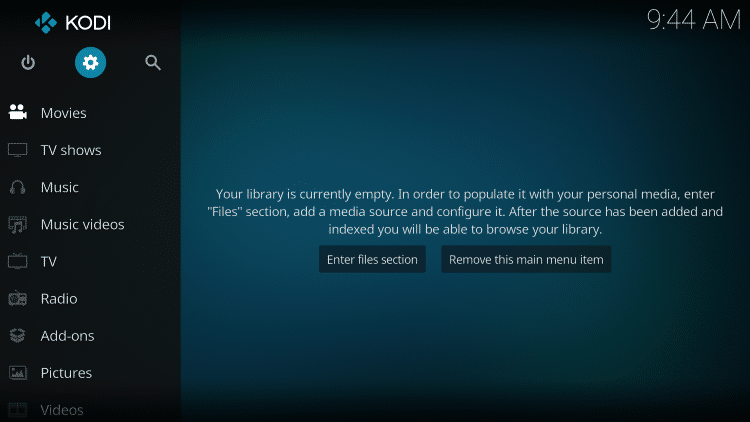
- Launch Kodi
- Click the settings icon


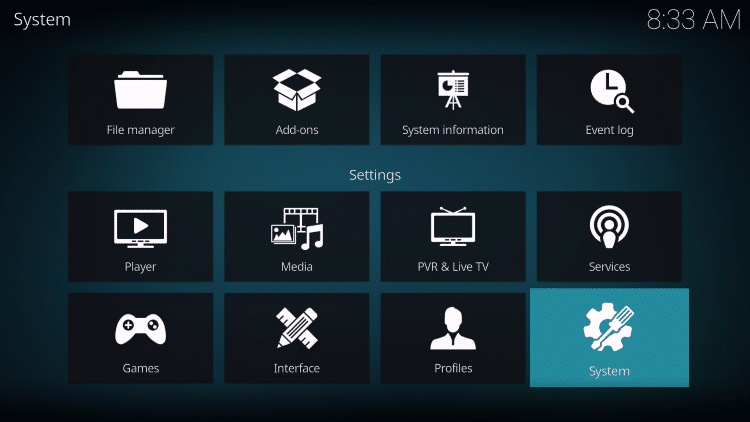
- Click System

Sick of Slow, Rural Internet?
Whether you live out in the country or take your RV off the grid, Starlink delivers blazing-fast internet to areas that traditional providers ignore.
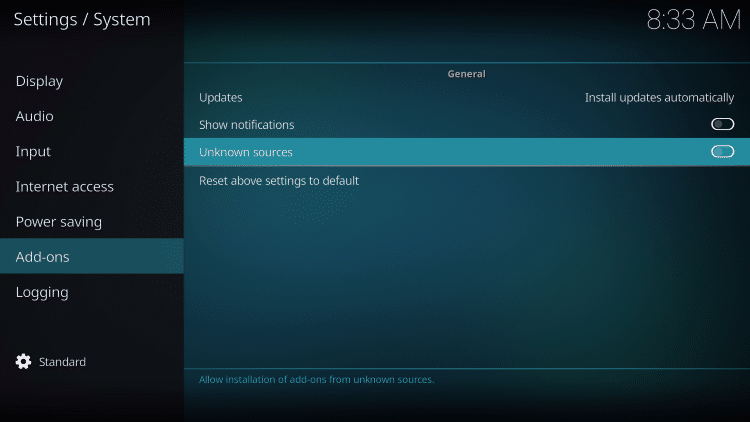
Check Availability & Pricing- Hover over Add-ons menu item and turn on Unknown sources if not already on
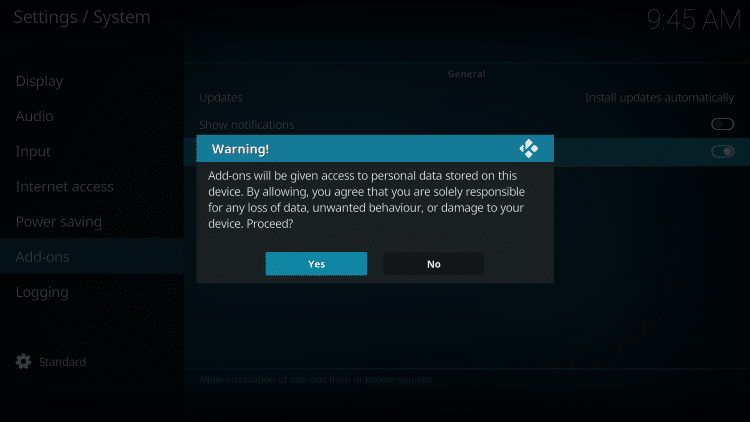
- Click Yes
Exclusive Surfshark Discount
Warning: Your online activity is currently monitored by your ISP, app/addon/IPTV developers, government agencies, and the websites you visit.
- Become 100% anonymous while streaming and downloading.
- Use on Unlimited Devices & share 1 account with the entire family.
- Save 85% with the 24-Month Plan + Get 3 FREE Months.
- Click back on remote to go back to the System page
- Select File Manager
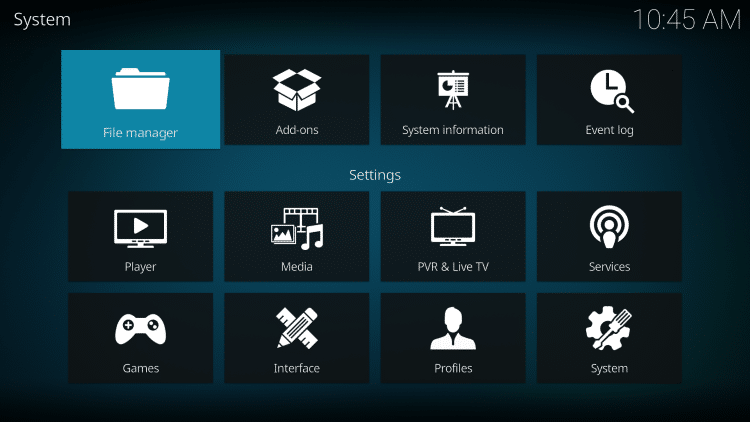
- Click Add source
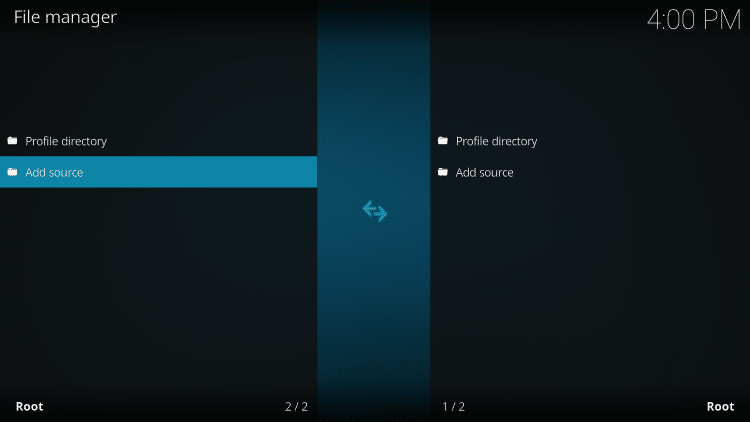
- Click <None>
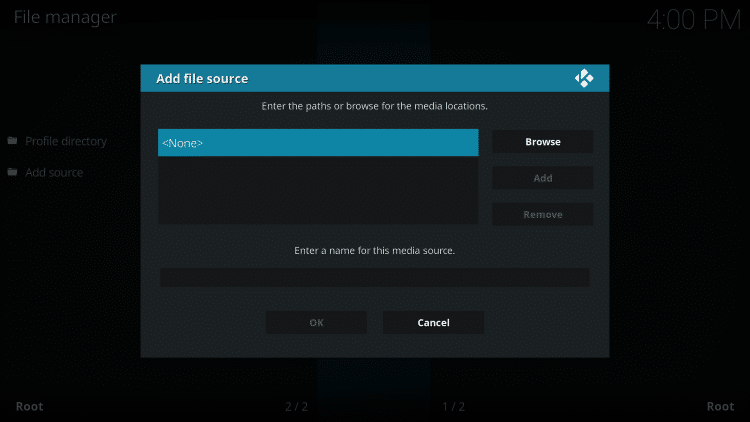
- Type the following URL exactly how it is listed here – http://fusion.tvaddons.co and click OK
- This is the official source of this repository

- Highlight the box under the source that you just typed in and enter a name for this media source, type “zm” or any other name you would like to identify this source as, and click OK again

- Click your back button on the remote or keyboard until you are back on the System screen
- Choose Add-ons

- Click Install from zip file

- Choose “zm” or another name you assigned the media source in the previous step

- Click Kodi-repos

- Select english

- Scroll down and click the zip file URL – repository.zachmorris-1.0.0.zip

- Wait for the “Zach Morris Add-on installed” message to appear

Big Tech is Scanning Your Emails
Stop letting free providers read your private messages to build advertising profiles on you. Take back your digital privacy with a secure, ad-free inbox.
- Click Install from repository

- Choose Zach Morris Add-ons

- Click Game add-ons

- Select Game providers

- Click Internet Archive Game Launcher

- Click Install

- Kodi will then prompt the message below stating “The following additional add-ons will be installed”, Click OK

- Wait for the Internet Archive Game Launcher Add-on installed message to appear

- If this message appears click No

- Click the Internet Archive Game Launcher addon

- Select Configure

- Hover over the External Launchers option on the left menu and click My System Type

- Choose your platform from the provided list

- Next, locate the Setup Wizard tab on the left and make sure your Emulator Launcher has Kodi Retroplayer selected

- Next click Ok

- Return back to the home screen of Kodi and select Games

- Click Game add-ons

- Click Internet Archive Game Launcher

- Click Agree

- You have successfully installed the Internet Archive Game Launcher addon! Follow the additional steps below for how to play retro games.
Note: You may notice a message saying “New Game Lists” on the top right when using this addon. This appears to be a glitch when navigating, but nothing to worry about when playing retro games.

- To select a console to play retro games with, select any of the options on the main menu. For this example, we chose Browse All Lists.
- Scroll down the list and select your preferred console to play games from
Note: After testing, we found that some consoles are not fully integrated yet within this addon. It appears the developers are still working through some misc bugs.

- Select any game title you prefer
- Click Launch

- Select the emulator file that appears

- Wait for the emulator file to install

- The Game Menu screen will likely appear. Just click Ok on your Gamepad to continue

- That’s it! You are now able to play retro games on Kodi!

Kodi Retro Games Information & Details
The Internet Archive Game Launcher Addon provides a simple user interface with a ton of retro gaming options to choose from.
The categories available within this addon include Browse All Lists, Browse by Category, Favorites, Search, and Random Play.
Whether you’re a fan of the Sega Genesis, Atari, Playstation One, Nintendo 64, Game Boy, or other classic game consoles, this add-on has it all!
As mentioned previously, you will need a Bluetooth Gamepad in order to not only use this add-on but for playing retro games on any streaming device.
For more retro gaming options, check out our guides below.
How to Install Happy Chick Game Emulator
How to Hack SNES Classic
If you are looking for Kodi Addons that stream Movies and TV Shows, we suggest viewing our Best Kodi Addons page that is updated daily.
Give the Internet Archive Game Launcher Kodi Addon a try so you can start playing retro games on Kodi!
Frequently Asked Questions
How do I play Retro Games on Kodi?
To play retro games on Kodi you will need a compatible Kodi device, gamepad, and install the Internet Archive Game Launcher Kodi Addon.
Is Playing Retro Games on Kodi Legal?
Yes. It is not illegal to install and use this Kodi add-on for playing retro games. However, what you access after you have installed this add-on may be illegal. Always use a VPN as outlined on this page so you can use Kodi add-ons anonymously.
Should I use a VPN when Playing Retro Games on Kodi?
A VPN such as IPVanish is always encouraged when installing any 3rd party Kodi addons and repositories. This will ensure your privacy and anonymity when streaming and gaming.
Can you play Retro Games using a Firestick?
Yes. Follow the step-by-step instructions above. This tutorial was done using an Amazon Firestick 4K. This same process also works with a Fire TV, Fire TV Cube, NVIDIA Shield, Android TV Boxes, and more.
Can I use a Standard Remote to Play Games?
No. In order to play retro games on Kodi, you will need a Bluetooth gamepad or gaming controller.
This page includes affiliate links where TROYPOINT may receive a commission at no extra cost to you. Many times, visitors will receive a discount due to the special arrangements made for our fans. Learn more on my Affiliate Disclaimer page.


