

This step-by-step guide will show you How To Fix Kodi Sound Error in a few simple steps.
If you are a frequent Kodi user, you have probably experienced this problem before. Kodi No Sound issues can occur with no warning and are extremely frustrating.
The solution to this problem can be one of many. Prior to following the guides below, I suggest resetting Kodi for a fresh start. This will ensure it is running smoothly and not bogged down.
How To Fix Kodi No Sound Error
Restart Kodi
One of the easiest techniques to restore the sound is to force Kodi to restart. This will reboot the current configurations in your operating system and remove existing connections.
You can do this by force stopping the app as shown below:
On Firestick and Fire TV
Step 1
On the home screen, click Settings.
Hide Your Digital Fingerprint

Step 2
Click Applications.

Step 3
Click Manage Installed Applications.

Step 4
Click Kodi.

Step 5
Click Force stop.

Step 6
Launch Kodi again and play a file to check if the sound is working properly.
Exclusive Surfshark Discount
Warning: Your online activity is currently monitored by your ISP, app/addon/IPTV developers, government agencies, and the websites you visit.
- Become 100% anonymous while streaming and downloading.
- Use on Unlimited Devices & share 1 account with the entire family.
- Save 87% with the 24-Month Plan + Get 3 FREE Months.
Exit command
Alternatively, you can perform the following:
Step 1
Click the Power button.

Step 2
Select Exit. This will automatically exit Kodi to the operating system.

Check the volume on Kodi
In some instances, the volume might not have been turned ON properly.
Step 1
On the home screen, click Movies.

Step 2
Select the folder that contains any video.

Step 3
Play the video. If there is no sound, click the Settings icon at the lower right corner.

Big Tech is Scanning Your Emails
Stop letting free providers read your private messages to build advertising profiles on you. Take back your digital privacy with a secure, ad-free inbox.
Step 4
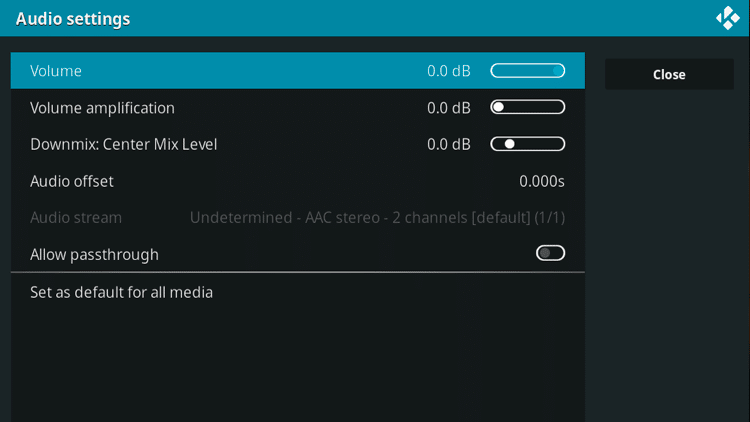
Under Settings, click Audio settings.

Step 5
Adjust the volume by dragging the toggle button on Volume to the right.
Step 6
Click the Close button.

Step 7
Play the video again to check if the sound is working properly.
Enable Passthrough
Kodi decodes the audio stream from a source then sends the audio to the channels and speakers. You may activate the passthrough on Kodi so that the audio is forwarded to the device in “raw” format and is therefore not decoded.
This allows your TV to play the audio from the source using its own speakers. An HD audio, for example, is sent in digital form so it can be played “as is”.
Step 1
On the home screen, click Movies.

Step 2
Select the folder that contains any video.

Step 3
Play the video. If there is no sound, click the Settings icon at the lower right corner.

Step 4
Under Settings, click Audio settings.

Step 5
Toggle the Allow passthrough button to the right to enable it.
NOTE: For better viewing and listening experience, Kodi recommends enabled passthrough on TV (AC3), AVR SPDIF (AC3/DTS) and on AVR HDMI (with or without HD audio).

Step 6
Click the Close button.

Step 7
Play the video again to check if the sound is working properly.
Configure Kodi audio settings
There are settings in the Audio section of Kodi that can be configured in case you encounter a No Sound error. To go to the Audio section, follow the steps below:
Step 1
On the Kodi home screen, click the Settings icon.

Step 2
Click System.

Step 3
Click Audio.

You will find the basic audio settings of Kodi:

Audio output device
– allows you to select which audio output to use. The device will also determine if some of the other settings below can be configured.
Number of channels
– allows you to set the number of channels supported for digital audio connection or the number of speakers for analog connection
Output configuration
– allows you to configure the properties of the audio output by setting it as:
- Fixed – set audio output according to indicated sampling rate and speaker setting permanently
- Best Match – set audio output according to the closest match to the source properties and is highly recommended on any equipment.
- Optimised – set audio output at the start of playback and will remain the same if the properties of the source change
Volume control steps
– allows you to adjust the number of button presses from mute to full volume
Maintain original volume on downmix
– allows you to balance surround channels by downmixing audio. When the sound on your Kodi is too low or there is no sound at all, you can enable this setting to restore the volume of the original audio source. However, take note that the dynamic range (the difference between the quietest and the loudest volume of the audio source) will be compromised.
Resample quality
– allows you to resample the audio at various rates (low, medium and high). Resampling or altering the sample rate (how fast samples are taken) in an audio file is important if you want to change it from the original source.
Keep audio device alive
– allows you to set the time for audio devices to wait, sleep or be in a suspended state when no sound is required
NOTE: Kodi recommends setting the time only for 1 minute.
Send low volume noise
– allows you to set audio devices to stay awake by sending an inaudible noise signal. This setting can be disabled when using headphones or analog audio output devices.
The GUI Sounds section lets you control feedback and confirmation audio when using the Kodi user interface. You can find the following settings:
Play GUI sounds
– allows you to configure the sounds to play always, never or only when the playback is stopped (default).
GUI sounds
– allows you to choose a sound theme.
Check hardware for any issues
While the Kodi No Sound error is often attributed to the system, there are instances where the hardware being used is faulty. Below are tips to make sure that your hardware is free from issues.
Audio Cables
Check the audio cables for any defect. It may have frayed ends or the wires are already wrapped around each other. You can either swap another cable if no sound is coming or fix the damaged cable by soldering.
You may have used a wrong cable or plugged into the wrong place. In these cases, refer to your device’s manual for guidance.
In addition, make sure that your audio cable is far from sources of electromagnetic radiation such as computer monitors and power supplies to keep noise from interfering with the sound. If space is an issue, you may cross cables at 90 degree angles or arrange them in parallel fashion to eliminate buzz.
Connecting ports
Connecting ports are often exposed to dust and dirt, which lead to static noise, choppy audio and or even no sound. Use an air can to blow out lint and dust other contaminants and use a cotton swab to remove remaining contaminants.
Bluetooth audio connection
When Bluetooth devices interfere with other technologies’ signals, this will reduce its capacity to communicate. Make sure to keep distance from equipment that disrupt Bluetooth technology such as microwave ovens, external monitors and even fluorescent lighting. Brick walls and metal desks can also block signals.
If you’re still having issues, turn OFF other Bluetooth connection except the one for your Kodi. This should isolate the issue more efficiently.
Manage Sound Settings
Both Kodi and your device’s volume settings can be adjusted to make sure that the sound is working.
On Windows/PC
Step 1
On your keyboard, press the F8 key.
Step 2
Press the “+” or “–“ keys to increase or decrease the volume, respectively.
On the device (Windows sound option)
Step 1
Open Settings.
Step 2
Click System.
Step 3
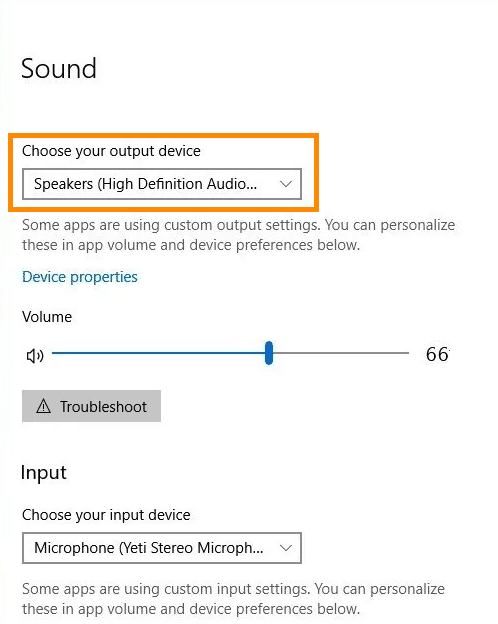
Play any video. If there is no sound, click the Settings icon at the lower right corner then click Sound.

Step 4
On the Choose your output device drop-down menu, select the device.
Step 5
Under Device properties, adjust the volume.

Step 6
Play the video again to check if the sound is working properly.
On the device (Mac sound option)
Step 1
Click the Apple icon > System Preferences….

As an alternative, you may click the Volume icon and then select Sound Preferences…. Proceed to Step 3 after.

Step 2
Click Sound.

Step 3
Adjust the sound settings.

Step 4
Play the video again to check if the sound is working properly.
Switch audio channel
Your devices have specific configurations on their speakers. The most popular layout is 5.1 channel, which is commonly used in streaming services, broadcast TV, DVD players and home theater systems. It delivers sound through four speakers plus a subwoofer for a superb full surround sound entertainment experience.
In some cases, Kodi may only deliver sound through the 5.1 channel. To switch to this channel, follow the steps below:
Step 1
On the Kodi home screen, click the Settings icon.

Step 2
Click System.

Step 3
Click Audio.

Step 4
Click Number of channels.

Step 5
Select the channel.

NOTE: Make sure that you have allowed audio passthrough.
Step 6
Launch Kodi again and play a file to check if the sound is working properly.
Check and update the add-on
When streaming via Kodi, the most important tool is the add-on you are using. If you find the audio is not functioning properly within Kodi, first check to make sure it is not a faulty add-on.
TROYPOINT has created a list of the Best Kodi Add-Ons for your reference. This list is updated DAILY to ensure these are always working and available for installation.
You should also regularly update the add-on to make sure to check for bug fixes. You can do this by following the steps below:
Step 1
On the Kodi home screen, click the Settings icon.
Step 2
Click Add-ons.

Step 3
Click the add-on.

Step 4
Click the Update icon.

Step 5
Select the version.

Step 6
Wait for the update to be completed.

Try Other Sources
Another important tip when trying to fix the Kodi No Sound error is to try multiple sources. If you find the source you select is not playing any audio, try a few other options to make sure the streaming link is not causing the issue.
The first and foremost thing you need to do is to test your audio with other software or apps. Because there are cases where the audio won’t play while using another app or software. If the audio plays well on other software or apps, you can proceed to the next step.
Update Kodi
Currently, the majority of add-ons that you can install on Kodi were developed to be compatible with the latest Kodi version. It is most likely that you will encounter issues related to sound if you haven’t updated Kodi yet. The latest version, Kodi 18.2 Leia, is now considered a stable version. You can learn more about this update by clicking on this link.
In addition, I have created step-by-step guides on how to update Kodi when using various devices. Click on a link below that applies to your device:
How to Update Kodi on Firestick, Fire TV & Fire TV Cube
Update Kodi on Android TV Box
How to Update Kodi on Windows
Reinstall or reset Kodi
Like any software experiencing errors, one troubleshooting tip is to reinstall the app or reset it. This may help get away with the bugs that the previously installed version has.
I have also prepared user guides on how to reset Kodi:
How to Reset Kodi on Fire TV
Reset Kodi on Android TV Box
How to Reset/Restore Kodi on Windows
Update the audio driver
Sound issues on your device can also be caused by drivers in need of frequent updates. This will ensure that the sound information is distributed properly to audio devices. You can do this by following the steps below:
For Windows
Step 1
Click the Start button and type “Device Manager”.

Step 2
Click the arrow before Sound, video and game controllers.

Step 3
Right-click on High Definition Audio Device then select Properties.

Step 4
Then select the Driver tab then click the Update Driver… button.

Step 5
The system will search online for software.

Step 6
You will be asked how you would want to search for driver software. Click Browse my computer for driver software.

Step 7
Select Let me pick from a list of device drivers on my computer.

Step 8
Click the compatible hardware model.

Step 9
Click Next.
Step 10
Click Yes. The driver update will begin.

Step 11
Once the update is completed, restart your computer and check your audio.
For Mac
Step 1
Click the Apple icon.
Step 2
Select App Store…..

Step 3
Click the UPDATE ALL button or select which update to make.

Step 4
Some updates will require you to restart your device.
Configure Audio Settings of Your Device
The root cause may also be found in the audio settings of your device. Check if the sound icon is set to mute.
For Windows, click the icon to unmute the setting.

For Mac, toggle the Volume button to the right to adjust the sound.

If the No Sound error still persists, try the following steps:
Step 1
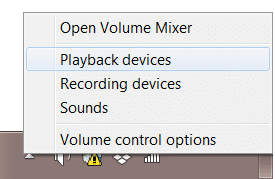
Right-click on the volume icon located at the bottom right corner of your screen.

Step 2
Click Playback devices.
 Step 3
Select your audio device.
Step 4
Click Set Default.
NOTE: Your device must have a green check mark beside it.
Step 5
Click Apply > OK.
Step 6
Play a movie on your Kodi to check if the sound issue has been fixed.
Try other audio formats
In some cases, a simple audio settings configuration won’t do the trick. You can choose to test different audio formats to determine which is the most compatible.
Step 1
Right-click on the volume icon located at the bottom right corner of your screen.
Step 2
Click Playback devices.
Step 3
Select your audio device.
Step 4
Click Properties.
Step 5
Click the Advanced tab.

Step 6
Under the Default Format section, select an audio rate and click the Test button. This should play a sound. If it’s still unable to do so, try a different audio format.
Step 7
Once a sound is played, save the changes you made.
Step 8
Play a movie on Kodi to check if the sound issue has been fixed.
That’s it!
If you have found another way to fix the “Kodi No Sound” Error, please let us know in the comment section below.
Frequently Asked Questions
Why is my sound not working on Kodi?
There can be many different reasons why your sound might not be working on Kodi and this guide will show you some common issues for this problem.
How do I fix Kodi sound not working?
There are numerous methods to fix Kodi sound not working described in the tutorial above.
Can I get Subtitles on Kodi?
Yes. You can easily set up Kodi subtitles using OpenSubtitles.org or other provider.
How do I adjust volume within Kodi?
You can easily adjust volume and other audio options within the settings of Kodi.
This page includes affiliate links where TROYPOINT may receive a commission at no extra cost to you. Many times, visitors will receive a discount due to the special arrangements made for our fans. Learn more on my Affiliate Disclaimer page.


