

This in-depth report of UnlockMyTTV will provide you with important information that you need to know about this app on Firestick/Fire TV & Android TV Box.
Is UnlockMyTTV safe to use? Is UnlockMyTTV legal? How do I install UnlockMyTTV? We will answer those questions and more in this article.
The reason why we ask legal questions is due to the fact that UnlockMyTTV isn’t available in popular app stores such as Amazon App Store or Google Play.
This is oftentimes a warning sign.
Since this app can’t be installed through an app store, it must be sideloaded which we display in the screenshot guide below.
UnlockMyTTV is a Movie and TV Show APK and a clone of the once popular Terrarium TV.
Important Note: UnlockMyTTV is not the same as UnlockMyTV. This APK is a clone of Terrarium, while UnlockMyTV is a clone of Cinema HD.
It’s also important to point out that these APKs appear to have different developers. UnlockMyTTV was recently updated in December, while UnlockMyTv hasn’t been updated in quite some time.
UnlockMyTTV is also currently listed as one of the Most Popular APK’s by TROYPOINT.
If you have a real-debrid account, UnlockMyTTV APK will provide even more links in 720 and 1080p High Definition.
Hide Your Digital Fingerprint
I highly suggest integrating real-debrid to get the most out of this application.
We can easily install UnlockMyTTV APK on the Amazon Firestick 4K or other device which we show in the tutorial below.
UnlockMyTTV Screenshots
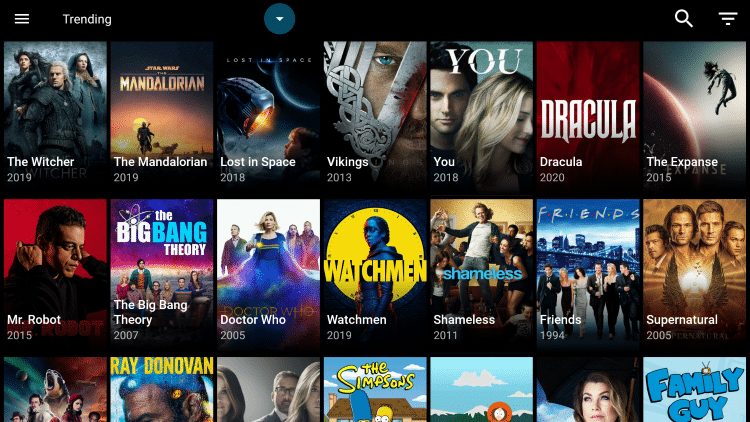
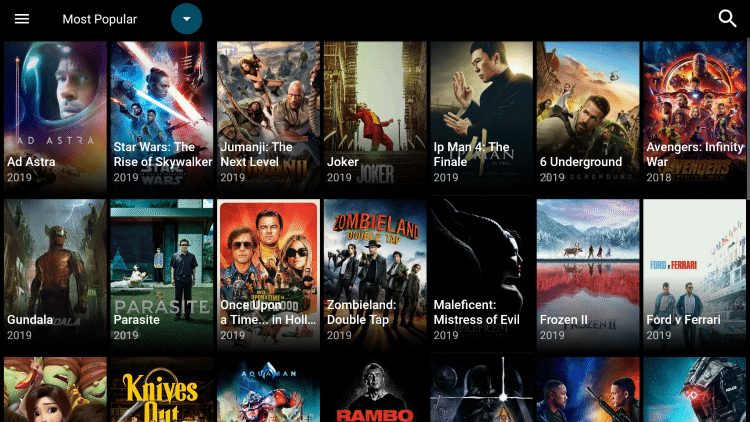
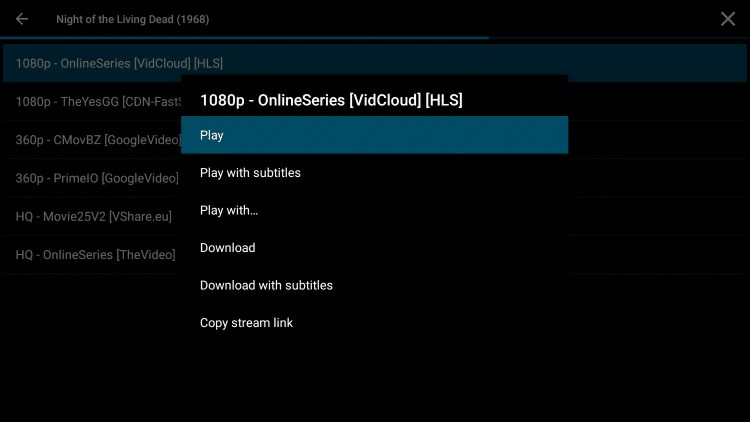
UnlockMyTTV APK Installation Screenshot Guide
1. Install the Downloader app from your respective App Store (Amazon App Store or Google Play) and turn on Apps from Unknown sources in the settings of your streaming device.
If you haven’t done this yet please refer to the following screenshot tutorial that demonstrates this simple process.
How to Install Downloader & Enable Unknown Sources
2. Launch Downloader.


Sick of Slow, Rural Internet?
Whether you live out in the country or take your RV off the grid, Starlink delivers blazing-fast internet to areas that traditional providers ignore.
Check Availability & Pricing3. Click Allow.

Exclusive Surfshark Discount
Warning: Your online activity is currently monitored by your ISP, app/addon/IPTV developers, government agencies, and the websites you visit.
- Become 100% anonymous while streaming and downloading.
- Use on Unlimited Devices & share 1 account with the entire family.
- Save 85% with the 24-Month Plan + Get 3 FREE Months.
4. Click OK.

5. Select the Browser tab within the left menu.

6. Click the Search box and type the following URL exactly as it is listed here – unlockmyttv.com and click Go
- unlockmyttv.com is the official website of this app.

7. Scroll down and click the download button that says “Available on Android.”
Important Note: If using an Android TV device or Chromecast with Google TV, you must first install the Downloader Browser Plugin.
You can do this by typing in “http://browser.aftvnews.com” within the URL box, or viewing that section in our Downloader Tutorial.

8. Wait for the file download to finish.

Big Tech is Scanning Your Emails
Stop letting free providers read your private messages to build advertising profiles on you. Take back your digital privacy with a secure, ad-free inbox.
9. Click Install

10. Click Done

11. This will take you back to Downloader. Click Delete

12. Click Delete Again

13. Return to device home-screen and under “Your Apps & Channels”, click See All to the left

14. Scroll to the bottom and hover over UnlockMyTTV.

15. Click the Options button on your remote (three horizontal lines). Then select Move.

16. Drag UnlockMyTTV to the top of your apps list and click to drop

17. Launch UnlockMyTTV

18. When first launching UnlockMyTTV click Allow

19. You will then notice the Changelog with the most recent updates that took place last December. Click OK.

20. When prompted with this welcome message click Proceed.

21. The installation of UnlockMyTTV is now complete!

UnlockMyTTV Details & Extras
UnlockMyTTV features an easy to use interface with Movie and TV Show Categories along with tons of Sub-Categories.
UnlockMyTTV works especially well with external video player MX Player and can easily be enabled for instant use.
I have found some issues with their default media player, and integrating MX provides for a smoother playback experience. Follow the steps below to set MX Player as your Default Player:
Integrate MX Player on UnlockMyTTV
1. Install MX Player on your streaming device using URL: troypoint.com/mx in Downloader or follow guide below:
2. Open UnlockMyTTV and click the Settings Tab

3. Scroll down and select Choose default video player
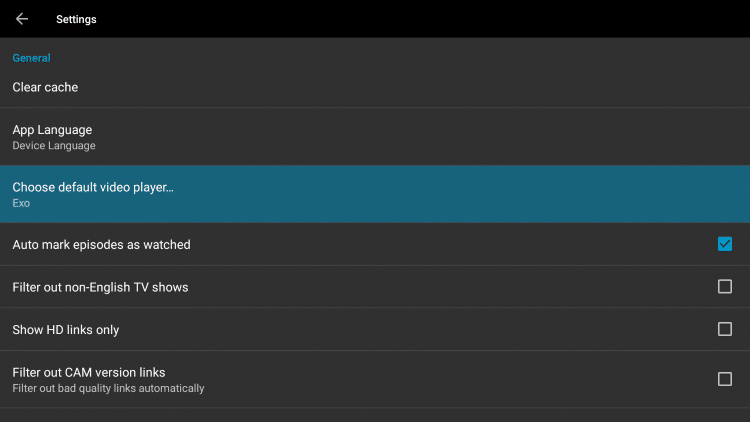
4. Select MX Player

5. You will notice that MX Player now appears

6. That’s it! MX Player is now installed as your default media player
Use Real-Debrid Within UnlockMyTTV
As mentioned earlier, UnlockMyTTV has the ability to add real-debrid for more streaming links.
Real-Debrid is an unrestricted downloader that adds high-quality stream options to content on UnlockMyTTV. These new sources should provide better playback with less buffering.
The following screenshot tutorial will show you how to set up Real-Debrid within UnlockMyTTV.
Important: You must disconnect VPN on your streaming device prior to following the steps below. Once Real-Debrid pairing and setup is complete, you may activate your VPN.
1. Register for Real-Debrid Account
2. Click the settings icon (3 horizontal lines in upper left hand corner)
3. Scroll down and click Settings

4. Scroll down and click Login to Real-Debrid

5. Write down the code provided on the screen

6. Open Internet browser on any device and go to https://real-debrid.com/device

7. Type in code from above and click Continue

8. Your Real-Debrid application is now approved!

9. You are now successfully logged in to Real-Debrid within UnlockMyTTV!

Add to Favorites
UnlockMyTTV gives users the capability to add Movies and TV Shows to their Favorites. Follow our quick guide below on how to add content to Favorites.
1. On the Home screen of UnlockMyTTV click the search icon in the upper right. Search for the Movie or TV Show you want added to your Favorites

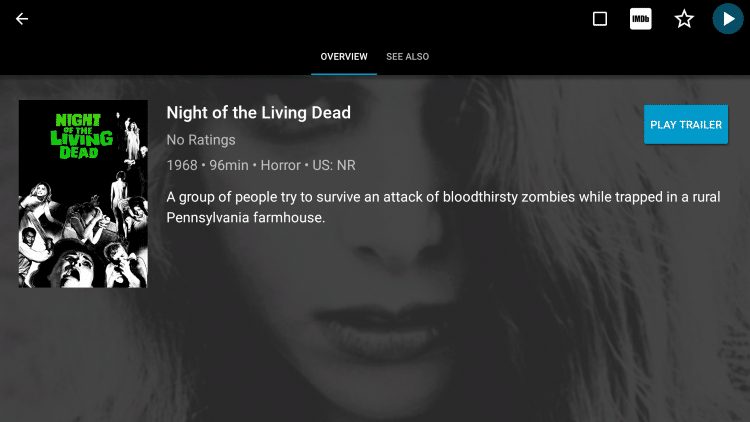
2. For this example we chose Night of the Living Dead, which is one of TROYPOINT’s Best Public Domain Movies

3. Within the Movie overview screen, hover over and click the star icon in the upper right

4. You’ll notice the star is highlighted, as your preferred Movie or TV Show is now added to your Favorites

5. To view your Favorites, return to the Home screen of UnlockMyTTV and select Favorites within the left menu

6. That’s it! You can now view any Movies or TV Shows within your Favorites

Integrating Trakt within UnlockMyTTV
UnlockMyTTV also has the option to integrate a trakt.tv account within the app. By using Trakt, you can sync all your favorite shows and films across multiple platforms and devices so you’ll never miss an episode!
Follow the instructions below to setup trakt within UnlockMyTTV:
1. Scroll down and click Settings

2. Scroll down and click Login to Trakt.tv
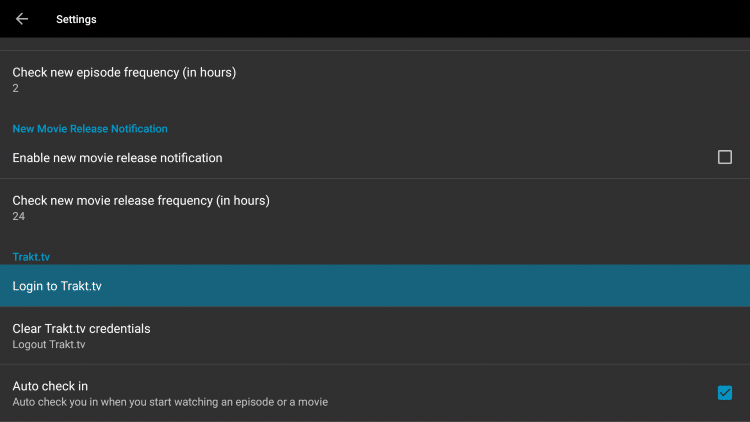
3. Write down the code provided on the screen

4. Go to trakt.tv/activate and sign in to your account

5. Enter the provided code and click Continue

6. Click Yes

7. Trakt integration is now complete!

For more information about Trakt and how to set it up for all your streaming apps, read the complete TROYPOINT Trakt Resource Guide below:
How to Setup and Use Trakt on Kodi and Streaming Apps
Overall UnlockMyTTV looks to be a solid APK, especially with Real-Debrid integrated allowing for higher quality links.
This page includes affiliate links where TROYPOINT may receive a commission at no extra cost to you. Many times, visitors will receive a discount due to the special arrangements made for our fans. Learn more on my Affiliate Disclaimer page.


