
In this guide, we will install the YouTube Kodi addon for access to all of your YouTube favorites on any Kodi device!

This is a complex process that requires API Integration and therefore you must follow the guide below step by step to ensure it works properly.
Unless you absolutely need to view YouTube within Kodi, we suggest sticking with the official application to save you time and effort.
Especially if you are wishing to remove ads on YouTube as there are various apps that work perfectly including SmartTube for streaming devices.
However, if you still wish to access YouTube in the form of a Kodi Addon, continue with our guide below that will work on media boxes including Amazon Firestick, Android/Google Box, and more.
How to Install YouTube Kodi Addon
- Launch Kodi

- Scroll to and select the Add-Ons menu item

- Click the small “open box” icon at top left side of page under the “Add-ons heading”


Hide Your Digital Fingerprint
- Click Install From Repository

- By default you are now in the Kodi Add-On Repository. Then select Video add-ons

- Choose YouTube

- Click Install

- Kodi will then prompt the message below stating “The following additional add-ons will be installed”, Click OK

- Wait for YouTube add-on installed message to appear

- Launch the addon and click through the configuration messages


Sick of Slow, Rural Internet?
Whether you live out in the country or take your RV off the grid, Starlink delivers blazing-fast internet to areas that traditional providers ignore.
Check Availability & Pricing- Now at the home screen, click OK to continue configuration with the steps below

YouTube Kodi API Setup
Follow the steps below for API Setup to use the YouTube Kodi addon.
Exclusive Surfshark Discount
Warning: Your online activity is currently monitored by your ISP, app/addon/IPTV developers, government agencies, and the websites you visit.
- Become 100% anonymous while streaming and downloading.
- Use on Unlimited Devices & share 1 account with the entire family.
- Save 85% with the 24-Month Plan + Get 3 FREE Months.
Note: I suggest following these steps closely as this is an extensive process.
1. Go to console.developers.google.com and choose Project next to Google API’s in upper left hand corner (mine already has youtube Kodi api)

2. Click New Project

3. Enter a Project Name (We chose Kodi YouTube Addon) and click Create

4. Go to console.developers.google.com/apis/library and select YouTube Data API v3

5. Click Enable

6. Go to console.google.com/apis/credentials and select Create Credentials
Big Tech is Scanning Your Emails
Stop letting free providers read your private messages to build advertising profiles on you. Take back your digital privacy with a secure, ad-free inbox.

7. Choose API Key

8. Copy API Key and paste in Notepad or write down for later

9. Click OAuth Consent Screen on left side menu bar

10. Check external and click Create

11. Name the application YouTube API or other name of your choice and scroll down to click Save

12. Click Credentials on left side menu bar and choose Create Credentials

13. Click OAuth Client ID

14. Choose Other and name application YouTube API or other and click create
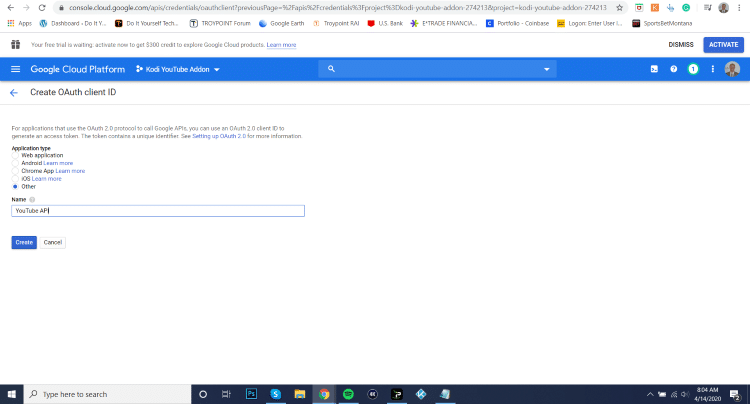
15. Copy or write down Client ID and Client Secret to save for later and click ok

16. Launch YouTube Kodi addon and choose settings

17. Hover over API and enter your saved API Key, API ID, and API Secret and click OK
- Important Note: I suggest triple checking the fields to make sure everything is entered in correctly

18. Return to main menu and click Sign In

19. When prompted with the following message, click OK

20. Write down or remember the authorization code

21. Go to google.com/device to enter code and click Next

22. Click Allow

23. Write down or remember authorization code #2

24. Visit google.com/device and enter your second authorization code. Click Next

25. If you encounter this error, click advanced settings and choose Go To Kodi YouTube (unsafe)

26. Choose Allow

27. You will now be signed into YouTube Kodi Addon!

YouTube Kodi Addon Description
Upon completion of the installation, YouTube will now show up on your Kodi home screen.
With the YouTube app on Kodi, you can access all the content available on the web version. It is compatible with your personal YouTube account as well.
While it may seem useful to use the provided addon to access your YouTube content, we suggest opting for the official application on your device to save you time and trouble! As you can see, authorizing and logging into the YouTube addon is an intense process.
Because an API is required for use, you must go through a lot of hoops in order to use the addon which requires login for use. The easiest route is to simply install the official app and login without an API key.
However, those who prefer can still follow the instructions above to find YouTube content on Kodi and enjoy endless video options!
The YouTube add-on consists of only a few Categories. It is a very simple, basic add-on that is perfect for all Kodi users. Categories include: Sign In, Popular right now, Search, Completed Live, Upcoming Live, Live, Switch Users, and Settings.
We found that streaming videos on the YouTube add-on is extremely fast and free of buffering.
For other YouTube related tutorials. check out the guides below:
- How to Watch the Best Free Movies on YouTube
- How to Unblock YouTube
- How to Install YouTube on Fire TV or Fire TV Stick
If you are a YouTube user, give the YouTube Kodi Addon a try today!
Final Thoughts & Comments
As noted in the first few paragraphs of this guide, installing YouTube on Kodi is quite a process and therefore we suggest the official app instead.
However, if you do choose to use this platform for your YouTube content, let us know why in the comment section below!
This page includes affiliate links where TROYPOINT may receive a commission at no extra cost to you. Many times, visitors will receive a discount due to the special arrangements made for our fans. Learn more on my Affiliate Disclaimer page.


Hi Troy, can I install more than 1 add-on on the Kodi app, I installed dream tv on the Kodi, some of the server was having African channels but after some time I couldn’t access Africa content anymore, the massage prompt is that the playback could not get channels and categories. I need help
Thanks for this. Works great for watching trailers when YouTube asks you to sign in to prove you’re not a bot. Great success.
Links to YouTube within Kodi will not work unless YouTube is installed. However YouTube link within Kodi repository fails to install! Suggestions?
Thanks for this. Allows for watching trailers when YouTube asks you to sign in to prove you’re not a bot. Worked perfect for me.