

The following article will provide you with a complete Roku Setup guide.
If you are a new Roku owner, this guide will provide you with step-by-step instructions to get started with one of the most popular media devices available.
There are 4 different versions of the Roku Streaming Device and all work fabulously to bring movies, tv shows, and more right to your TV.
In the guide below, we will show the complete Roku Setup for the Roku Streaming Stick+. However, this guide will also work all variations of the device including Roku Express, Premiere, and Ultra.
NOTE: TROYPOINT always suggests using an android powered device such as a Firestick or Fire TV for streaming. This is due to the side-loading abilities these players provide that allow users to install 3rd party applications not available in the device’s App Store.
Roku Setup
Upon opening your Roku the box should contain the following items (For a Roku Streaming Stick+):
- Roku Streaming Device
- Roku Voice Remote
- USB Power Adapter & Cord
- USB Power Extender
- Two AAA Batteries

You will also need the following to complete the Roku Setup:
Hide Your Digital Fingerprint
- Stable Internet Connection
- A compatible HDTV with HDMI Port
- Access to Browser and e-mail for registration
Follow instructions below to setup your Roku device:
IMPORTANT NOTE: Oftentimes, new users are required to install several updates to the device prior to using. In this case, we had to install 6 Roku updates before we could begin the Roku Setup process.
After updates have been made, you will be able to use the guide below to finish setting up your Roku device.
1. Remove and unwrap package contents and insert batteries into Roku remote.
2. Plug the Power cord into an outlet and into your Roku device and insert the Stick or HDMI Cord into a port on your TV.
3. Using your Television remote, select the HDMI Input that your Roku device is now plugged into.
4. Now use your Roku Remote to choose your preferred language

Sick of Slow, Rural Internet?
Whether you live out in the country or take your RV off the grid, Starlink delivers blazing-fast internet to areas that traditional providers ignore.
Check Availability & Pricing
5. Select your wireless network.
Exclusive Surfshark Discount
Warning: Your online activity is currently monitored by your ISP, app/addon/IPTV developers, government agencies, and the websites you visit.
- Become 100% anonymous while streaming and downloading.
- Use on Unlimited Devices & share 1 account with the entire family.
- Save 85% with the 24-Month Plan + Get 3 FREE Months.

6. If required, insert network password and click Connect.

7. If you receive an “Update available” message click OK.

8. Wait a minute or two for your Roku device to update.

9. You will then be prompted to restart your device. Restart your Roku device and wait a few minutes.

10. Click Auto detect display type.

11. Choose OK, go to automatic.
Big Tech is Scanning Your Emails
Stop letting free providers read your private messages to build advertising profiles on you. Take back your digital privacy with a secure, ad-free inbox.

12. If your screen is satisfactory click Yes, screen looks good.

13. Choose Check remote settings.

14. Point remote at your TV and if you hear music choose Yes, music is playing.

15. If you do not hear music or cannot detect remote, click Enter TV brand.

16. Search for and choose your TV brand.

17. You will then be directed to point remote at TV and listen for music again. Choose yes if it is working.

18. Choose Yes again if the music stops.

19. When success screen prompts, click OK.

20. You are then given instructions to Activate your Roku device.
- Note: You may also be asked to activate your Roku device through email verification. If prompted with the email verification, just follow the steps for activation.

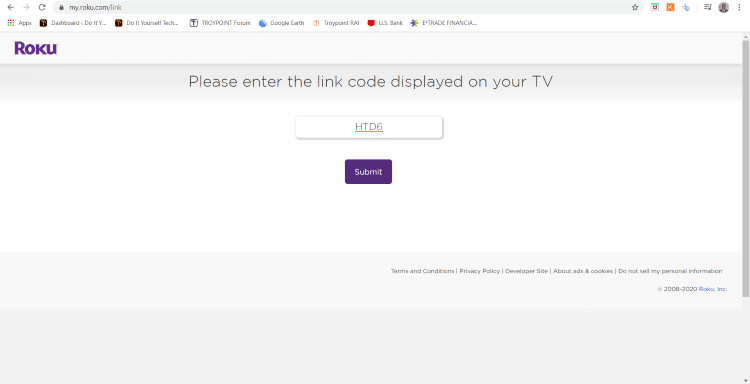
21. Open a Browser on any device and go to roku.com/link. Enter your Code provided in step 17 and click Submit.
22. If you don’t have a Roku account choose No, I need to create one

23. Create account with your information and enter payment credentials. Or, scroll to the bottom to click Skip this step

24. Next, we can name our device and choose it’s location

25. Roku will then ask you to select your interests for viewing purposes. Choose any you prefer

26. You can also select from Roku Channels

27. If you want, you can initiate free trials for numerous channels to start your Roku experience

28. Roku setup is now complete!

For those who wish to install the Roku app on their smartphone, this can easily be done via the Apple App Store or Google Play Store.
Frequently Asked Questions
Can I Use Multiple Roku’s in One Household?
Yes, since Roku uses your HDMI Input port, a Roku can be set up on any TV that has this capability.
How Do you Connect Roku to Wi-Fi?
Open Settings within the device and choose your network to connect to. If it is not available, you may want to reset your router.
How do I link Roku to my TV?
Visit roku.com/link and enter the code provided to you when setting up your Roku device.
This page includes affiliate links where TROYPOINT may receive a commission at no extra cost to you. Many times, visitors will receive a discount due to the special arrangements made for our fans. Learn more on my Affiliate Disclaimer page.


