

The article below will show you how to install and use ES File Explorer on Firestick, Fire TV, and Android TV/Google TV Devices.
ES File Explorer is the most popular file manager app available today with millions of users on various devices.
What does this mean? Essentially, ES File Explorer can install, delete, and manage applications/files and more within your device.
This is extremely useful for those who own streaming devices such as the Amazon Firestick and Fire TV.
Many cord-cutters who jailbreak their Firesticks use ES File Explorer to manage third-party apps and device storage.
Oftentimes, users can clear up valuable space on their devices to improve overall performance for a fabulous streaming experience.
This is an all-around application tool that Firestick, Fire TV, and Android TV/Google TV users can take full advantage of.
For these reasons and more, we have included ES File Explorer in our list of Best Firestick Apps.
Below the installation guide are instructions for using the app to clean, sort, and manage files in just a few simple clicks.
Hide Your Digital Fingerprint
We especially recommend the Cleaner Tool which will remove unnecessary files and free up much-needed space on your preferred device.
How To Install ES File Explorer on Firestick/Android TV/Google TV
You may install ES File Explorer using various different methods including:
In the guide below, we will install ES File Explorer on a Fire TV Stick 4K Max.
However, these instructions will also work for any variation of Firestick as well as Android Boxes such as NVIDIA SHIELD, BuzzTV, onn Google TV, Formuler, and more.
Step 1 – Prepare Firestick/Android TV/Google TV for Rapid Streamz
1. From the home screen of your device, hover over the Find button and then click the Search box.


Sick of Slow, Rural Internet?
Whether you live out in the country or take your RV off the grid, Starlink delivers blazing-fast internet to areas that traditional providers ignore.
Check Availability & Pricing2. Search for and select Downloader.

Exclusive Surfshark Discount
Warning: Your online activity is currently monitored by your ISP, app/addon/IPTV developers, government agencies, and the websites you visit.
- Become 100% anonymous while streaming and downloading.
- Use on Unlimited Devices & share 1 account with the entire family.
- Save 85% with the 24-Month Plan + Get 3 FREE Months.
3. Choose the Downloader app.

4. Click Download or Get.

5. Wait for the app to install.

6. You will then encounter Downloader Ready to launch! message.

7. Return to the home screen to hover over Settings and click My Fire TV.

8. Choose Developer Options.

Big Tech is Scanning Your Emails
Stop letting free providers read your private messages to build advertising profiles on you. Take back your digital privacy with a secure, ad-free inbox.
IMPORTANT: Please see the notes below if you don’t see Developer Options on your screen.
9. Click Install unknown apps.

10. Find the Downloader app and click it.

11. This will turn Unknown Sources to On for the Downloader app and enable side-loading on your device.

Developer Options Not Available
If you are unable to locate developer options within settings, follow the instructions below to enable this to use the Downloader App.
1. Hover over the Settings icon and click My Fire TV.
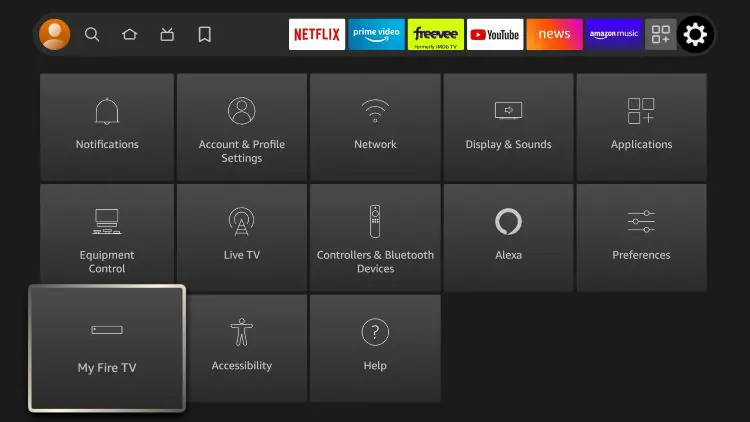
2. Click About.
Note: Notice Developer Options is missing.
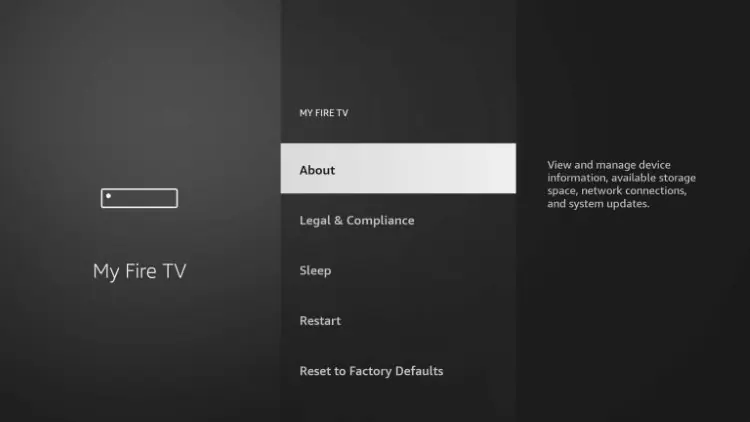
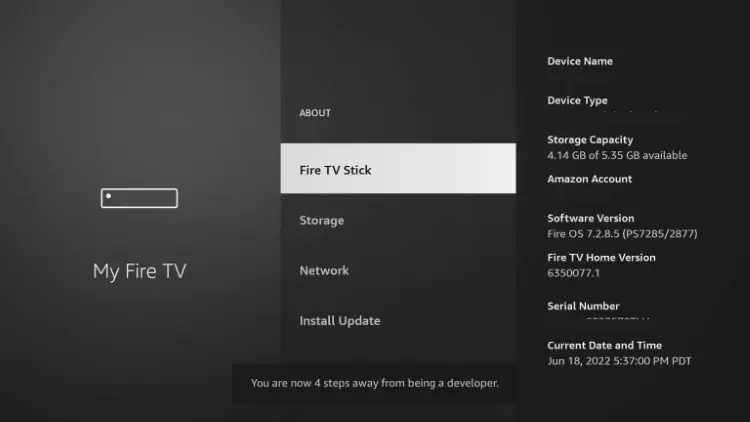
3. Hover over Fire TV Stick and click the OK button on your remote 7 times to become a developer.
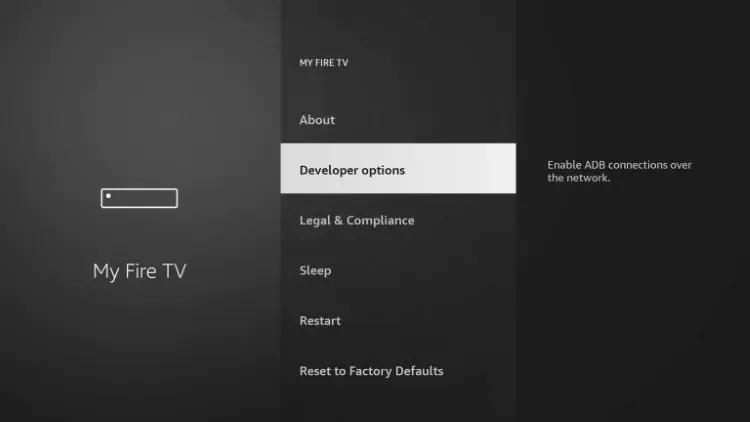
4. Click the back button on your remote and you will notice Developer Options is now showing within My Fire TV.
Now that I’ve properly prepared my Firestick it’s time to move onto the next step.
Step 2 – Install ES File Explorer
After preparing our device, we can now install the ES File Explorer app.
1. Launch the Downloader Application.

2. Hover over the URL Bar and click the select button on your remote.

3. Type the Downloader Code for the TROYPOINT Toolbox which is 250931 and click Go.

4. Scroll down to find ES File Explorer and click Download.

5. Wait for ES File Explorer to download.

6. Click Install.

7. You will then encounter ES File Explorer Pro Ready to launch message!

8. Click Open.

How to Use ES File Explorer on Firestick & Android TV
ES File Explorer is one of the best tools available for cord-cutters and streamers that use various media devices.
If you are using a streaming device without ES File Explorer, you are missing out.
This tool allows you the ability to sort, manage, and remove unwanted files to help free up valuable space and more on your preferred device.
ES File Explorer is one of the most popular file managers available today. It features an extensive file manager that goes beyond basic file management tasks.
This free local and network file manager (freeware) can be used to manage files, applications and even multimedia. It has been downloaded more than 300 million times according to its developers, ES APP Group.
ES File Explorer offers the following features:
- easy-to-use file and application manager
- compatible with Google Drive, OneDrive, Dropbox, Yandex, Amazon S3, Ubuntu One, SkyDrive, Sugarsync and other cloud storage clients
- browse multimedia including pictures, videos, music as well as other documents
- install or uninstall apps and view compressed files
- used as an FTP and LAN Samba client
- allows access to a user’s images, music, videos, files and documents
- lightweight size at only 15.7 MB
- supports more than 30 languages
- filter files using Search
- allows login using sftp key file
- document type settings
- allows to be opened/share in browser menu in web view
- allows users to analyze directory in property
- clean, organized design
ES File Explorer on Firestick & Android TV Features
Upon launching the application, you are met with the ES File Explorer home screen.
This is where we can easily access all the tools and features of this application.
Within the menu items are the following options:
- Favorite
- Local
- Library
- Network
- Tools
- Download Manager
- System Manager
- SD Card Analyst
- Music Player
- Hide List

Download Manager
The Download Manager is a fabulous tool for installing applications on your streaming device.
You can even view different installation files and manage these with ease.

ES File Explorer’s Download Manager is a fabulous alternative to the popular Downloader Application if it stops working for whatever reason.
To install an app or APK with ES File Explorer, simply click New.

Enter the URL of the application and install in just a few simple steps.

Library
Within the library, we can view and manage installed applications on our device.
This includes the ability to delete files that we no longer use including app installation files.

How to Remove Apps with ES File Explorer
To do so, simply long-press on your preferred apps and select any and all that you wish to remove.
- Scroll down to the bottom of the application list and click Uninstall.

- Click OK

- You will then see the Uninstall complete message.

ES File Explorer Cleaner
The best feature that ES File Explorer provides is the Cleaner tool that helps remove unneeded files, apps, and more.
This is a fabulous resource to free up important storage space on your preferred device.
You can find this in the main left-hand menu. Click to select it.

Click Clean Now.

You will then see the ES Cleaner complete message with the amount of storage cleared up.

Recycle Bin
Within the ES File Explorer app is a Recycle Bin that we can easily manage.
This is another fabulous method for removing unneccessary files and more on your streaming device.
You can find the Recycle Bin on the left side Menu under Cleaner. Launching it will prompt the following options:

You can easily disable or enable the recycle bin. Doing so will automatically move deleted files to this folder.

Other features of ES File Explorer include a Weather Tab for accessing local and international weather.

There is also a Music Player that users can take advantage of with downloaded music.

Within the Settings are various options for Backup, Password, Cloud Sync, Windows, and more.

We suggest trying all of the features of ES File Explorer to see how you can get the most out of this powerful application.
ES File Explorer Extras
While the most popular function ES File Explorer provides is a downloader, there are many other features the app offers as well.
One of my favorite options is the Cleaner tool within the main menu.
If you are looking for more space on your device but don’t want to delete any apps, the Cleaner can help.
It will remove Obsolete APKs, advertisement junk, and more. Simply hit the Cleaner Button located in the main menu to access this feature.
By knowing exactly what is taking up room on your device, you can edit and remove any unwanted apps and more.
You can even clear the cache of numerous apps at once with the Cache Cleaner.
If you are someone who stores content on your streaming device, using ES File Explorer is a great way to manage it.
You can edit and delete images, music, documents, and more all within the main menu of the application.
There are tons of other features this application provides that can help you get the most out of your Firestick or Android TV Box.
If you use ES File Explorer, let us know your favorite tool or feature in the comment section below!
ES File Explorer FAQ
Is ES File Explorer Ad-Free?
Yes. This version of ES File Explorer on Firestick and Android TV is completely ad-free for simple use.
How Often is the App Updated?
Developers update the app regularly which keeps it running at optimum performance.
Can Compressed Files be opened using ES File Explorer?
Yes, .zip, .rar, 7Z, and GZ files can be opened or manually added under the Compressed Files section. In addition, it can encrypt and decrypt using AES-256 for better protection.
Can I Uninstall Apps Simultaneously?
Yes, users can access the bulk file editor to remove numerous files at once.
This page includes affiliate links where TROYPOINT may receive a commission at no extra cost to you. Many times, visitors will receive a discount due to the special arrangements made for our fans. Learn more on my Affiliate Disclaimer page.


I have followed all of your directions to uninstall the Amazon apps that I do not use. When I hit the uninstall button on the bottom of the screen the apps do not uninstall and the green checks disappear.
What am I doing wrong?
Hi there,
See if this tool helps – https://troypoint.com/debloat-toolbox-on-firestick/