

The following tutorial will provide you with step-by-step instructions to install and setup Wako App for Kodi.
Wako is a mobile app designed to work with Trakt to stream content via Kodi. With Wako, you can browse and search Movies and TV Shows right on your phone.
After making a selection within the app, you can simply push to play preferred content directly to your TV!
Wako works with all streaming devices and is available on the Google Play Store and Apple App Store.
The directions below will show you how to install Wako and how to set it up properly to watch content on your Kodi device.
Please make sure to read and follow all instructions to ensure the app is setup properly.
NOTE: Prior to using the Wako app, you must have a working Kodi add-on installed on your device.
In the instance below, I have enabled auto-play within the add-on which allows the title to automatically play after selection instead of browsing through sources.
(At the bottom of this page is a guide that will provide you with instructions to setup auto-play within Kodi if you wish to do so)
Hide Your Digital Fingerprint
Follow the guide below to install and setup Wako on Kodi. In this guide, I am using an iPhone XS with Kodi 18.2 installed on a Fire TV Stick 4k. However, these instructions will work on an Android phone with any version of Kodi.
Enable Kodi Remote Control
Prior to installing and setting up Wako we must enable remote control usage within Kodi. Follow the steps below to do so:
1. Click Settings 

2. Click Services

3. Under the Control Tab, click the toggle to Allow remote control via HTTP and make sure Port is set to 8080

4. Enable toggles for both Allow remote control from applications on this system and Allow remote control from applications on other systems
Exclusive Surfshark Discount
Warning: Your online activity is currently monitored by your ISP, app/addon/IPTV developers, government agencies, and the websites you visit.
- Become 100% anonymous while streaming and downloading.
- Use on Unlimited Devices & share 1 account with the entire family.
- Save 87% with the 24-Month Plan + Get 3 FREE Months.

That’s it! We can now install Wako App on our mobile device for streaming.
How To Install & Setup Wako App
1. On your mobile device, go to your respective App Store and search for and install the Wako App

2. Open the app and login to Trakt (Or create an account if you don’t already have one)
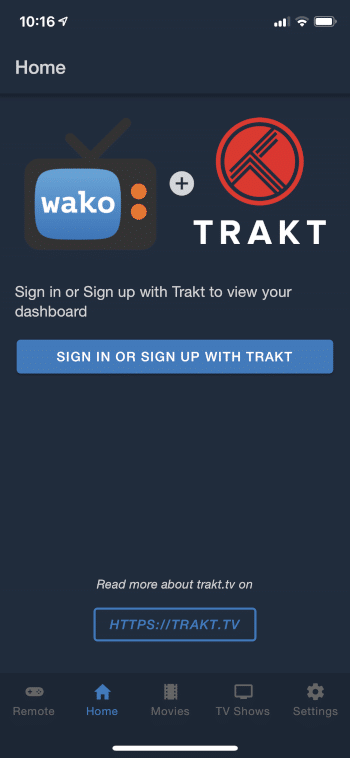
3. When prompted, Click Yes

4. Return to app home-screen and click Settings then Click Configure Hosts
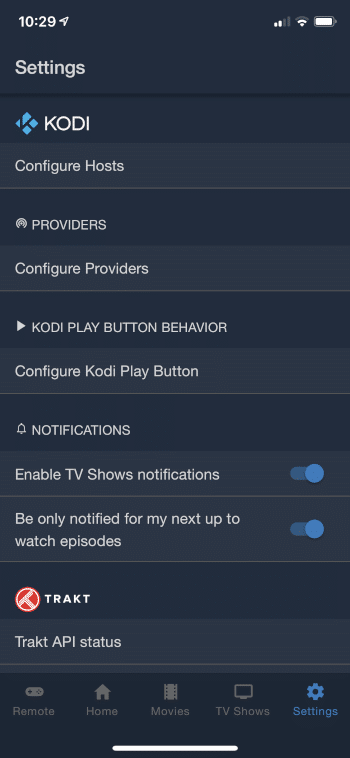
5. Click Add

Big Tech is Scanning Your Emails
Stop letting free providers read your private messages to build advertising profiles on you. Take back your digital privacy with a secure, ad-free inbox.
6. Choose your Kodi device
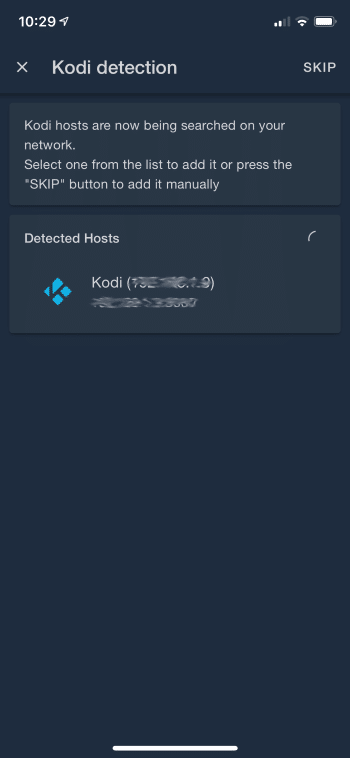
7. Your host is now Saved
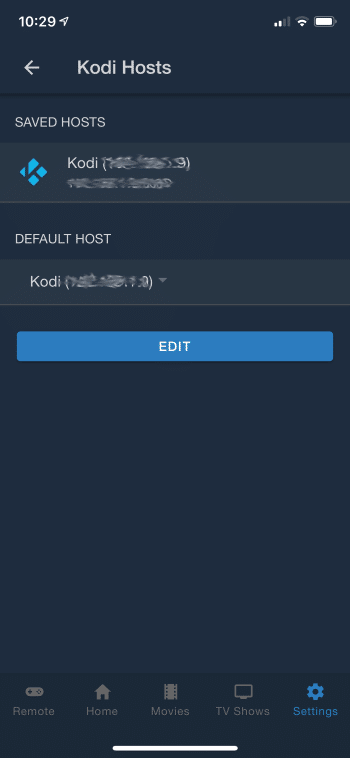
That’s it! Your app is now ready for streaming.
Before you use the app to control Kodi, however, we must setup the app to work with Wako.
Use the guide below to program Kodi with the Wako App.
How to Setup Kodi with Wako
Open Kodi on your preferred device. Make sure you have an add-on installed that you would like Wako to stream from.
1. Click Settings
2. Click File Manager

3. Click Add source

4. Click <None>

5. Type the following url exactly how it is listed here – https://a4k-openproject.github.io/ and click OK

6. Highlight the box under the source that you just typed in and enter a name for this media source, type a4 or any other name you would like to identify this source as and click OK

7. Click your back button on remote or keyboard until you are back on the System screen
8. Choose Add-ons

9. Click Install from zip file

10. Click a4

11. Choose repository.addons4kodi.zip

12. Wait for Addons4Kodi Repoository Add-on installed message to appear

13. Click Install from Repository

14. Choose Addons4Kodi Repository

15. Click Video add-ons

16. Choose OpenMeta

17. Click Install

18. Kodi will then prompt the message below stating “The following additional add-ons will be installed”, Click OK

19. Wait for OpenMeta Add-on installed message to appear

20. Return to Addons4Kodi Repo and click Program add-ons

21. Click OpenInfo

22. Click Install

23. When prompted, Click OK again

24. Execute setup-wizard or click No to skip

25. Wait for OpenInfo Add-on installed message to appear

26. Return to Kodi home-screen and open the OpenMeta addon

27. Click Settings

28. Within the General Tab, make sure the Players URL reads the following or input if it does not: http://bit.ly/openplayers

29. Click Total setup

30. Wait until you see OpenMeta sources setup notification

31. Click Yes if prompted to update

That’s it! With this addon setup, you can now use your Wako app to browse and play content to your Kodi device.
Follow the steps below that will show you how to use Wako to stream Movies and TV Shows right to your TV!
How To Use Wako Kodi App
Open the wako app and search for or click your desired content.
In the instance below, I am streaming Night of the Living Dead which is considered one of the Best Public Domain Movies by TROYPOINT.
After you find the title you are looking for simply select it and Click Play on Kodi:

You will notice your Addon working in the background of Kodi to find links:

Once the addon is finished browsing for sources, you can select a link OR if you have auto-play setup, the film will automatically play!
NOTE: To learn how to setup auto-play in Yoda or any other add-on, keep reading for step-by-step guide to enable this option
This will then open the film within the app where you have all controls right at your fingertips!

As you can see, this allows you the ability to pause, play, fast forward, and exit out of the Movie/TV Show along with a few other options.
Using Wako makes it easier than ever to watch your favorite content in Kodi!
How To Setup Auto-Play for Automatic Streaming
Follow these steps to enable auto-play within your preferred Kodi add-on which will eliminate the process of browsing and selecting provided links for your chosen content.
In the steps below I am using the Yoda addon, however, these steps will work for nearly all Kodi add-ons available for installation.
1. From the addon main menu Click Tools (This may also say Settings)

2. Click Settings: Playback

3. Change Default action to Auto Play

4. Click OK

Auto Play is now enabled on your Kodi device!
Wako Details & Features
Wako works with the Kodi addon to display and play content directly to your streaming device. Users can edit the addon to their specific preferences which will elevate your streaming experience.
To use Wako properly you must have Kodi open on your streaming device. However, I have found the addon does not need to be open and Wako can work from the Kodi home-screen.
To get the most out of Wako, I highly suggest integrating a Trakt.tv account within the app. This will track and sync your content across all platforms and devices making your streaming experience a breeze!
You can also setup Providers within Wako under the Settings Tab. This will personalize the app to use only providers you add/select.
Overall, Wako is an awesome app with tons of features that will simplify your viewing experience.
Give Wako a try today and let us know what you think in the comment section below.
This page includes affiliate links where TROYPOINT may receive a commission at no extra cost to you. Many times, visitors will receive a discount due to the special arrangements made for our fans. Learn more on my Affiliate Disclaimer page.


