
This free video will show you how to configure the only Kodi addon that I currently use.
There are literally hundreds of unverified 3rd party Kodi addons available and many of them do the same thing as they are simply copied and re-named.
Some Kodi enthusiasts install builds that consume lots of space on their streaming devices and they can get the exact same content through this one Kodi addon. This will lead to a faster Fire TV / Android TV/Google TV system.
You must have a premium Real-Debrid account to use this tutorial, which costs less than $5 per month. Believe me, it will be the best $5 that you spend each month.
Video #1 – How to install and configure Troy’s 1 Kodi Addon
Video #2 – Protect yourself with Surfshark VPN when using this unverified 3rd party Kodi addon
You must first install Kodi on your streaming device to use this tutorial.
Kodi Install Guides
Install Kodi on Firestick / Fire TV Cube
Install Kodi on Android TV / Google TV
Your Identifying IP Address is
We strongly recommend hiding your identity with Surfshark VPN when using free unverified 3rd party Kodi addons, streaming apps, IPTV, and websites.
Video #1 – Troy’s 1 Kodi Addon
Surfshark VPN Registration with 82% Off + 2 Free Months
****Surfshark VPN setup video is available in Video #2 below.
Install Surfshark VPN Onto Your Fire TV Stick, Fire TV, or Android TV Box
A VPN allows you to access the Internet privately and securely.
It’s important to understand that most of these free applications and addons that provide free media are hosted on insecure servers.
Due to the fact that they don’t appear in any reputable app store such as Amazon App Store or Google Play Store means that they haven’t been vetted properly.
The most popular VPN among cord cutters is Surfshark VPN due to their blazing fast speeds, zero log policy, and working kill switch.
Zero logs means that they don’t store any information about what you access through the Internet.
In technical terms, a VPN will encrypt your connection so that anything transmitted from your Firestick, Fire TV, Android Box, computer, etc. is unreadable.
Your traffic is then routed through a VPN server and your external IP address is changed so that you become 100% anonymous.
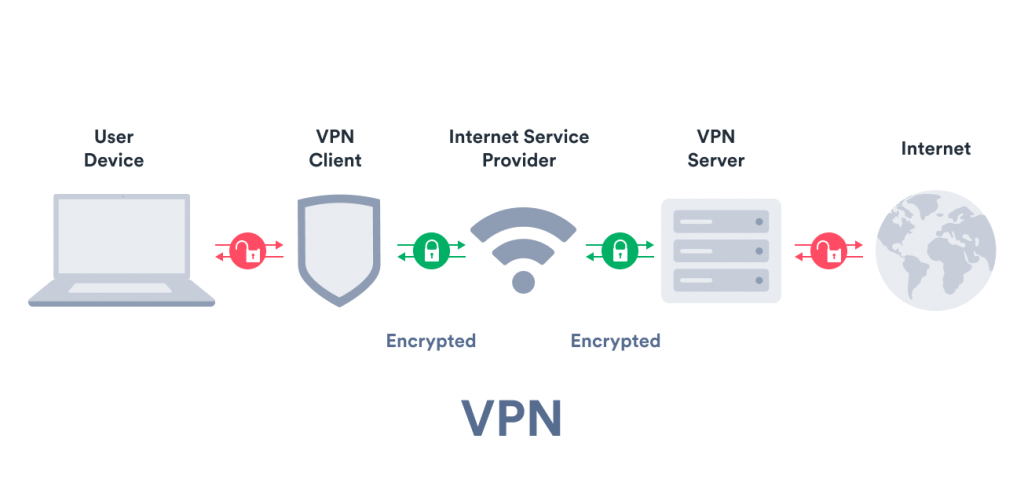
Most people don’t understand that their Internet Service Provider (ISP) assigns an external IP address to their account.
You can think of an IP address as a unique phone number for your Internet connection.
All of your Internet activity ties directly back to YOU through your IP address.
Your IP address can expose your identity and location to hackers, government, watchdog groups, app/addon developers, and other 3rd parties.
Your real IP Address will be masked with a different anonymous number once you activate Surfshark VPN.
By using Surfshark, hackers, your Internet Service Provider, app/add-on developers, government, and others will no longer be able to monitor and log what you are streaming or downloading.
I would personally NEVER use one of these questionable apps or addons without the protection of Surfshark.
Public WiFi Hotspot Protection – As a bonus you can use a VPN when connecting to the Internet when away from home.
This ensures that hackers can’t intercept your important information when connecting to public WiFi hot-spots.
You can use Surfshark on unlimited devices at the same time so all of your Internet-connected devices can be protected.
Surfshark provides VPN applications for all popular devices such as Fire TV Stick/Fire TV, PC, Mac, Android, iOS, Chromebook, Linux, Android TV Box, and more so you’re always protected.
Video #2 – Protect Yourself with Surfshark VPN
Register for Surfshark VPN Here with 82% Discount + 2 Free Months
Surfshark VPN Screenshot Guide
Step 1 Register for a Surfshark account by clicking the link below.
This exclusive link provides you with a hefty discount.
Register for Surfshark Account with Discount (EXPIRES SOON)
Step 2 – From the home screen hover over Find. Then scroll down and click Search.
If you’re using an Android TV device, you can install the Surfshark app through Google Play Store.

Step 3 – Type in “Surfshark” and click the first option.

Step 4 – Click the Surfshark VPN app.

Step 5 – Click Download.

Step 6 – Once the Surfshark app installs, click Open.

Step 7 – Wait a few seconds for the Surfshark application to launch.

Step 8 – Click Log in.

Step 9 – Log in with your device by using a code or Log in with email. We are logging in with email.
Then enter your account login credentials that Surfshark will email you after registering.

Step 10 – Click Fastest location to quickly connect your VPN.

Step 11 – Click OK when you receive this Connection request message.

Step 12 – That’s it! You have installed Surfshark on your Firestick/Fire TV.

For those of you using an Android TV Box, the instructions are the same as above but you will be installing through Google Play Store instead of Amazon App Store.
I hope you have enjoyed this guide.
Have fun accessing your favorite media with Troy’s 1 Kodi Addon!
Troy
TROYPOINT